Mitel MiVoice 6930 IP Phone User Guide
Welcome
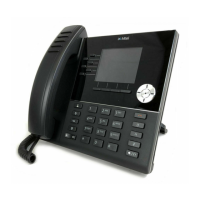
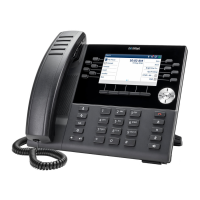
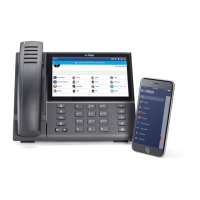
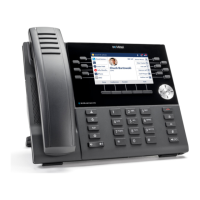
The Mitel MiVoice 6930 IP phone is a premium feature-rich phone with a large color display
that delivers graphically rich applications. The Mitel MiVoice 6930 IP phone provides 12
programmable self-labeling keys allowing up to 72 functions and five intuitive state
sensitive softkeys.
This applications phone features superior sound quality with wideband audio, an enhanced
speakerphone that utilizes advanced audio processing to achieve richer and clearer
handsfree conversations, and native analog, DHSG/EHS, USB, and Bluetooth headset
functionality.
The Mitel MiVoice 6930 IP phone supports MobileLink, a feature that provides seamless
mobile integration using Bluetooth wireless technology. MobileLink highlights include the
ability to:
• Answer a mobile phone call using your Mitel MiVoice 6930 IP phone.
• Effortlessly move mobile call audio between the Mitel MiVoice 6930 IP phone and your
mobile phone.
• Sync your mobile phone’s contact list with your Mitel MiVoice 6930 IP phone.
Accommodating today’s high speed networks through dual Gigabit Ethernet ports, the Mitel
MiVoice 6930 IP phone also offers plenty of support for Mitel and third-party peripherals and
has an environmentally efficient PoE class 3 rating. The Mitel MiVoice 6930 IP phone is one
of the most advanced desktop IP phones available on the market today and is ideal for any
enterprise executive or manager, Teleworker, and Contact Center employee.
The 6930 IP phone is compatible with the MiVoice Business phone system.
About this guide
This guide explains how to use the basic features of your new Mitel MiVoice 6930 IP phone. Not all
features listed are available by default. Your System Administrator has the ability to customize many
features on this phone. Contact your System Administrator to find out which features and services
are available to you on your phone system.
Supporting documentation
To access phone and system-specific documentation:
1. Log in to Mitel Connect
.
2. In the left-hand menu, click Mitel OnLine.
3. Click Product Documentation under the Support section.
4. Select PDF Guides and Online Help under the End User Documents drop-down menu.
5. In the left-hand menu, navigate to Telephones.





 To Next Page