23
CONTROLS
9
9-1. Main remote controller
Main remote controller
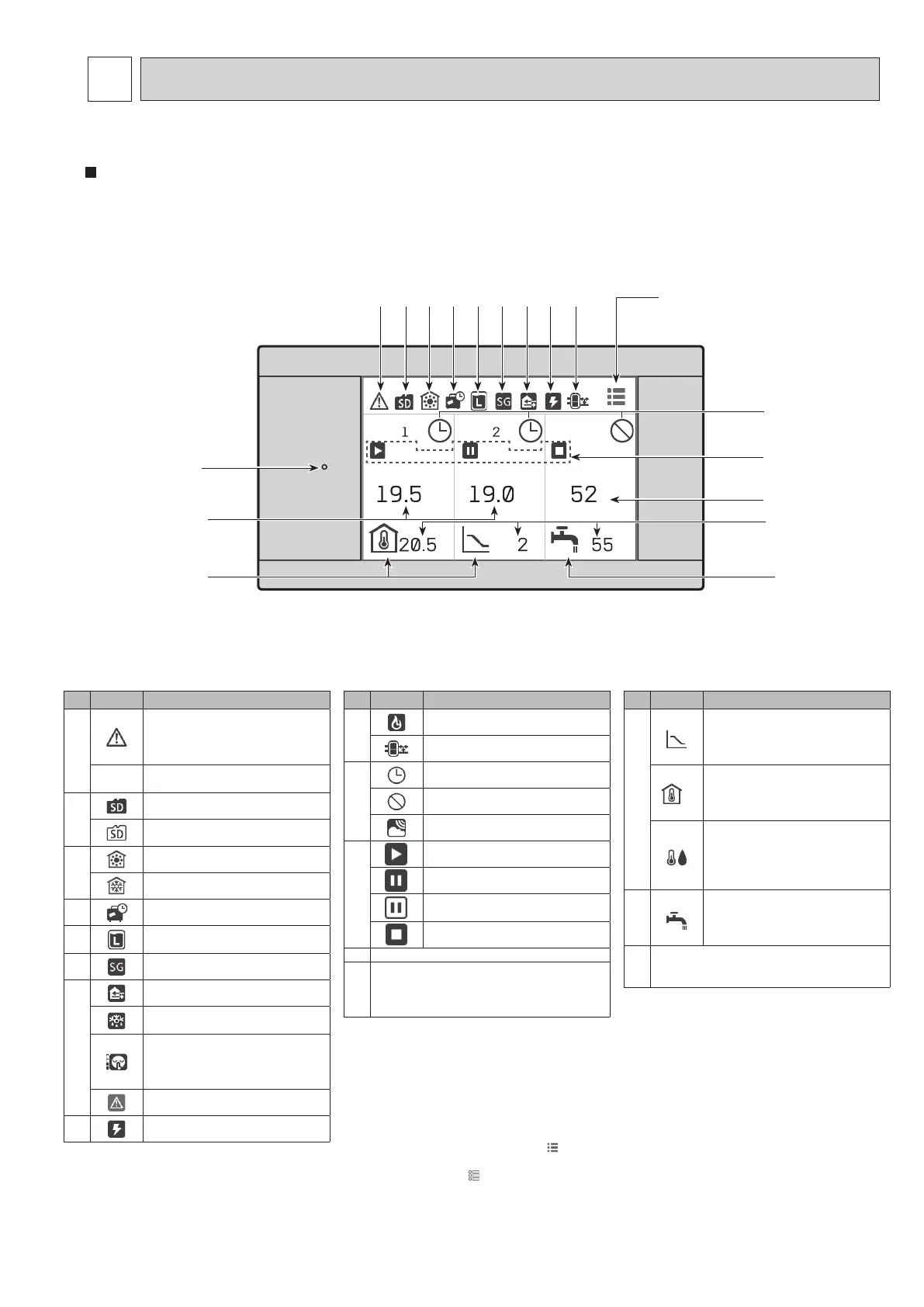
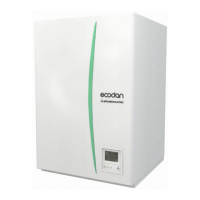
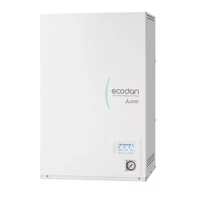
To change the settings of your heating/cooling system, please use the main remote controller located on the wall or the front panel of the cylinder unit or hydrobox. The
following is a guide to viewing the main settings. Should you require more information, please contact your installer or local Mitsubishi Electric dealer. Some functions
are not available depending on the system conguration. These functions are grayed out or not shown.
Note: The terms displayed on the remote controller are enclosed in square brackets.
Zone
°C °C
+
°C
°C °C °C
Zone DHW
[Home screen] (Full screen*1)
1 2 3 4 5 6 7 8 9
[Menu]*3
LED*2
13
14
10
11
12
16
15
No. Icons Description
1
Alert (for multiple outdoor units con-
trol)
Touching the menu icon displays er-
ror codes.
J1
Alert
Error codes are displayed.
2
SD card is inserted. Normal operation
SD card is inserted. Abnormal opera-
tion
3
Heating mode
Cooling mode
4
Holiday schedule is activated.
5
Legionella prevention mode is run-
ning.
6
Smart grid ready is running.
7
Compressor is running.
Compressor is running and defrost-
ing.
Compressor is running and in quiet
mode.
The sound level is shown at left side
of the icon.
Emergency heating
8
Electric heater is running.
No. Icons Description
9
Boiler is running.
Buer tank control is running.
10
Schedule
Prohibited
Cloud control
11
Operation
Standby
This unit is in standby whilst other in-
door unit(s) is in operation by priority.
Stop
12 Actual DHW tank temperature values
13
Actual room temperature values
[ -- °C] appears when the unit is not connected
to the room RC (Remote Controller) and it is
under control other than Auto Adaptation.
No. Icons Description
14
Weather compensation curve
When the operation stops: Black
During heating operation: Orange
During cooling operation: Blue
*4
Auto Adaptation (Target room tem-
perature)
When the operation stops: Black
During heating operation: Orange
Flow temperature (Target ow tem-
perature)
When the operation stops: Black
During heating operation: Orange
During cooling operation: Blue
15
DHW icon is displayed when DHW is
enabled.
When the operation stops: Black
During operation: Orange
16
Target temperature values
The settable temperature diers depending on
the control logic.
• The screen will turn o when the main remote controller is not operated for a while. Touching any part of the
screen turns it on again.
• From [Touch screen] in [Setting], the brightness can be adjusted.
• By selecting [Always on] for [Backlight time] from [Touch screen] in [Setting], the backlight stays lit for 30 sec-
onds and after it dims down.
*1 From [Setting], the screen can be switched to the full screen or the base screen.
The base screen does not display the operation icons and the target temperature values.
*2 From [Display] in [Setting], the LED lamp can be turned on/o.
*3 Pressing and holding the menu icon
for 3 seconds switches the lock menu to on/o.
Some functions cannot be edited when the lock menu is on.
(The icon changes to
when the lock menu is on.)
*4 Auto Adaptation cannot be selected during the cooling mode.
Home screen icons
OCH815A



 To Next Page