Need help?
Do you have a question about the Mitsubishi P91W and is the answer not in the manual?
Precautions on using specific AC power cords and video cables to prevent interference.
Details on FCC, Canadian ICES-003, and UL certifications for the apparatus.
Cautions regarding opening the unit and high voltage, referencing service personnel.
Warning against exposing the appliance to rain or moisture.
Statement that the product is for reference with medical equipment, not diagnostic use.
Information on power voltage requirements and electrical safety measures for the unit.
Guidelines on handling, insertion of objects, placement of items, and power cord care.
Recommendations for suitable and unsuitable locations for unit installation, including ventilation.
Details on operating temperature range, humidity, and avoiding dew formation.
Advice on cleaning, avoiding unsuitable materials, and head abrasion.
Guidance on detecting defects, connecting devices, relocating the unit, and unplugging.
Information on thermal paper type, handling, printing quality, and storage.
Details on visual, function, and electrical safety checks.
Outlines manufacturer responsibility and post-warranty service.
Repair info, accessory use, and transport/storage conditions.
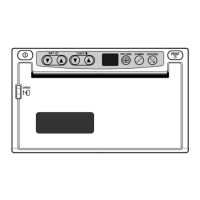
Description and function of the front panel controls and indicators.
Detailed explanation of each button and its function on the front panel.
Identification and function of rear panel controls and input/output terminals.
Explanation of the potential equalization terminal and its purpose.
Step-by-step instructions for opening the door and loading the paper roll.
Procedure for pulling out the paper end and cutting it correctly.
Guidelines to prevent paper jams by using correct paper and positioning.
Cautions regarding handling paper, rollers, thermal head, and cutter.
Example of connecting composite video signal equipment to the unit.
Illustrates an example setting for the MODE switch.
Example of connecting medical video signal equipment to the unit.
Details on setting the MODE switch for medical equipment.
Step-by-step guide for turning on the unit and printing a displayed picture.
How to perform copy printing and feed paper using the COPY/FEED button.
How to connect and use the wired remote control for printing.
Warnings on overheating and paper jamming, plus paper saving mode details.
Guide to adjusting print brightness and contrast using front panel buttons.
How to store the set brightness and contrast values using the PRINT button.
Procedure to enable Automatic Brightness Control for the print picture.
Steps to disable or release the Automatic Brightness Control function.
How to select and use different gamma curves for print optimization.
Recommended gamma curve settings for video and ultrasonic equipment.
How to select and adjust different print sizes available on the unit.
Procedure to reset brightness, contrast, and gamma values to default.
How to lock the settings of front panel buttons like BRT, CONT, PRT-SIZE, GAMMA.
Procedure to unlock or cancel the locked settings on the front panel.
How to print the current BRT, CONT, and GAMMA settings under the image.
Method to choose whether to print the set conditions or not.
Describes the 'EP' error for no paper and its remedy.
Describes the 'EH' error for overheating and its remedy.
Explains the 'E6' error for invalid button input and its cause.
Details the 'E6' error for an open door and the necessary action.
Explains the 'EL' error for gear lock and how to resolve it.
Explains the settings for IMP (impedance) and TRAP ON/OFF.
Details the GAIN ON/OFF and IMAGE NEGA/POSI switch functions.
Explains the AFC ON/OFF and DIR REV/NOR switch functions.
Details MEMORY, FIELD/FRAME, and SCAN OVER/UNDER switch functions.
Explains how to use the SAVING switch for narrow or normal margins.
Details the PAPER SUPER/HD switch for selecting thermal paper types.
Describes LED displays for Power Off and Stand-by states.
Explains LED indicators for Print state and Copy state.
Details LED displays for Brightness, Contrast, and Gamma modes.
Shows LED indicators for Print Size modes and Error detection states.
Step-by-step instructions for cleaning the thermal head with cleaning paper.
Important cautions regarding cleaning frequency and paper usage.
Instructions for wiping the front panel of the main unit.
How to clean dust from the rubber roller to prevent print spots.
Reference to section 12 for cleaning the thermal head.
Details on Type, Model, Power, and Connection terminals.
Information on Resolution, Gradation, Speed, Size, and Dimensions.
Lists standard/optional accessories and operating environmental conditions.
Contact details for Mitsubishi branches in various regions.
Information about the manufacturer and printing details.
 General
| Brand | Mitsubishi |
|---|---|
| Model | P91W |
| Category | Media Converter |
| Language | English |

 To Next Page