EasyManua.ls Logo

Mobi Technologies 70676 - User Manual

Mobi Technologies 70676
18 pages
Print Icon
To Next Page IconTo Next Page
Loading...
Ear, Nose & Throat
Wi-Fi Otoscope
HD Camera
Quick Start Guide
#70676
V 1.4
Question and Answer IconNeed help?

Do you have a question about the Mobi Technologies 70676 and is the answer not in the manual?

Summary

Getting Started with MOBI Otoscope

Download MOBI Smart App

Guides users to download the MOBI Smart App for iOS and Android devices.

MOBI Otoscope Product Overview

Device Components and Functions

Details key parts like speculum, battery indicator, power button, and camera/LEDs, explaining their functions.

MOBI App Account Setup

User Registration Process

Steps for creating a new MOBI Smart Account via email verification.

Login and Password Recovery

Instructions for logging in and recovering a forgotten password.

EZ Mode Setup Guide

Adding Device in EZ Mode

Steps to add the MOBI E.N.T. Otoscope to the app using EZ mode.

Resetting the Device

Procedure to reset the otoscope by holding the power button for 10 seconds.

Wi-Fi Network Configuration

Connecting the otoscope to a 2.4 GHz Wi-Fi network by entering credentials.

Connection Status and Success

Monitoring connection status and completing the setup process.

EZ Mode Usage

Instructions for using the otoscope in EZ mode and prompts for AP mode.

AP Mode Setup Guide

Adding Device in AP Mode

Utilizing AP Mode for higher picture quality and direct hotspot connection.

Device Settings Customization

Adjusting device name, shared users, and notification settings.

AP Hotspot Password Creation

Setting a custom 8-digit password for the AP Hotspot signal.

Selecting AP Hotspot

Connecting the smartphone to the otoscope's specific Wi-Fi hotspot signal.

Viewing Camera and Mode Management

Disabling AP Mode

Steps to return the otoscope to EZ Mode from AP Mode.

Camera Interface Controls

Explains controls for flipping view, taking photos, recording video, and zooming.

Limited Product Warranty

General Product Information

Manual Usage and Liability

Emphasizes following the manual for safe operation and avoiding liability.

Device Maintenance and Storage

Guidelines for cleaning, battery care, and safe storage/transport.

Electronic Waste Disposal

Instructions for proper disposal of electronic equipment according to regulations.

Safety Information and Precautions

Usage Warnings and Guidelines

Critical warnings regarding medical use, device condition, and ear canal adjustments.

Power Safety Guidelines

Procedures for safe connection to power sources, including adapter and ventilation.

Product Specifications

FCC Compliance Statement

Overview

This document is a Quick Start Guide for the MOBI Smart Ear, Nose & Throat (E.N.T.) Wi-Fi Otoscope, an HD camera designed for examining the ear, nose, and throat.

Function Description

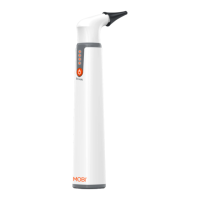
The MOBI Smart E.N.T. Wi-Fi Otoscope is a portable, handheld video camera with a short focal length, making it compatible with iPhone, iPad, Android devices, and tablets. It provides high-resolution video quality for examining the ear, nose, and throat. The device features a gyroscope camera and 6 LED guiding lights on the tip of the camera to illuminate the visual field and enhance visibility. It operates as a multi-purpose camera with a 3.5mm lens and a rechargeable battery.

The otoscope offers two primary operation modes: EZ Mode and AP Mode.

  • EZ Mode: In this mode, the otoscope is viewable only when connected to the same 2.4GHz Wi-Fi network used during the initial setup. This mode is suitable for use within your home network.
  • AP Mode: This mode allows the otoscope to generate a direct hotspot signal, providing higher picture quality and enabling users to utilize the otoscope outside their home network. When in AP Mode, the smartphone connects directly to the otoscope's hotspot signal.

Important Technical Specifications

  • Network Standard: IEEE 802.11 b/g/n
  • Antenna: Built-in IPEX antenna
  • Operating Frequency: 2.4 GHz
  • Data Rate: 802.11a/b/g/n: up to 150Mbps
  • Camera Diameter: 3.5mm
  • Camera Light Source: 6 LEDs
  • Power Input: 5V/1A
  • Battery Type: 800mAh lithium battery
  • Battery Life: 2-2.5 hours
  • Focal Length: Fixed at 1-3cm

Usage Features

The MOBI Smart E.N.T. Otoscope is designed for ease of use with the MOBI Smart App.

Getting Started:

  1. Account Setup: First-time users need to register for a MOBI Smart Account via the app, agreeing to privacy policies, entering a valid email, and creating a password after verification. Existing users can simply log in.
  2. Device Addition: After logging in, users tap "Add Device" or the "+" icon and select "MOBI E.N.T. Otoscope" from the list of available devices.
  3. Device Reset: Before pairing, the device needs to be reset by pressing and holding the power button for 10 seconds until the battery indicator blinks rapidly.
  4. Wi-Fi Setup (EZ Mode): Users enter their 2.4 GHz Wi-Fi network name and password. The device only connects to 2.4 GHz Wi-Fi signals. Android users may encounter a prompt about 5 GHz Wi-Fi, which should be ignored by tapping "Carry on."
  5. Connecting: The app displays the connection status. If connection times out, users should verify their Wi-Fi name and password and ensure their smartphone is not connected to a 5GHz Wi-Fi network.
  6. Success & Renaming: Upon successful connection, users tap the blue "+" icon to complete setup. The device can be renamed for easier management.
  7. Viewing Camera (EZ Mode): To use the otoscope in EZ Mode, tap the blue "VIEW" button on the device's main interface in the app.

AP Mode Setup (for enhanced quality and off-network use):

  1. Switching to AP Mode: From the device's main interface, tap the settings icon in the top right-hand corner.
  2. Accessing AP Mode Settings: Navigate to "Advanced Settings" and tap "AP Mode."
  3. Setting a Password: The app will display the AP Hotspot signal name and prompt for a custom, 8-digit password.
  4. Connecting to AP Hotspot: After creating the password, the otoscope generates a hotspot signal. Users then go to their smartphone's Wi-Fi settings and select the network signal that reads "SL-MOBI WiFi-XXXX." iOS users may see a "Not Connected to the Internet" prompt, which should be ignored by tapping "Keep Trying Wi-Fi."
  5. Viewing Camera (AP Mode): Once connected to the AP Hotspot, return to the app to view the Otoscope Camera.

Camera Viewing Features:

  • Horizontal/Vertical: Flips the screen view.
  • Right/Left: Flips vertical camera lenses for viewing.
  • Photo: Takes screenshots of the camera feed.
  • Video: Records the camera feed.
  • Gallery: Views all saved screenshots and recordings.
  • Zoom: Zooms the image in or out (ranging from 1 to 10).

Disabling AP Mode: To switch back to EZ Mode, return to the "AP Mode" settings under "Advanced Settings" and tap "Disable AP Mode." It's important to disable AP mode if you intend to use the device in EZ mode, otherwise, you must connect your smartphone to the otoscope's AP Hotspot signal before each use.

Battery Indicator: The device has a battery indicator displaying life from 1 to 4 dots. When only one dot is lit, the device needs recharging.

Maintenance Features

  • Cleaning: Use a damp cloth or a mild, water-based cleaner to clean the device. For skin contact, clean the surface of the device with a 75% alcohol solution before use.
  • Battery Care: Fully charge the battery before leaving the device idle for extended periods to prevent battery damage.
  • Storage and Transport: Always transport the device in its provided box to prevent damage.
  • Disposal: Electronic equipment should not be disposed of with domestic waste but must be handled according to applicable statutory provisions.

Safety Information:

  • This product is not intended for diagnosis or treatment unless specified by a physician.
  • Ensure the product has an intact appearance and no missing accessories before use.
  • Gently adjust the otoscope's position if the ear canal is not perfectly straight to clearly view the eardrum.
  • Adjust the distance between the camera lens and the ear to ensure a clear image, given the fixed focal length of 1-3cm.
  • Power Safety: Check the voltage rating before connecting to an electrical outlet. Use only branded AC adapters approved for the device. Place the AC adapter and equipment in a ventilated area during charging, as they may become hot.

Mobi Technologies 70676 Specifications

General IconGeneral
BrandMobi Technologies
Model70676
CategoryDigital Camera
LanguageEnglish