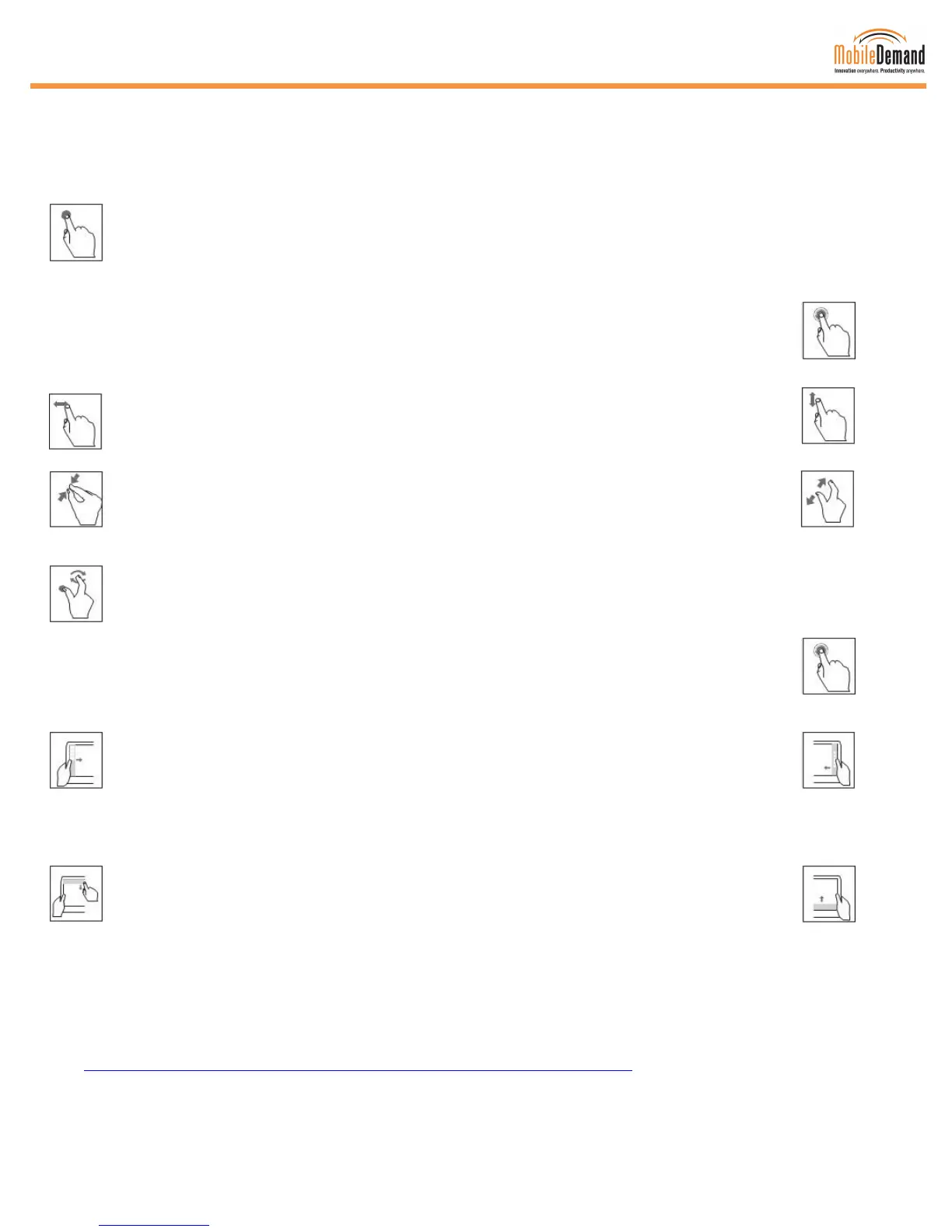
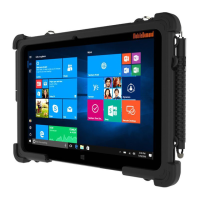
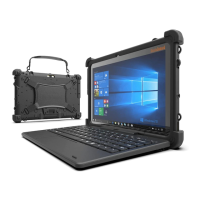
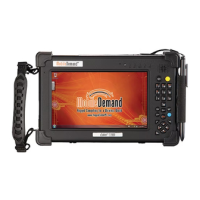
xTablet Flex 8 User Guide 13
Windows 8 Gestures
Gestures allow you to launch programs and access the settings of your tablet. Refer to the following illustrations
when using hand gestures on your tablet.
◄ Tap
Tap once on an item to open, select, or activate the selected item – similar to a left-click
with a mouse.
Press and Hold ►
Press your finger down and hold for about a second to show information about an item
or open a menu specific to what you are doing. For example, press and hold a Start tile
to rearrange, resize, or pin it – only works for some items – similar to a right-click with a
mouse.
◄ Slide to scroll ►
Drag your screen left to right and back again, or from top to bottom and back again, to
move through what is on the screen - similar to scrolling with a mouse.
◄ Pinch to Zoom or Stretch to Zoom ►
Touch the screen or an item with two or more fingers, then move the fingers towards
each other (pinch) to narrow the active view or apart (stretch) to widen the view. Visually
zooms in or out, like with pictures or maps - can reduce or expand content.
◄ Rotate
Put two or more fingers on an item, then turn your hand to move the selected item in the
direction you turn your hand – only some items will rotate.
Slide to Rearrange ►
Press and briefly drag an item in the direction opposite the way the page scrolls, then
move it wherever you want. For example, if you would scroll left or right, drag the item up
or down. Let go of the item after you move it to the new location.
◄ Left Side Sweep or Right Side Sweep ►
Starting on the left or right edge, either swipe your finger quickly or slide across the
screen without lifting your finger to open the Windows Charms bar (swipe from right);
open any recently-used apps (swipe from left); open another app simultaneously (slide in
from left until a divider appears); or see a list of recently-used apps (slide in from left,
then slide back).
◄ Top Side Sweep or Bottom Side Sweep ►
Starting on the left or right edge, either swipe your finger quickly or slide across the
screen without lifting your finger to show commands for the open apps such as New or
Refresh (from either direction) or close an app (slide down from top, then drag to the
bottom of the screen).
Use the Windows Help provided with your desktop to learn about additional hand gestures you can use on your
touchscreen. Also refer to the following Windows Help topic to learn ways you can use the familiar mouse and
keyboard in Windows 8.1:
http://windows.microsoft.com/en-us/windows-8/mouse-keyboard-whats-new


 To Next Page