6 xTablet Flex 8 User Guide
First-Time Operation
The xTablet Flex 8 operates either on external AC power or internal battery power. It is recommended to use AC
power (for at least four hours) when you start up the xTablet Flex 8 for the first time in order to fully charge the
battery. When the AC adapter is connected, the battery pack will start charging. The battery LED indicator on the
xTablet Flex 8 will show the different charging states.
Use only the AC adapter included with your xTablet Flex 8. Using other AC adapters may damage the
xTablet Flex 8 and the battery.
To connect the xTablet Flex 8 to AC power
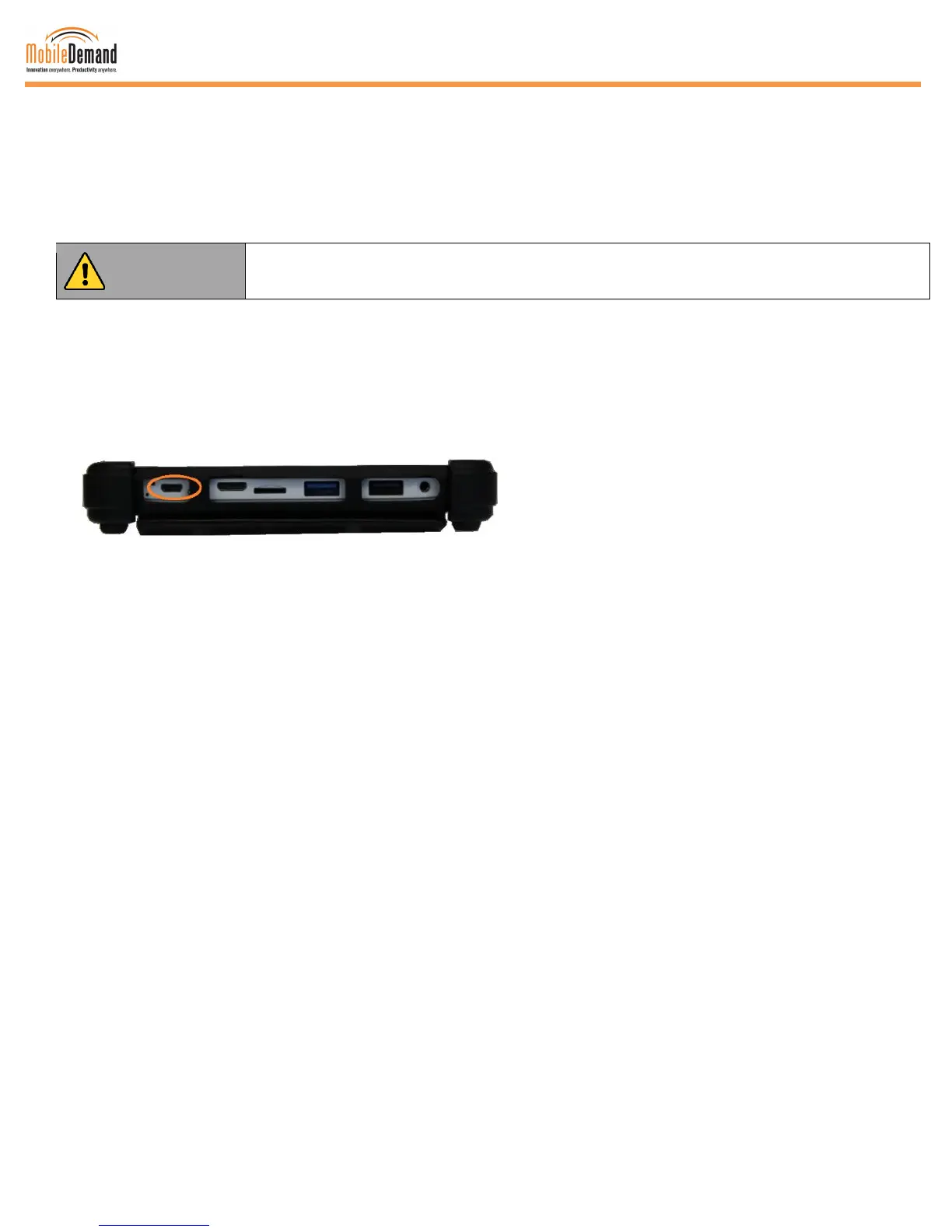
1. On the left side of the xTablet Flex 8, lift the I/O protective cover.
2. Plug one end of the USB cord into the charging microUSB in the xTablet.
3. Plug the other end into the AC adapter.
4. Take the built-in plug from the AC adapter and plug it into the electrical outlet.
Left side of xTablet Flex 8 with charging microUSB circled
Turning On / Off
To turn on the xTablet Flex 8 unit
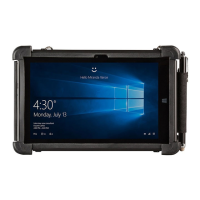
Press and hold the power switch for one second until the Green LED power indicator near the front facing
camera lights up. Do not press the power switch repeatedly. Close any programs left open on the desktop.
Start apps do not need closing.
To turn off the xTablet Flex 8 unit
Swipe your finger from the far right to the middle to open the Charms bar. Tap Settings, tap Power, tap Shut
down, then wait for the xTablet Flex 8 to power off.
The computer will forcibly turn off if the power switch is pressed and held for 10 seconds or longer. If pressed for
longer than 20 to 30 seconds, the tablet will reset! Leaving the tablet in sleep for several days on low batteries
could cause the xTablet Flex 8 to drain all power in the battery pack which will turn off the tablet, losing unsaved
work.


 To Next Page