4 xTablet Flex 8 User Guide
2
Getting Started
Congratulations on purchasing the xTablet Flex 8. The semi-rugged design allows you to use it in outdoor
environments. This chapter tells you step-by-step how to get the computer up and running.
Unpacking
Check and identify the supplied accessories:
Capacitive Touch Stylus
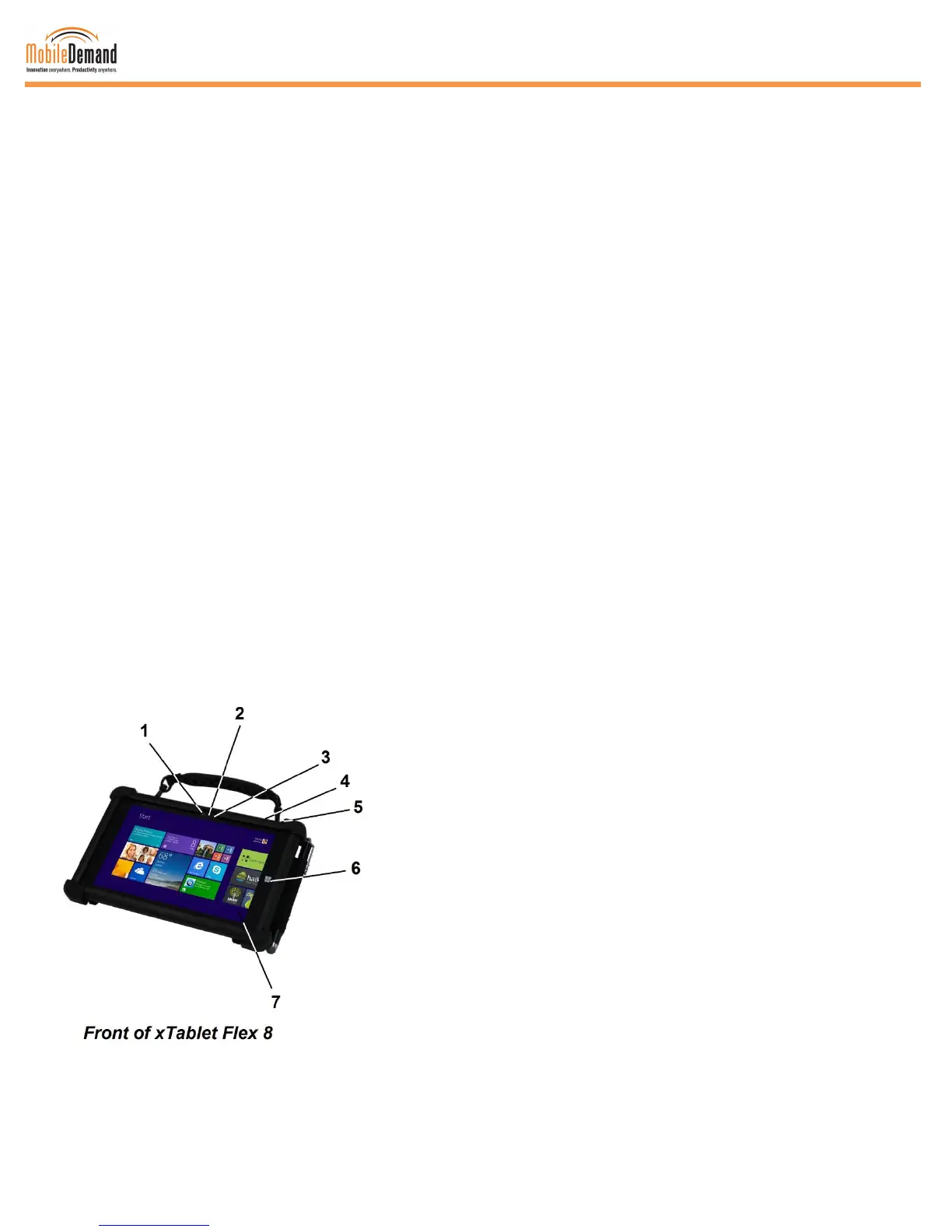
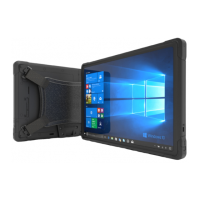
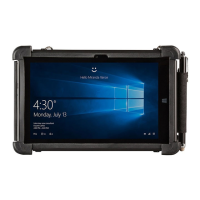
Description of Parts
1 Front Camera
Takes photographs or videos
2 Camera Indicator
Lights up when the built-in camera is in use
3 Ambient Light Sensor
Allows the system to automatically adjust the brightness of the
display depending on the ambient light condition detected
4 Volume Button
Adjusts the volume of the device
5 Power Button
Press once to turn on, to sleep mode, and wake up from sleep
6 High-Definition Touch Screen Panel
Provides viewing features for photos, videos, and other
7 Windows
®
Button
Press this to go back to Start or to go back to the last opened
app


 To Next Page