Page 35 of 46
EXTERNAL SCREEN MIRRORING
Using a micro HDMI cable and an external screen monitor, you can extend your
EVA Pro display onto a larger screen and enjoy an enhanced screen visualization.
Required Equipment:
● EVA Pro device
● External screen monitor with an available HDMI port (or HDMI – VGA
adaptor)
● Micro HDMI to HDMI cable (not supplied by MobileODT)
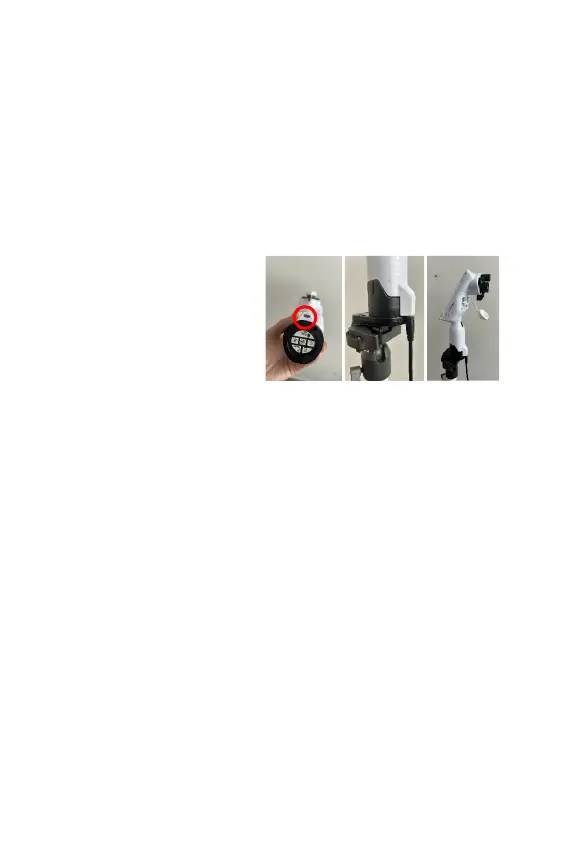
Step 1: Connect the Micro HDMI
Cable
Insert the micro HDMI plug into
the Micro HDMI port on your
EVA Pro device.
Notice: the port is in the base of
the device.
Step 2: Connect the other end of the cable (the standard HDMI plug) to an
available HDMI port on the external screen monitor.
Step 3: Switch On the External Screen Monitor
Turn on the external screen monitor using its power button or remote control.
Step 4: Switch On Your EVA Pro
Turn on your EVA Pro device and start using the EVA app.
Step 5: Adjust the Display Settings (if needed)
Depending on your monitor, you may need to adjust display settings. Make any
necessary adjustments to match your preferences.
Step 6: Enjoy Your Extended Display
Your device should now be mirrored onto the external screen monitor. You can
now use the monitor to view content from your EVA Pro.
Step 7: Disconnecting the micro HDMI Cable
When you're finished using the external screen monitor, switch off both devices
and carefully disconnect the micro HDMI cable.


 To Next Page