Page 36 of 46
CASTING
Wireless screen mirroring, referred to as “casting”, is supported for the camera
preview and the media gallery. At this time, Chromecast is the only supported
casting device.
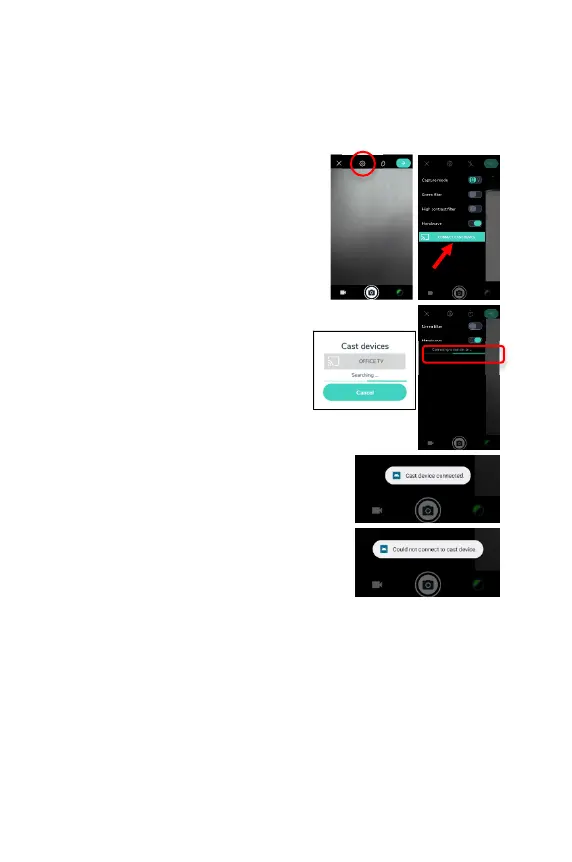
Casting the Camera Preview
1. Open the settings panel and tap the
button labeled “CONNECT CAST
DEVICE”.
2.
A dialog will appear showing the available
cast devices. Select the device you want
to cast to. A progress indicator will
appear while the device connects.
3. After a connection to the cast device has
been established, a message will appear
that says, "Cast device connected." and
the casting will start.
If a connection to the cast device cannot
be established, a message will appear
that says, "Could not connect to cast
device."
4. While casting is enabled, the current camera preview will be shown on
the cast device. Exiting the camera preview screen will disconnect the
cast device, but switching between the camera preview screen and the
gallery will not.


 To Next Page