Page 37 of 46
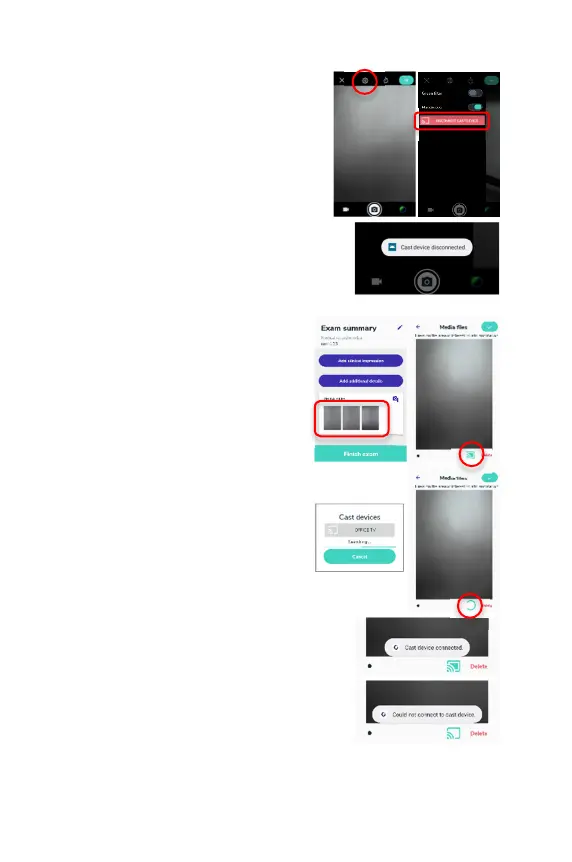
5. To stop casting of the camera preview,
open the settings panel and tap the
button labeled “DISCONNECT CAST
DEVICE”. Casting will stop and a message
will appear that says, “Cast device
disconnected.” The same message will
appear if connection to the cast device is
lost.
Casting of the media gallery
1. From the “Exam Summary” screen, tap
on one of the images in the “Media
Files” section. Tap on the cast icon in
the bottom right corner of the screen.
2. A dialog will appear showing the
available cast devices. Select the
device you want to cast to. A
progress indicator will appear while
the device connects.
3. After the connection to the cast
device has been established, a
message will appear that says, "Cast
device connected." and the casting
will start.
If a connection to the cast device
cannot be established, a message
will appear that says, "Could not


 To Next Page