Page 10 of 46
o To share the screen, click ‘Share’ at the bottom and share the screen.
o Participants at the remote location should visit http://zoom.us and
select 'Join A Meeting' (they do not have to sign up to Zoom).
o Tap your screen while in the Zoom application to get your personal
meeting ID and give it to the remote consultant.
o The remote participant enters the meeting ID that you provided into
their screen under join a meeting.
o Once they have joined the meeting, they should now be able to see your
screen and speak directly to you via the EVA device.
DIRECTIONS FOR USE
Read all instructions before use.
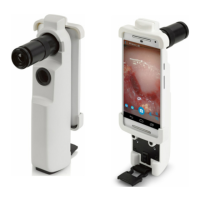
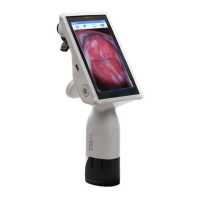
Activation (ON/OFF) Button: Press once to turn unit on. The device will power on
and the display will boot will show a boot logo. If the battery is low upon startup,
the device will show low battery on the display, then shut down. After activation,
the EVA Pro can be used for digital colposcopy.
SOFTWARE DIRECTIONS FOR USE
EVA PORTAL
Welcome screen
You will be presented with the Welcome
screen. Here you can:
• Set up - for new users
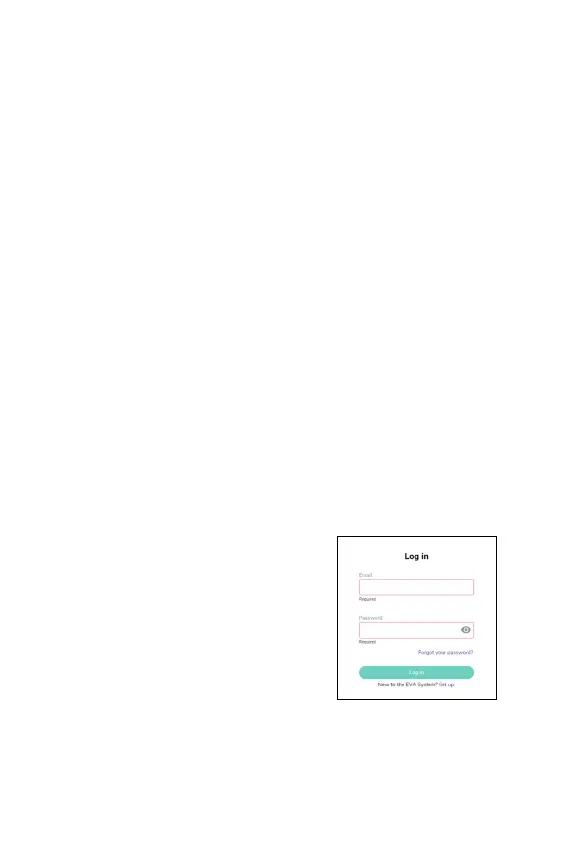
• Log in - for existing users
• Reset your password -
password?”
• Contact MobileODT
•
Review our terms and conditions, as well as
our privacy policy.


 To Next Page