31
Re-Amp mode
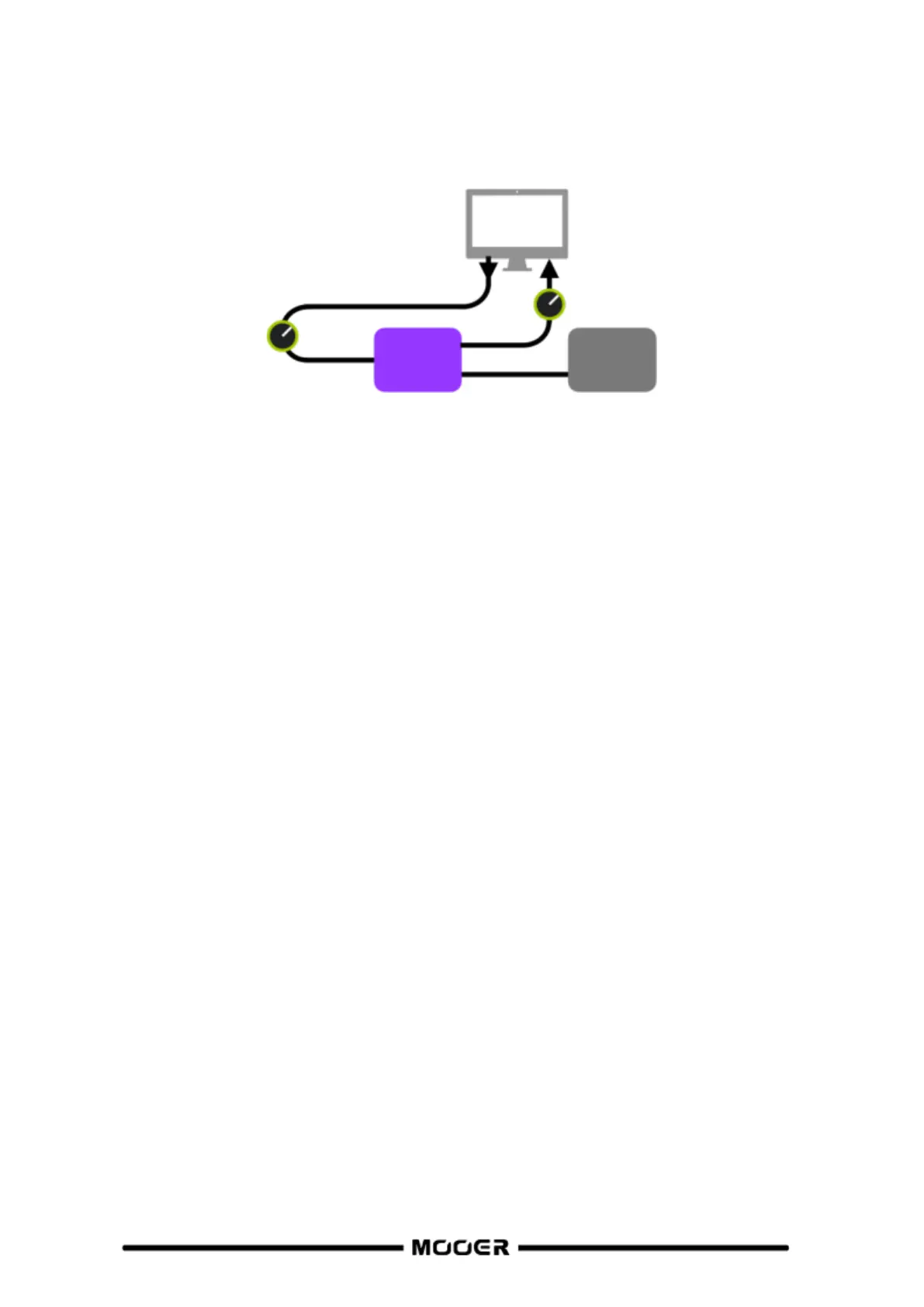
The Re-Amp recording mode is a digital audio signal reprocessing method, which can be used to run
a dry signal track from a computer through the effect modules of GE200 PRO, and then record it as a
new "wet" track. The signal path of this mode is shown below:
Setup:
Open the recording software and add two tracks. One of them is a dry track that needs re-
amping (pre-recorded or other audio track), the other one should be a blank track.
Play the dry track through the GE200 PRO DSP effects and make sure the input level
indication in the PC software shows no distortion (clipping). Adjust the level with Record
level.
While playing the dry track, you can also adjust the switches and parameters in the GE200
PRO for the desired Re-Amp effect. Listen to the output and adjust the level using the Play
level control.
Select the blank track, activate the recording and play the dry track. Re-Amp is finished, when
the dry track is finished.
Note:
After starting the recording software, you should set the GE200 PRO driver as input driver in
the system settings or in the driver settings of the recording software. Also set the input and
output ports to the input and output of the GE200 PRO. Otherwise you could experience no
input, no output, excessive lag or other abnormal conditions.
We recommended that you do not try to adjust settings or operate switches on the GE200
PRO during the Re-Amp recording process, unless this is required for special effects. This may
result in undesired results.
Should you encounter too much lag, open the sound card driver control panel and adjust the
cache settings to achieve a shorter lag time.
After using the Re-Amp function, we recommend switching back to Normal mode.
Otherwise the pedal may boot up in Re-Amp mode when started the next time and there will
be no signal from the guitar input as the input would still be set to USB input.
Bluetooth Audio
The GE200 PRO supports a Bluetooth connection to play back audio material from other devices such
as Smartphones or tablets.
The audio signal coming in over Bluetooth will be mixed with the signal from your guitar so you can
use this feature for practice or to play along to an audio track.
Activate the Bluetooth function for the GE200 PRO in SYSTEM settings.
Open the Bluetooth settings of your mobile device and make sure Bluetooth is active.
Find "GE200 PRO" in the list of available devices.
Click "Connect" or "Pair" to play music through the Bluetooth input of the GE200 PRO.
Use the volume controls on your mobile device to control the input volume at the


 To Next Page