36
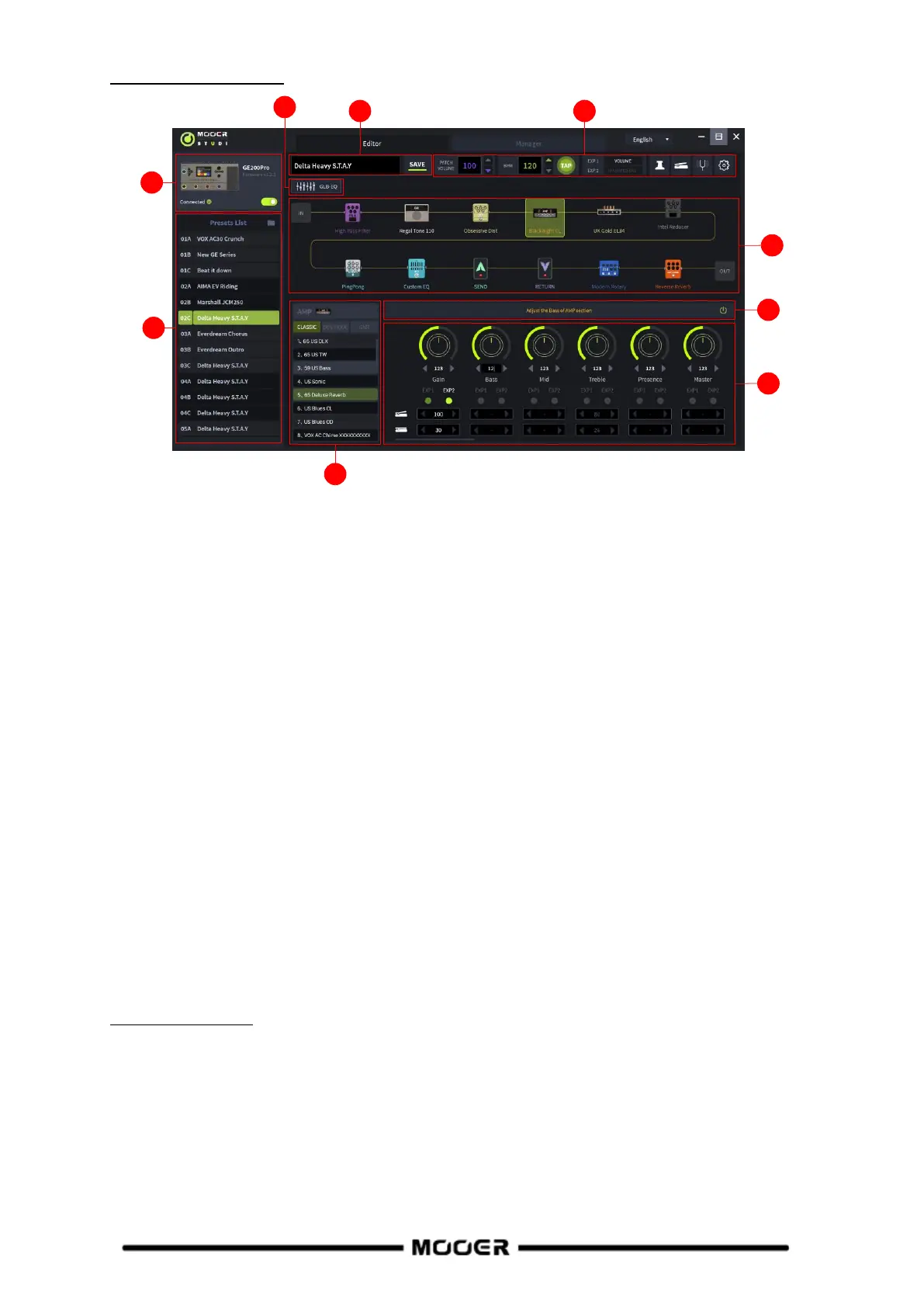
Preset Editor interface
1. Device connection status
Displays the version number, connection status and other information about the currently
connected device.
2. Preset list area
This area displays all the presets of the current device. You can use the right mouse button to
perform operations like copying and pasting, renaming, importing and exporting.
3. Preset saving area
In this area, you can edit the preset name and save it.
4. Functions and settings bar
This area allows you to set the preset volume, view and adjust the BPM tempo, set the CTRL mode
footswitch assignments, set the pedal functions, start the tuner and open the Global Setup menu.
5. Global Equalization Settings
Click on the icon to bring up the menu for global equalization settings.
6. Effect chain area
This area shows displays the effect chain of the current preset with the ON/OFF status and
sequential arrangement of the modules.
7. Effect model selection area
This area allows selection of the effect models for the selected module. Click on a model to use it
in the selected module.
8. Module ON/OFF
Use this switch to activate/deactivate the selected module.
9. Parameter adjustment area
This area allows you to adjust the parameter value of each model in the preset, and also provides
you with a function for pedal mapping.
Preset management
In the preset list area, you can click to select a preset to display information about it on the
right side. The selected preset will be simultaneously loaded in the GE200 Pro.
Right-click on a preset to open a window where you can rename/copy/paste/import/export
the preset. The exported preset file will be saved into the target file folder, click on the folder
icon at the top of the preset list to open the default folder.


 To Next Page