21
1.ConnectionSwitch:ClicktoconnectordisconnecttoLOOPERX2.
2.Language: Click to select between Chinese and English.
3.Theme: Click to select between dark mode and light mode.
4.Update: Click to update the editor software or firmware update.
5.Factory Reset: Click to reset to factory settings.
6.Editing: Activate for multi-selection function, you can select and manage multiple files at the
same time.
7.Local List: The audio files in the computer. You can drag the file from computer to the
LOOPER X2 directly; or you can drag the file from LOOPER X2 to computer area.
8.Device List: It is listed by song banks. Rotate the mouse wheel, or drag the sliding block on
the right ride to go through the save slots.
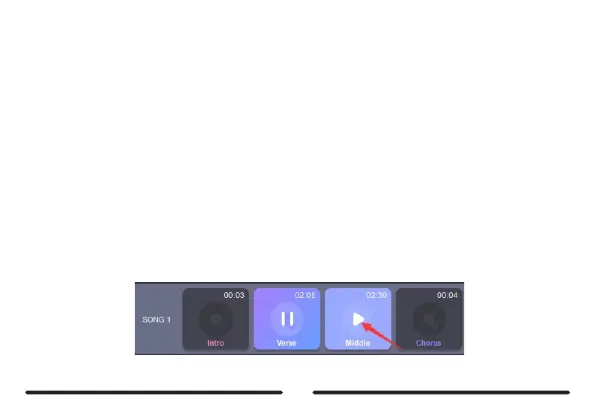
AudioPreview:
ThefootswitchandbuttonofLOOPERX2willnotworkwhileconnectingtocomputerforediting.
ltisrecommendedtogothroughtheaudiofileviaeditorsoftwaredirectly.Theslotwiththeaudiofile
willdisplavthedurationofthetrack.“..willbedisplavedintheemptyslot.
Clicktoselectaslotwithaudiofile,clickonthearrowicontoplaythetrack.


 To Next Page