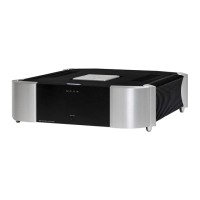
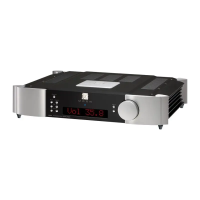
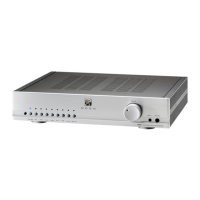
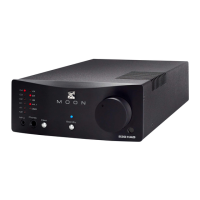
MOON 600i Dual-Mono Integrated Amplifier
Software Setup (continued)
Assigning a custom label to an input:
1 Using the example from the previous page for configuring an input, repeat steps 1 through 5.
2 When “CUSTOM” appears in the display press the “OK” button. The display will show “……………………………” .
3 Rotate the volume control clockwise to scroll through the 26 letters of the English alphabet, first in uppercase and
then lowercase, followed by the numbers 0 through 9, and finally several miscellaneous symbols including the
space character. When you see the letter/number/symbol you wish to use, press “OK” to select it and then repeat
this step for the next character.
4 You must assign all 8 characters when creating a custom input label; In the event that your label requires only 5
characters, you will need to input a blank space for the remaining 3 characters.
5 Once you’ve filled the last position, press”OK” and “SAVED” will briefly appear in the display followed by “INPUTS”.
6 Press the “Setup” button to exit from the Setup menu.
A pair of single-ended RCA connectors labeled “LINE OUT” can be found on the MOON 600i’s rear panel. The output level
can be configured as either fixed level (for use with a recording device) or variable level (for use with a sub-woofer or when
using the MOON 600i as a preamplifier only). This is done as follows::
1 You may either continue where we left off in the previous example by pressing “Setup” twice to return to the main
menu and the turn the volume control until “LINE OUT” appears in the display OR enter into the “Setup” mode
from the beginning by pressing the “Setup” button and rotating the volume control until “LIJNE OUT” appears in
the display.
2 Press “OK” and “VARIABLE” will appear in the display.
3 To change the output to fixed, rotate the volume control to alternate from “VARIABLE” to “FIXED”
4 Press “OK” and “SAVED” will appear briefly in the display followed by “LINE OUT”.
The MOON 600i is equipped with a 12 Volt trigger output. When an input is assigned to the 12 Volt trigger, the device
connected to the trigger will automatically start-up whenever you switch to that input. The default setting for all five inputs is
on. When you set the IR input to “Y”, all inputs previously set to “Y” for that trigger will automatically be set to “N”. Then the
trigger will be controlled exclusively by an external IR signal. The following example shows how to configure it:
5 You may either continue where we left off in the previous example by pressing “Setup” twice to return to the main
menu and the turn the volume control until “TRIGGER” appears in the display OR enter into the “Setup” mode
from the beginning by pressing the “Setup” button and rotating the volume control until “TRIGGER” appears in the
display.
6 Press “OK” and “B1 : Y” will appear in the display.
7 To disable the 12 Volt trigger, press “OK” and “B1 ? Y” appears in the display; rotate the volume control to
alternate from “Y” to “N” .
8 Press “OK” and “SAVED” will appear briefly in the display followed by “B1 : N”.
9 To configure another input, rotate the volume control until that input appears in the display, then press “OK”.
10 Repeat steps 3 and 4.
11 When you have finished with all of the inputs for the “TRIGGER” press the “Setup” button and “TRIGGER” will
appear in the display. From this point you can (i) exit from the Setup procedure by pressing the “Setup” button
again and “EXITING” will appear in the display or (iii) continue with the Setup procedure by disabling the infrared
remote sensor, changing the IR codes, resetting the 600i back to factory default status (see the following
examples) or configuring more inputs (example on previous page).
____________________________________________________________________________________________________
Software Setup 10


 To Next Page