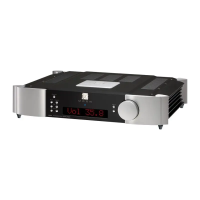
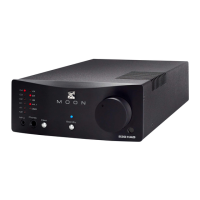
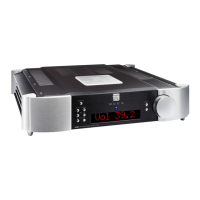
MOON 600i Dual-Mono Integrated Amplifier
Software Setup (continued)
In the event that you want to control the MOON 600i using a wired aftermarket infrared remote control receiver with a
universal remote control, you can disable the IR sensor located on the front panel as follows:
1 You may either continue where we left off in the previous example by pressing “Setup” twice to return to the
main menu and the turn the volume control until “INFRARED” appears in the display OR enter into the “Setup”
mode from the beginning by pressing the “Setup” button and rotating the volume control until “INFRARED”
appears in the display.
2 Press “OK” and “NORMAL” will appear in the display.
3 To disable the MOON 600i’s front panel IR sensor, rotate the volume control to alternate from “NORMAL” to
“DISABLED” .
4 Press “OK” and “SAVED” will appear briefly in the display followed by “INFRARED”
5 Press the “Setup” button to exit from the Setup menu.
The MOON 600i is equipped with a rear mounted IR input for use with aftermarket wired infrared remote control receivers.
In the event that you want control the MOON 600i with a universal remote control and
NOT the one included (FRM-2), you
can change the RC-5 remote control system codes. This procedure is recommended when you have a large custom install
setup that uses multiple integrated amplifiers and/or preamplifiers that operate on the RC-5 standard and you need to make
each component unique w.r.t. remote control operation – up to 4 components. Before making the following change, you
should have a basic understanding how to program a universal remote control. The following example shows how to change
the IR codes that the MOON 600i will recognize:
1 You may either continue where we left off in the previous example by pressing “Setup” twice to return to the
main menu and the turn the volume control until “IR CODE” appears in the display OR enter into the “Setup”
mode from the beginning by pressing the “Setup” button and rotating the volume control until “IR CODE”
appears in the display.
2 Press “OK” and “DEFAULT” will appear in the display.
3 To change the RC-5 system codes, rotate the volume control to scroll through the available sets of RC-5
compatible codes: “SYS11”, “SYS14”, “SYS15”, and “SYS19”.
4 Once you’ve decided on one, Press “OK” and “SAVED” will appear briefly in the display followed by “IR CODE”.
5 From this point you can (i) exit from the Setup procedure by pressing the “Setup” button again and “EXITING”
will appear in the display or (iii) continue with the Setup procedure by disabling the infrared remote sensor,
changing the IR codes, resetting the 600i back to factory default status (see the following example), configure
the 12 Volt Trigger Output or configure more inputs (examples on previous pages).
Reset the MOON 600i software settings back to their factory defaults:
1 You may either continue were we left off in the previous example by turning the volume control until “RESET”
appears in the display OR enter into the “Setup” mode from the beginning by pressing the “Setup” button and then
rotating the volume control until “RESET” appears in the display.
2 Press “OK” and “RESET N” will appear in the display.
3 Rotate the volume control until “RESET Y” appears in the display.
4 Press “OK” and “SURE ? N” will appear in the display.
5 Rotate the volume control until “SURE ? Y” appears in the display.
6 Press “OK” and “SAVED” will briefly appear in the display followed by “RESET”.
7 Press the “Setup” button again and “EXITING” will appear in the display.
____________________________________________________________________________________________________
Software Setup 11


 To Next Page