Using Your Handset - 27
Using Touchscreen Control
The stylus fits in a compartment on the
side of the handset. Using the stylus, tap
once on an icon, text, or on-screen
button to select and open an item.
Using the 8-way Navigation
Key
You can press the navigation key
up, down, left, or right to highlight
an item. Press the centre key to
select the highlighted item.
Note: This guide describes how to
use touchscreen control to use the features. In most cases, it does
not include the equivalent 8-way Navigation key for using the
feature.
Using the Triangle Key
The Triangle key (
E
) provides access
to unique features from 3. See 3 ’s
Dive in welcome pack for more details.
• Press to open the browser.
• Press and hold for 3 seconds to
go to
My Shortcut
.
Note: The default shortcut is Home. To change the shortcut, see
page 65.
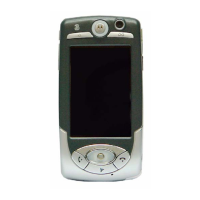
Navigation
Key
Triangle
Key
UG.A1000.book Page 27 Wednesday, September 15, 2004 2:35 PM


 To Next Page
 Loading...