39
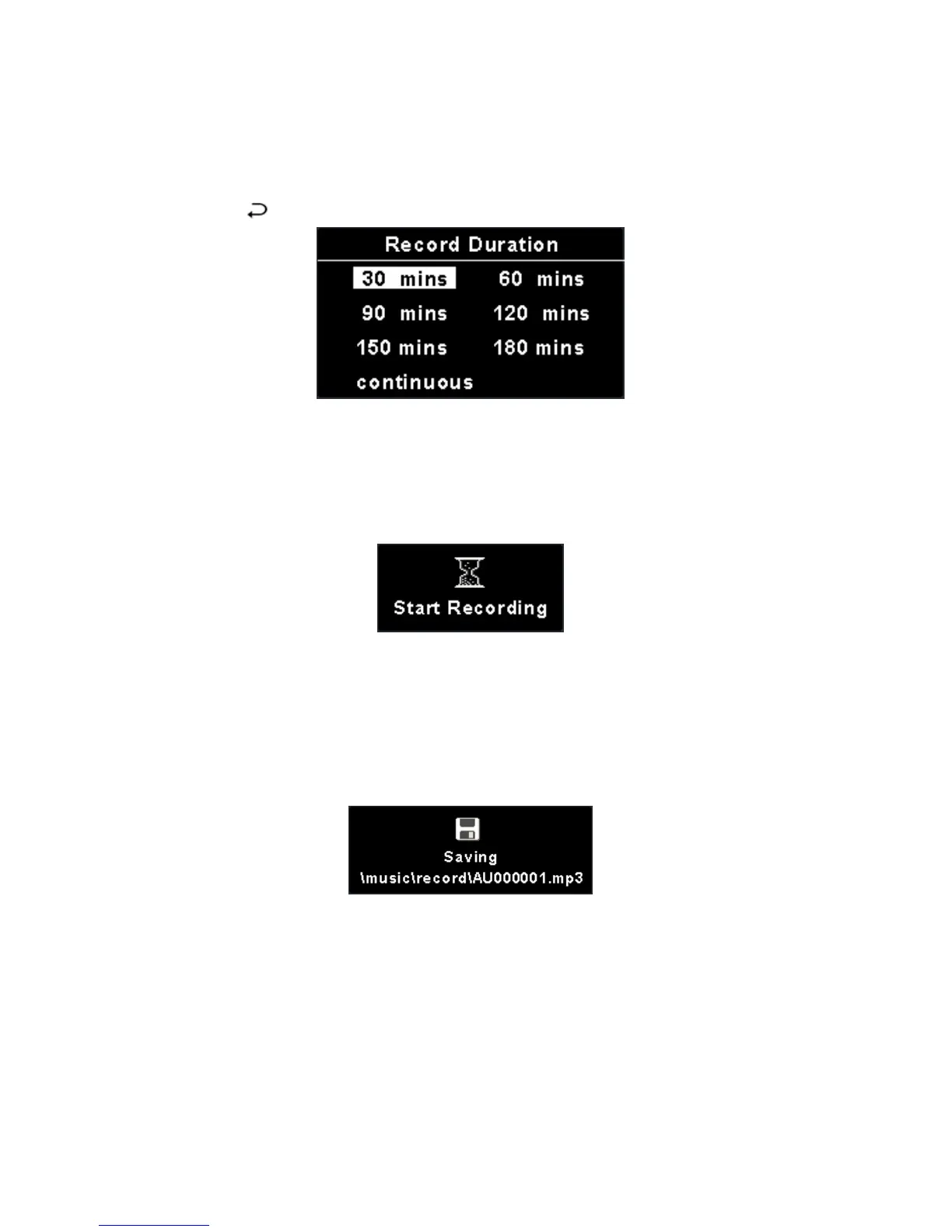
Navigation key and press down Navigation key. If continuous is selected,
when store content capacity exceeds 2GB capacity or 3 hours, the recording
will be saved and continue to record the signal to another file, unless you
press /
button or MEGA VIEW 588 runs out of battery.
6. Select Audio option, you can record external audio, plug 3.5mm end of the
supplied line-in cable to Audio-out jack of external audio device, and
2.5mm end to AV-in jack of MEGA VIEW 588.
7. Press REC[y] button to start to record, and Record LED will be on.
8. To stop recording, press REC[y] button. If the recording option is set to
Audio/Video, a file will be generated in Video\Record folder. File name
starts with [AV000000.asf], [AV000001.asf], and so forth. If the recording
option is set to Audio, recorded files will be created in Music\Record folder
with file name starting as [AU000000.mp3], [AU000001.mp3].
Note: The maximum length of AV Recording file depends on hard disk free
space and can not be exceeded 3hrs or 2GB.
Play a Recorded AV File
1. To play a recorded AV or audio file, go back to main menu and select Video
or Music mode by referring to Video or Music section.
2. Find the recorded file name in Video\Record folder or Music\Record folder.
3. Select the record file and press down Navigation key to play the file.



 To Next Page