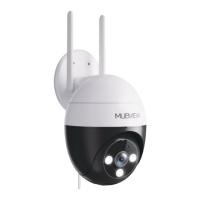
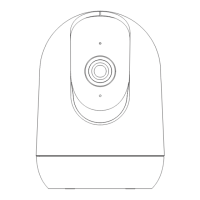
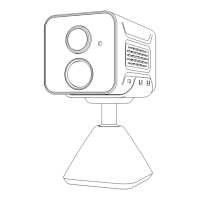
1. Add camera to App: Home page - Right up corner '+' - ' Battery
Camera'
5.2 Connect Camera to App
2. Connect the camera to WiFi according to the steps in App.
support@mubview.com
Note:
* When connect camera to WiFi , make sure the indicator light is flashing
slowly in red. If not, please reset the camera (hold the RESET button
for 4-5 seconds until the light turns red and blinks.)
*
If you can't hear 'Bugoo', please long-press the reset button to enter the
configuration mode again.
* Make sure your accountant password is correct. ( the password of the
WiFi cannot include single quote, underline, space and virgule / ).
* In general, the router has connection limit. Once the devices number
exceeds the limit, other devices will fail to connect to the router.
* After checking the above information, if the camera still cannot connect
to WiFi, please re-download the App, reset the camera or restart the
router, and then add the camera in App again.
* If you tried all the steps, but still no luck, please email us for support:
support@mubview.com.
5


 To Next Page