USING CONNECTION MANAGER
MultiConnect
®
Cell MTC-MNG6 User Guide 41
10. Click Install. Windows may prompt you to allow the installer to make changes to your computer. Click
Yes.
11. In the Setup Wizard, click Finish.
Note: To open Connection Manager automatically after installation, check Start the MultiTech Connection
Manager when the installation is finished.
If using a USB device, you can connect the device to the carrier's network with Connection Manager. Refer to
Connecting a Device.
If using a serial device, you need to set up the device in Windows Device Manager before connecting the device.
Refer to Setting Up a Serial Device in Windows Device Manager.
Setting Up a Serial Device in Windows Device Manager
To set up the device in Windows Device Manager:
1. Make sure that your desired COM port for the serial device is available.
2. Connect the serial device to the PC.
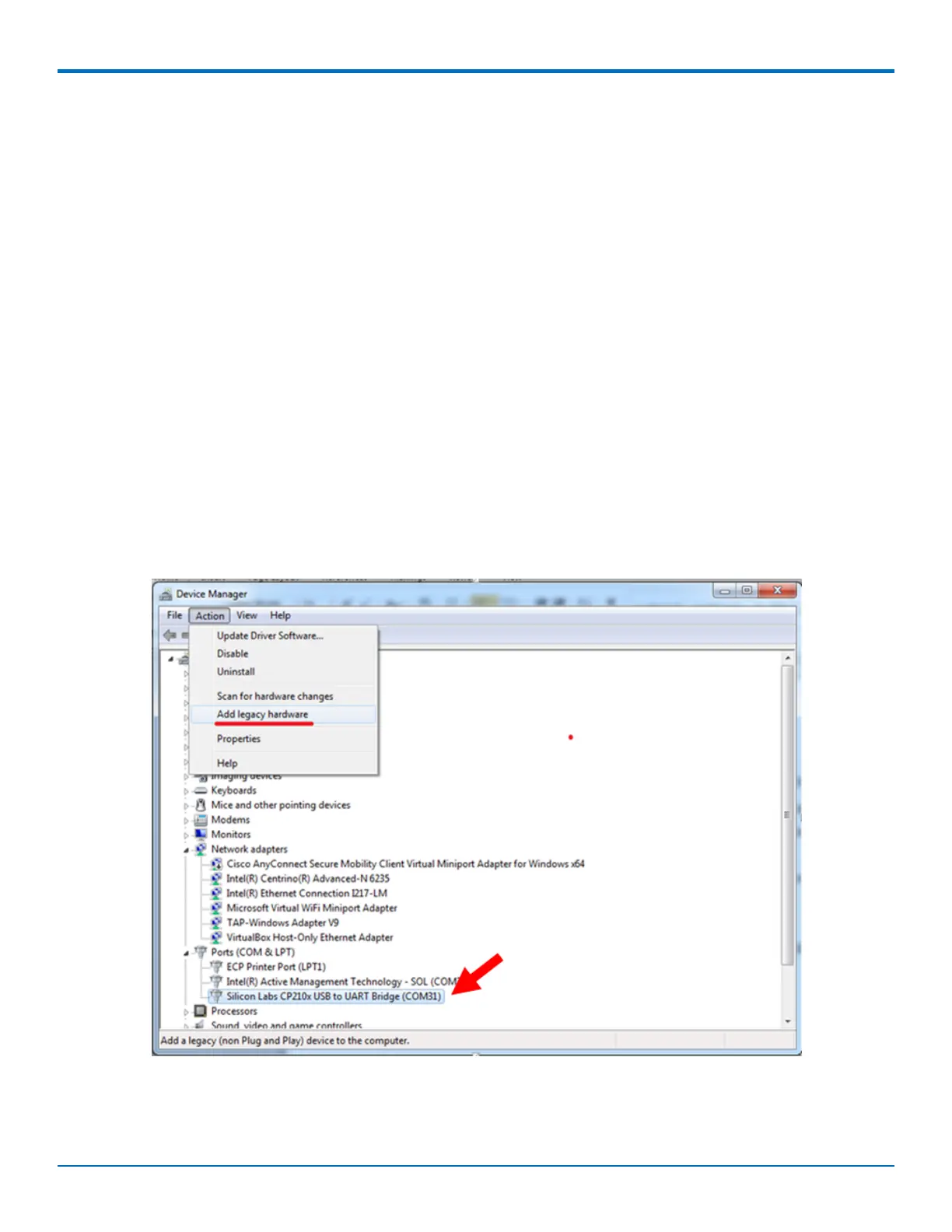
3. Go to Control Panel > Device Manager. Make a note of the COM port number for the connected device
(in COM Ports).
Example: The COM port is COM31.
4. Go to Action > Add legacy hardware.
5. In the Add Hardware Wizard:
a. Click Next.






 To Next Page