7
Chapter 2 - Installation
Multi-Tech Systems, Inc. MT5600BA/BL Series User Guide
Chapter 2 - Installation
Step 1 - Connect the Modem to Your System
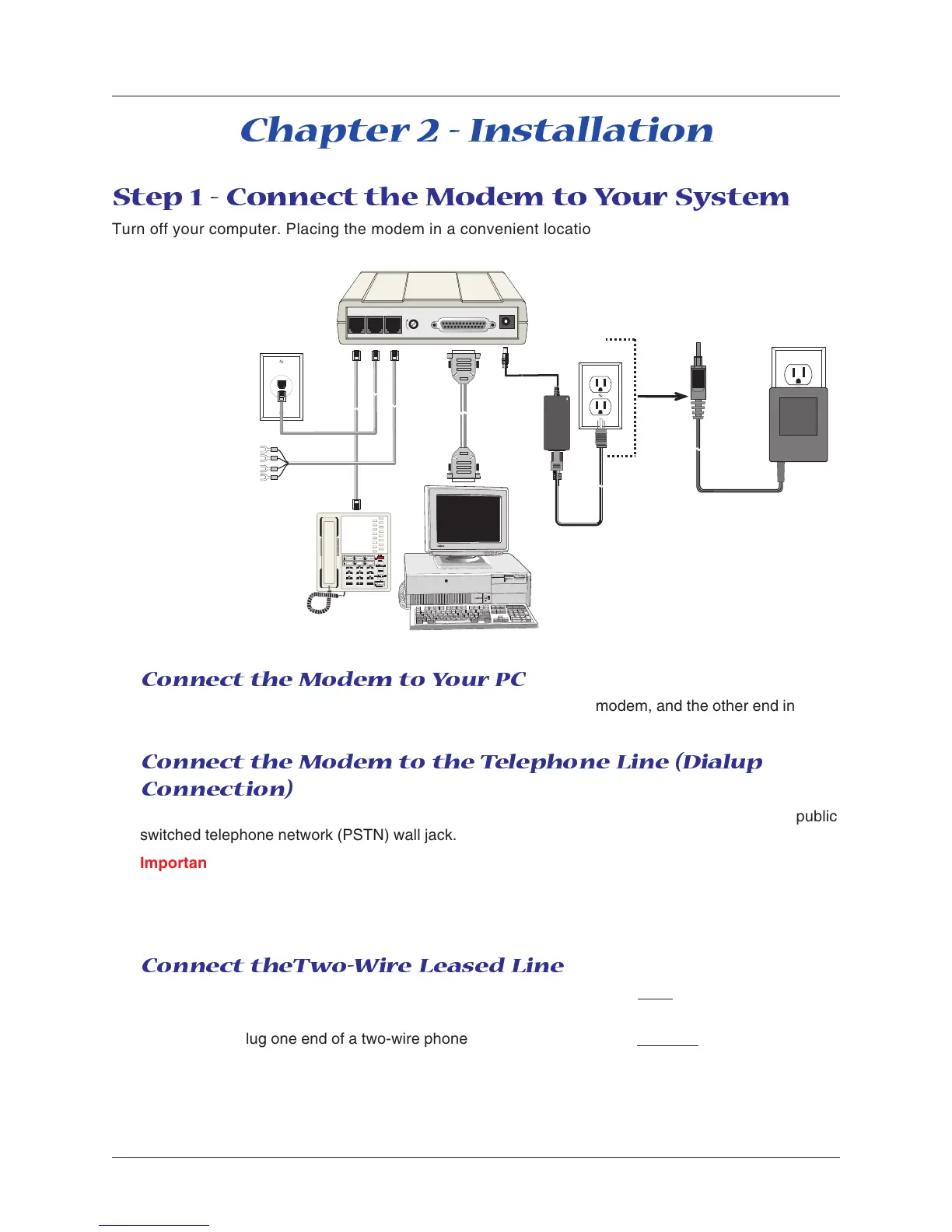
Turn off your computer. Placing the modem in a convenient location, connect it to your computer’s
serial port, to the telephone line, to your leased line, to AC power, and, optionally, to your telephone.
VOLUME
EIA RS232C
LEASEDLINE
POWER
PHONE
or
MultiModemII connections with V.92 transformer and V.90 transformer.
Connect the Modem to You r PC
Plug one end of the serial cable into the RS-232 connector on the modem, and the other end into a
serial port connector on your computer, such as COM1 or COM2.
Connect the Modem to the Telephone Line (Dialup
Connection)
Plug one end of the modular phone cable into the modem’s LINE jack, and the other end into a public
switched telephone network (PSTN) wall jack.
Important: The LINE jack is not interchangeable with the PHONE jack. Do not plug the phone into
the LINE jack or the line cable into the PHONE jack.
Note: Regulatory agencies may impose certain restrictions on equipment connected to public
telephone systems.
Connect theTwo-Wire Leased Line
MT5600BA – Plug one end of a two-wire phone cable into the modem’s LINE jack; connect the other
end to a leased line wall jack or terminals.
MT5600BL – Plug one end of a two-wire phone cable into the modem’s LEASED jack; connect the
other end to a leased line wall jack or terminals.






 To Next Page