FAVOURITES
Create, save and easily access your favourite radio stations.
TO ADD FAVOURITE
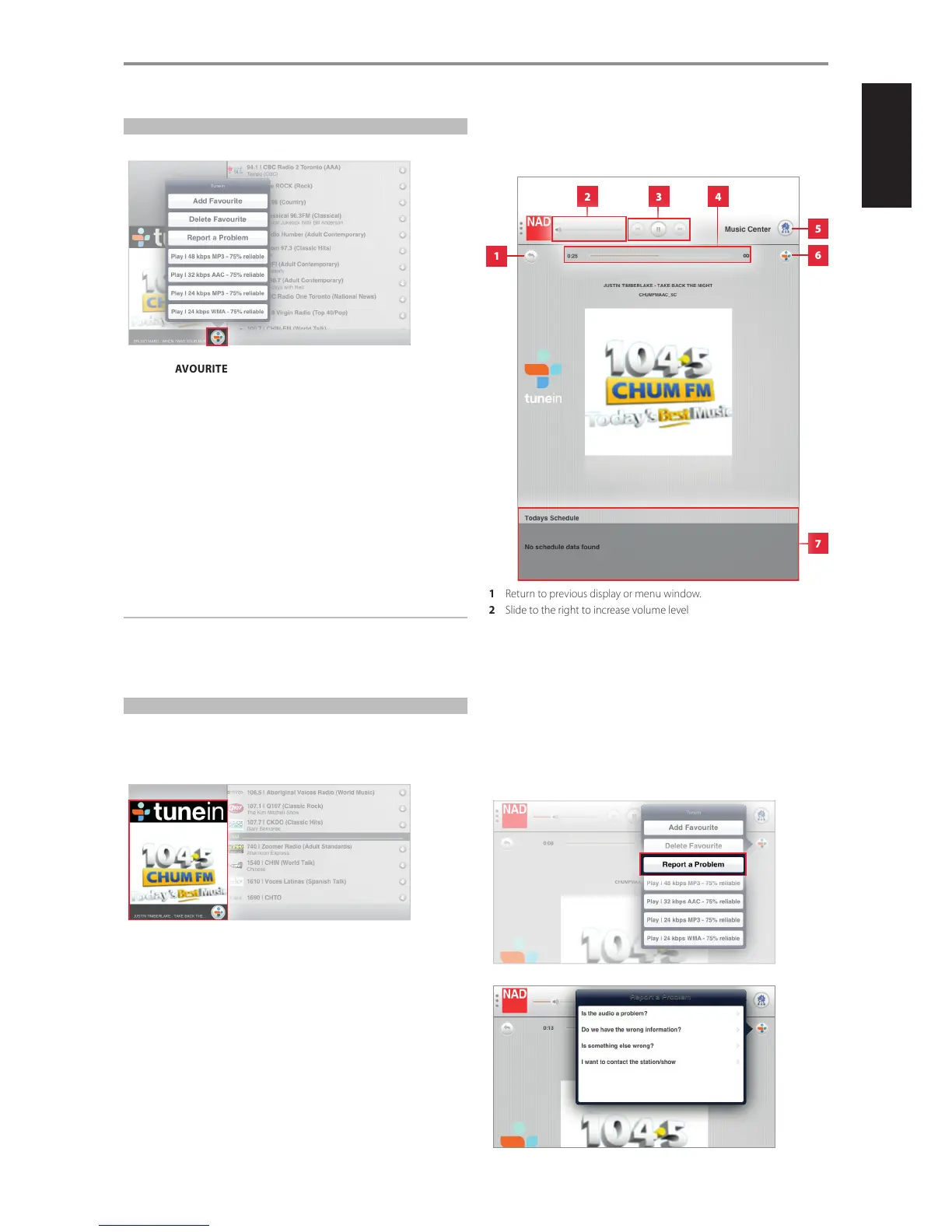
Go to desired station page and select the TuneIn icon in the thumbnail of
the selected station. A menu window will pop-up. Select “Add Favourite”
and the selected radio station will be added in your “Favourites” list.
TO DELETE FAVOURITE
From the same menu window, select “Delete Favourite” to remove the
selected station from the “Favourites” list.
OTHER OPTIONS
The menu window that pops-up may include other options like the
playable audio format and the reliability of the signal, i.e. “Play I 48 kbps
MP3 – 75% reliable”. These options are dependent upon the capability or
information supplied by the selected radio station.
NOTE
The added or deleted favourite may not be reected immediately in
the “Favourites” menu window. Refresh the display by selecting “Local
Radio” or any other options and then return to “Favourites” – the
Favourite would be by now included or deleted in the Favourites list.
DISPLAY OF CURRENT BROADCAST
When a particular radio station is being broadcast, a thumbnail of the radio
station logo is shown at the lower left corner of the screen display.
Select the thumbnail.
Upon selection, the thumbnail image will be maximized into a full
screen display. In this full screen view, the following features, functions or
information are available.
1 Return to previous display or menu window.
2 Slide to the right to increase volume level
Slide to the left to decrease volume level
3 Play or pause current broadcast.
Skip backward and skip forward are not applicable for TuneIn.
4 Elapsed time listening in to current broadcast.
5 Show all devices in the network
6 Show clickable TuneIn menu options like Add Favourite, Delete
Favourite, Report a Problem and other available options.
7 Display related information as supplied by the radio station
When TuneIn icon is selected, among the options that appear is the “Report
a problem”. Follow all prompt commands to complete the report.
OPERATION
1
3 42
5
6
7
17


 To Next Page