LISTENING TO SPOTIFY
Spotify gives you access to millions of songs by the artists you love as well
as enjoy the latest hits and new discoveries. M50 supports Spotify Connect.
Just select play and music is streamed from your Spotify app to the M50.
HOW TO GET STARTED WITH SPOTIFY CONNECT
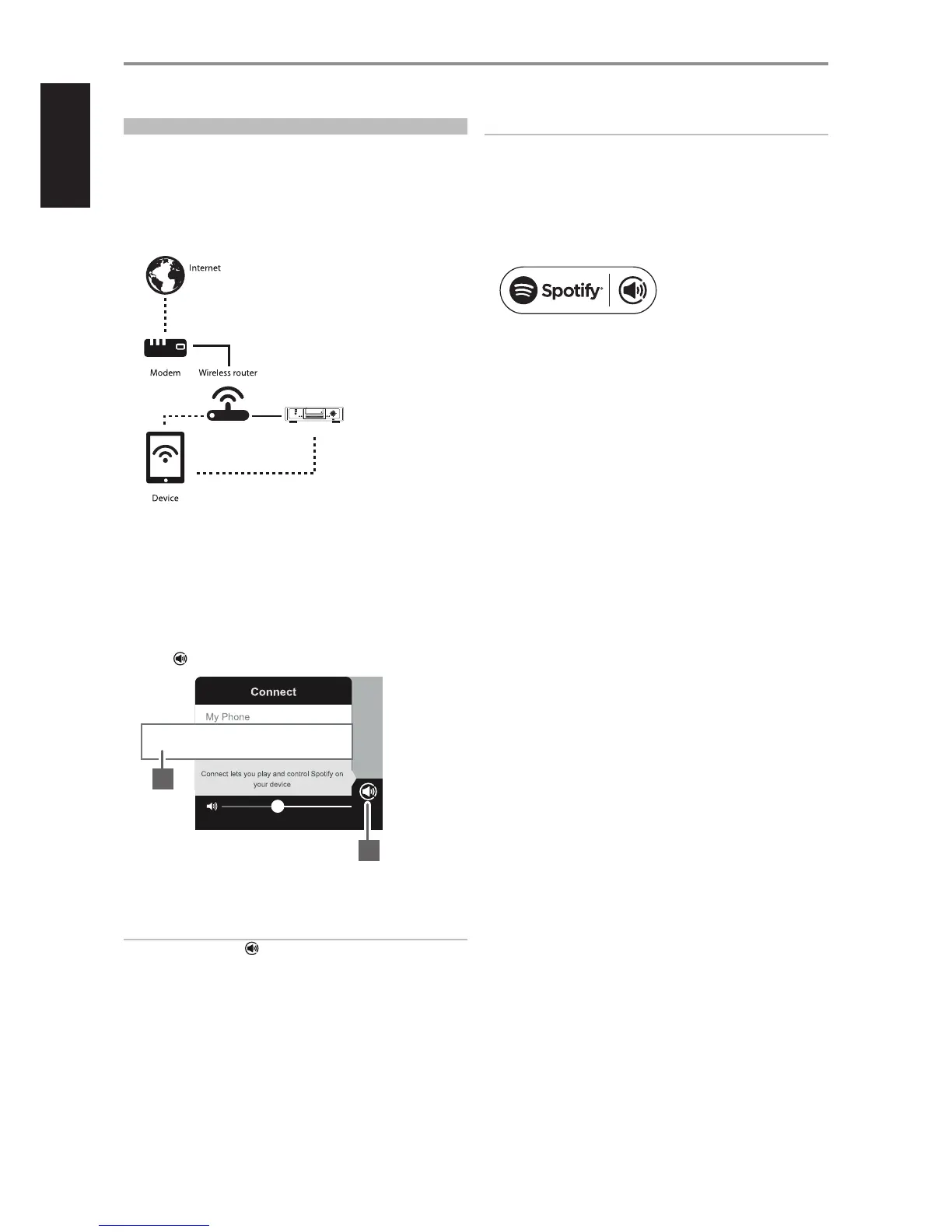
1 Ensure that your iOS device, tablet or computer is connected to the
same network as the M50.
2 Download the Spotify app from your platform’s app store. A Spotify
premium subscription is required.
For Spotify availability in your area, registration procedures and other
Spotify services, visit http://www.spotify.com.
3 Open Spotify on your device. Log-in to your Spotify account.
4 Select the play bar at the bottom to bring up the Now Playing page.
Select
5 From the “Connect” list, select M50 (“M50 in Living Room” in this
example) and music playback will be streamed to your M50.
IMPORTANT NOTE
The “Connect” page or icon is only available or accessible during
music playback.
NOTES
• The Connect logo will have a circle when there are other devices
connected to Spotify on the same network.
• There may be a slight delay in volume level response using the Spotify
Connect app as this command is routed to M50 via internet connection.
The Spotify software is subject to third party licenses found here:
www.spotify.com/connect/third-party-licenses
OTHER FEATURES
© NAD M50
play/
pause
menu
skip
skip
scan scan
input
stop/
open
digital music player
M50
M50 in Living Room
5
4
28
ENGLISH FRANÇAIS ESPAÑOL ITALIANO DEUTSCH NEDERLANDS SVENSKA РУССКИЙ


 To Next Page