ENGLISH
11
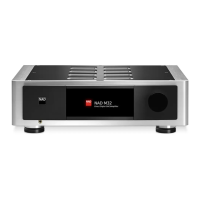
The intuitive front panel display allows the user to perform and navigate
through several functions, features and Sources of M66. Touch anywhere in
the front panel display and below menu options will become available.
NAVIGATING THE FRONT PANEL DISPLAY ITEMS AND MAKING
CHANGES
Use your finger to touch, swipe and navigate through the front panel
display items. Touch or swipe (left, right, upwards or downwards) to select
or configure an item.
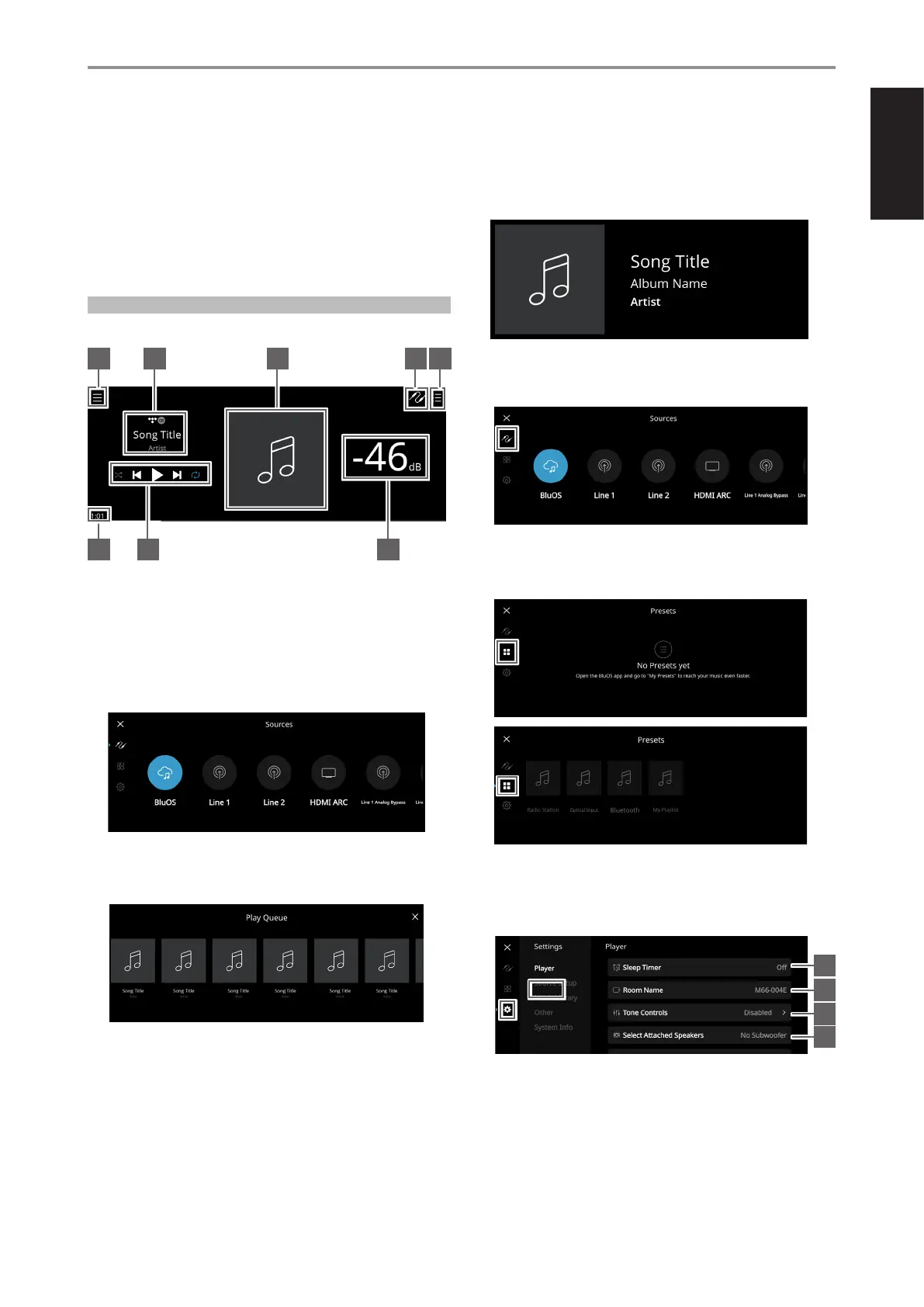
SAMPLE DISPLAY SCREEN
NOW PLAYING
1 New screen is opened showing configurable Sources and Players menu
options.
2 Information about album, artist and music name
Logo or icon for music service provider or media source input (analog,
optical, coaxial, Bluetooth, HDMI eARC, etc.)
3 Album art cover
4 Source list is displayed where one can select desired Source to access
or playback contents.
5 Display “Play Queue” that was setup via the BluOS App. “Play Queue” is
a list of songs or tracks that are populated and put on queue via the
BluOS App.
6 Elapsed playback time of current media
7 Playback controls for applicable media (song, title, file, music station
and others)
0 Skip to next media
4/j Play or pause current media
9 Skip back to previous media
m/, Repeat and random mode controls are also available for
selection
8 Volume level
FRONT VIEW
Now Playing display will switch to selected Front View default screen
if there is no user interaction within 10 seconds. Front View display will
remain until a user interface is made. Front View display can be configured
via Settings-Source Setup-Sources menu.
MENU OPTIONS
SOURCES
Select preferred Source to access or playback contents
PRESETS
Use BluOS App to program into Presets your favourite radio stations, music
streams, playlists or Sources
SETTINGS
Configure or display M66 settings
Player
1 Sleep Timer: Stop playback after a set amount of time via gentle
volume decline
OPERATION
USING THE FRONT PANEL DISPLAY
1
6 7 8
4 52 3
1
2
3
4


 To Next Page