ENGLISH
13
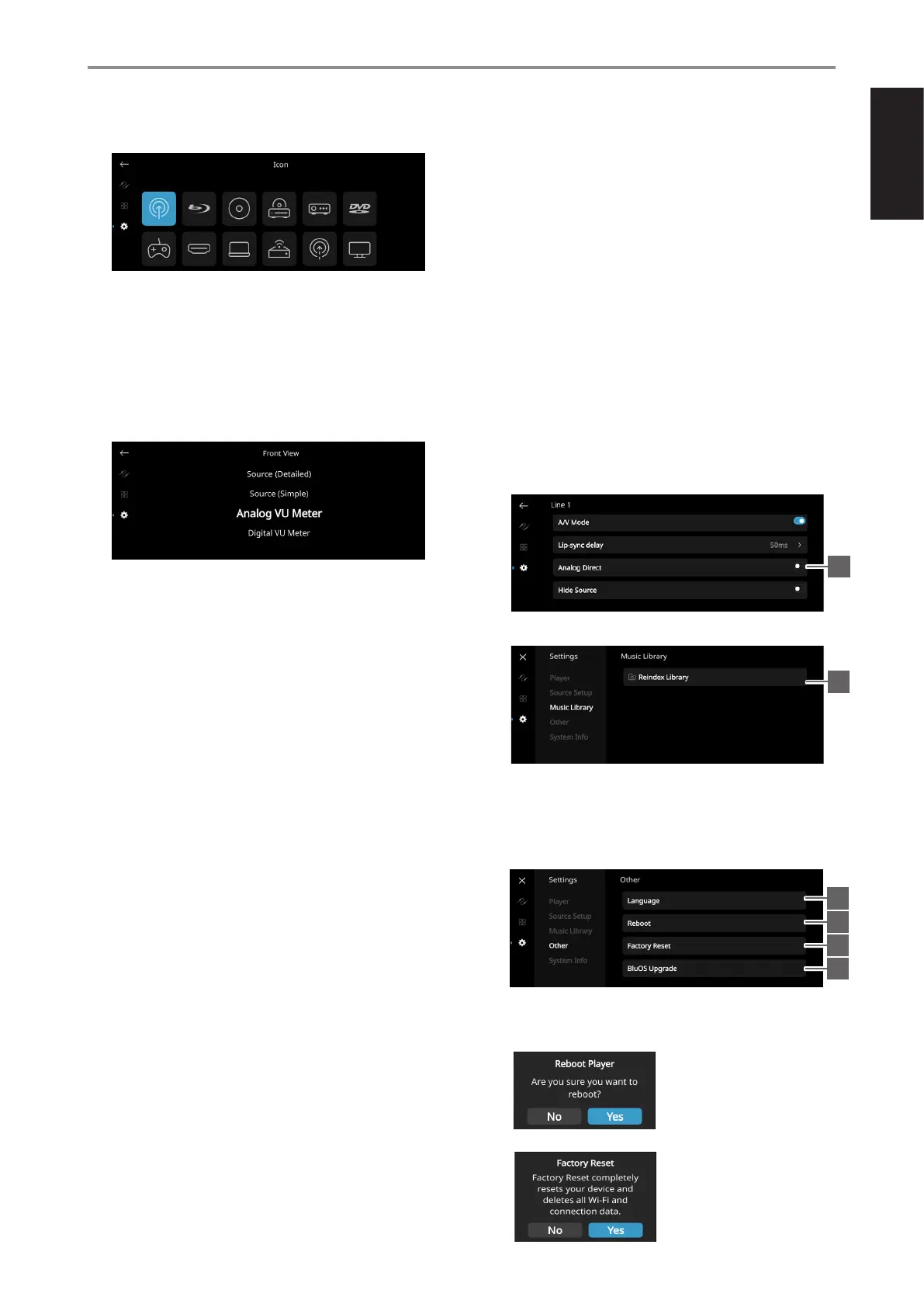
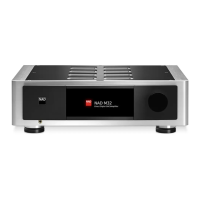
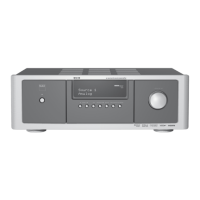
4 Front View: Front display layout and contents can be configured by
selecting the following options.
• Source (Simple), Source (Detailed)
• Analog VU meter, Digital VU.
• Album, Text and VU, Album and Text, Album Only and Text Only
(applicable only to BluOS Source)
A combination of above options is available depending upon the
Source selected.
Text Only
- Display album name, song title, artist name, broadcast/radio station,
name, title of the show, etc.
Album Only
- Display album/title art, station ID symbol or icon only
Album and Text
- Display album/title art, station ID symbol, icon and other
information like album name, song title, artist name, broadcast/
radio station name, title of the show, etc.
Album, Text and VU
- Display all the information indicated above for Cover Art and Meta
Data plus VU meter
Source (Simple)
- Display Source name only which is “BluOS” or name of Cloud or
Radio Service
Source (Detailed)
- Display Source name or name of Cloud or Radio Service plus other
information like volume level
Analog VU Meter
Digital VU Meter
- VU Meter monitors or reflects audio input level of current BluOS
source. If “Mute” is enabled, the VU meter will not turn off or go to
minimum level as it is the audio output that is muted.
5 MQA Pass-through (applies only to Coaxial and Optical
Sources): Enable MQA Pass-through for the M66 to act as MQA
decoder or renderer when MQA certified CD player or other MQA
certified devices are connected to coaxial or optical input ports.
Disable AV Mode for MQA Pass-through to be enabled.
6 A/V Mode: By connecting your TV or other video sources to your
M66 through analog, coaxial, optical or HDMI input ports, you
can listen to your favorite shows or movies through your BluOS
system. Grouping multiple BluOS devices from one of these inputs
can require an abundance of network traffic. A/V mode creates a
short and unobtrusive buffer to your audio to ensure your BluOS
system stays in sync with your video even with slower or cluttered
networks. When using coaxial and optical sources, MQA Pass-
through must be disabled for A/V Mode to be enabled.
Enabled: With A/V Mode enabled on your input source, audio delay
will be automatically adjusted to keep your grouped BluOS devices
in sync with the video source connected. Use the Lip-sync delay
slider to manually adjust the lower end of this delay to better suit
the speed of your network.
Disabled: When your M66 is connected to an audio source without
video, such as a turntable or CD player, the A/V Mode setting
should be disabled.
7 Lip-sync delay: With A/V Mode enabled, “Lip-sync delay” can be
adjusted to ensure your audio is staying in sync over your network
with the original video source. By varying “Lip-sync delay” from
50ms to 150ms, one can delay the audio output to synchronize it
with the video image of the corresponding source.
8 Hide Source: Activate or deactivate selected Source
9 Analog Direct (applies only to Phono MM, Phono MC, Line
1, Line 2 and Balanced Sources): With “Analog Direct” enabled,
analog input signal will bypass all digital signal processing (Tone
Controls, Dirac, Bass Management, etc.). The Balanced input will
remain balanced all the way through to the Balanced output. The
unbalanced inputs (phono MM/MC, Line 1,2) are converted to
balanced right at the input.
MUSIC LIBRARY
1 Reindex Library: Music library will be scanned for any newly
added, deleted, or updated files, ensuring that these changes are
incorporated into the BluOS Controller app.
OTHER
1 Language: Select available language. The screen display will be
shown in the language selected.
2 Reboot: Cycle power by powering off and powering back the unit.
3 Factory Reset: Restore to factory default settings
OPERATION
USING THE FRONT PANEL DISPLAY
1
2
3
4
9
1


 To Next Page