WIRELESS CONNECTION CONFIGURATION
Wireless (WIFI) broadband router with broadband internet connection is
required for wireless connection to be established.
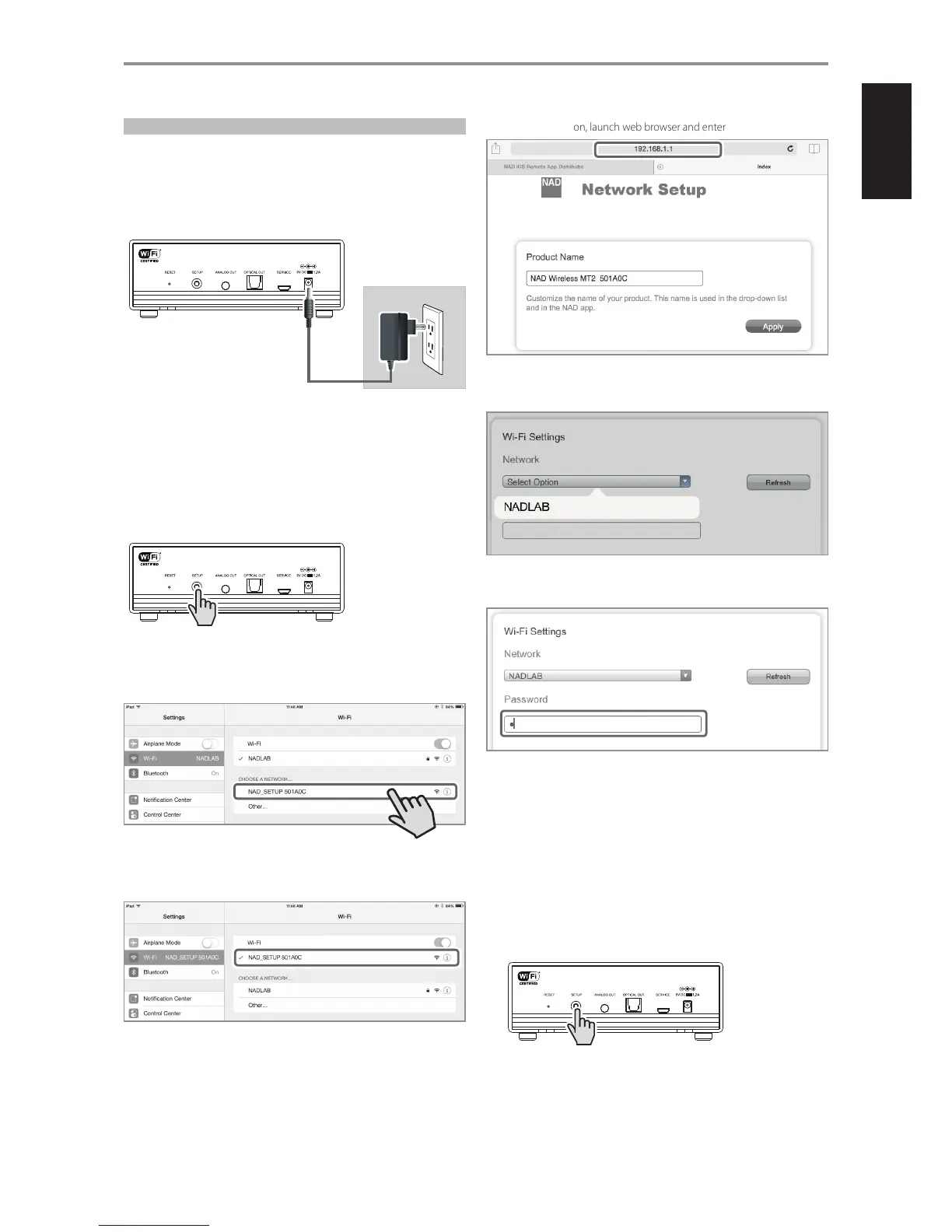
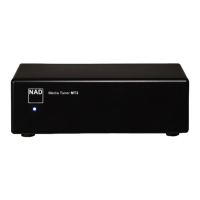
1 Power up MT2 by connecting corresponding end of the supplied Plug-
in Power Supply to MT2’s 5V DC IN and then plug in to the wall outlet.
Wait until MT2 fully boots up.
• Front LED fast ashing blue and then settles at slow ashes of blue
– this indicates that there is no WiFi connection.
• Front LED turns solid blue if WiFi is connected.
2 Press and hold SETUP button at the rear panel until the slow ashing
blue front LED turns alternately ashing blue and pink. MT2 is now at
Hotspot mode.
3 Using your iOS or Android device (iPad is used here for reference), select
among the list of available network connections the unique network ID
(“NAD_SETUP501A0C” in this example) of your MT2.
4 Upon connection, launch web browser and enter http://192.168.1.1.
5 Go to WiFi Settings section and choose Select Option. Select your local
network from the drop down list - NADLAB in this example.
6 Type the Password (if it is password protected) of your local network in
the eld provided and then select Apply to join in.
7 “Saving network settings…” will appear briey and then disappear.
• If the network password entered is correct, the front LED will turn to
Fast ashing blue $ slow ashing blue $ solid blue (This indicates
that the password is correct and wireless connection is successful).
• If the network password entered is incorrect, the front LED will turn to
Fast ashing blue $ slow ashing blue $ remains slow ashing blue
(This indicates that the password entered is not correct).
Re-enter correct password by returning the MT2 to hotspot mode again.
Press and hold “SETUP” button at the rear panel until the slow ashing blue
front LED turns alternately ashing blue and pink. MT2 is now at Hotspot
mode. Repeat again the process beginning from Step3 above.
OPERATION
Mains AC Power
^
5


 To Next Page