2-18 System Configuration and Setup
5.
Highlight the “Install New BIOS” option and press
Enter
.
6.
Press
Y
and press
Enter
. After a brief pause, a message appears telling you to remove the
diskette from the drive.
7.
Remove the diskette and press any key to continue. The utility updates the BIOS.
8.
Power off the notebook. The next time the notebook is powered on, you will have the latest
NEC Versa notebook BIOS.
9.
Power on the notebook. A CMOS Checksum message appears and prompts you to press
F1
to enter Setup.
10.
Press
F1
to enter Setup and restore the default parameter settings.
11.
Modify any custom settings that that may have been configured in the old BIOS. Use the
BIOS setting information that was copied before starting the BIOS upgrade.
12.
Set DIP switch 5 to “ON” after completing the BIOS update.
Transmeta LongRun Utility
The Crusoe processor that powers the notebook is equipped with the LongRun power
management utility. This utility automatically adjusts the clock speed and voltage of the
processor based on the needs of the application. If the system is in an idle state, or doing
processing that doesn’t require faster clock speeds, it automatically lowers to 300MHz. If the
system is completing more demanding tasks, it adjusts up to a full 600MHz. The ability to lower
the processor speed results in longer battery life for your notebook.
The LongRun utility allows overriding the automatic adjustments by the processor. You can
! Force the processor to stay at the lower 300MHz speed to preserve the battery when
you need the notebook to run for a long time without an AC source. Forcing the battery
to run at lower speeds slows some applications but extends the battery life by hours.
! Force the processor to stay at the higher 600MHz speed when speed is necessary, or
when the notebook is running on an AC power source.
To install the LongRun utility, run the NEC Customize utility (see “NEC Customize Utility”
later in this section) and select “Install/Uninstall LongRun Utility.” Press
OK
and reboot the
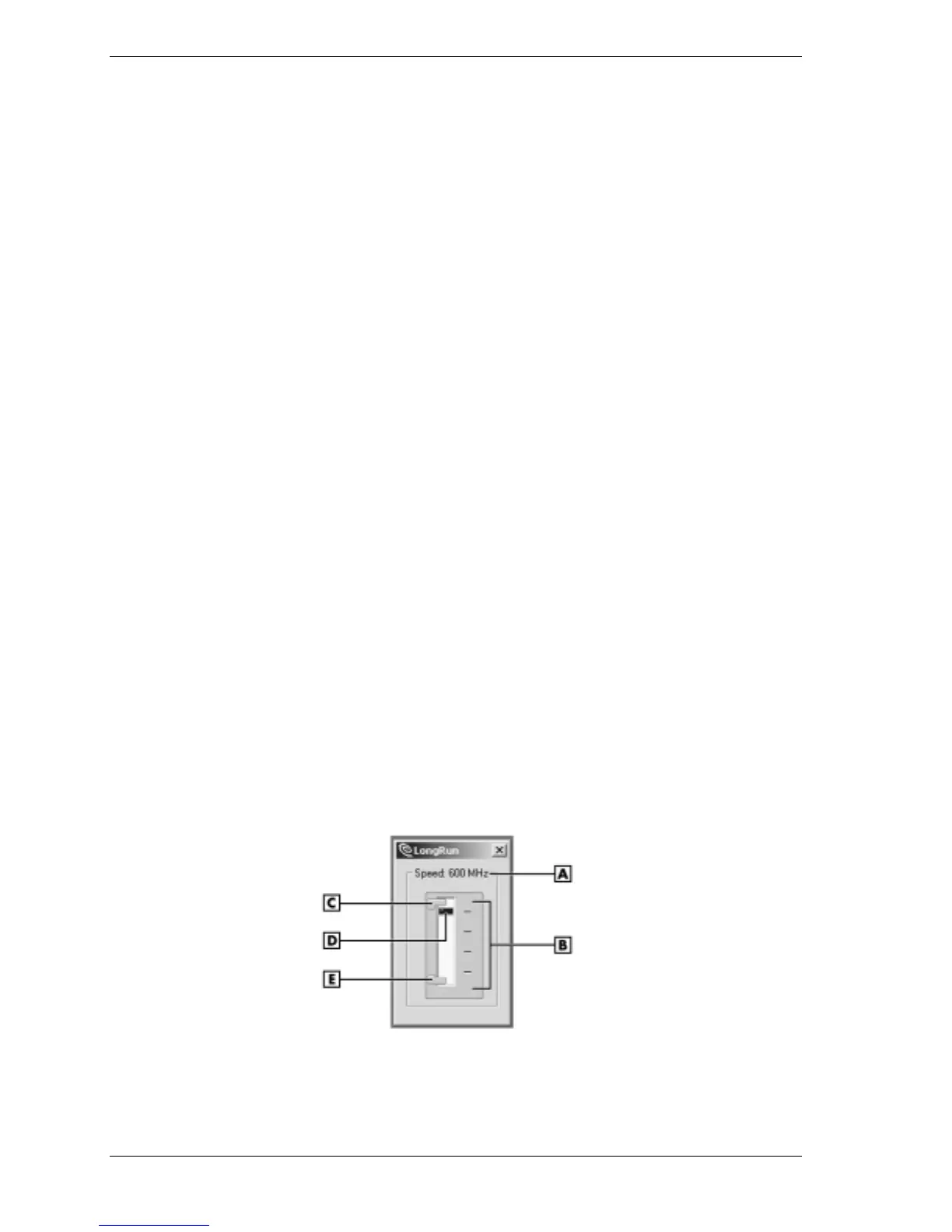
notebook after the installation is completed. Click on the LongRun icon in the Windows desktop
tray to bring up the LongRun Utility status bar.
LongRun utility status bar
A – Current Speed D – Current Speed Indicator
B – Range of Speeds E – Maximum Speed Slider
C – Minimum Speed Slider


 To Next Page