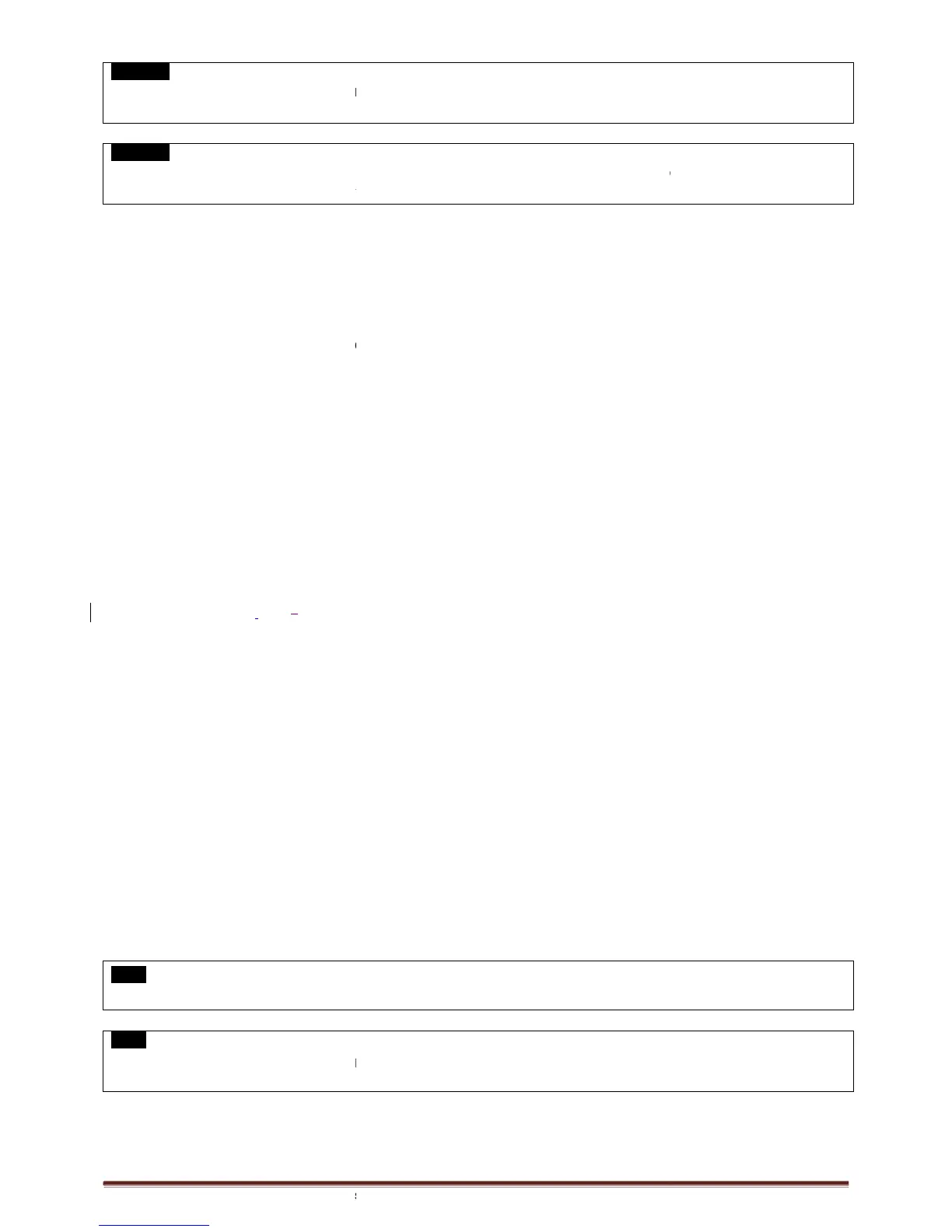
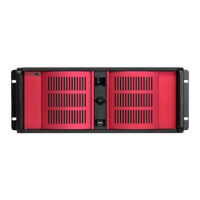
Digital Video Recorder for Ness IQ-
HDMI CONNECTION MAY NOT BE COMPATIBLE WITH CERTAIN OUTPUT DEVICE.
DEPENDING ON THE TYPE OF HDMI CABLE USED. MAKE SURE TO USE AN HDMI
BLACK SCREEN WILL APPEAR IF THE MONITOR DOEST NOT SUPPORT THE SELECTED RESOLUTION. UNLESS USER PRESS
DURING BLACK SCREEN, SYSTEM WILL AUTOMATICALLY GO BACK TO THE PREVIOUS RESOLUTION IN 15 SECONDS.
1.5.4 Audio Connections
Connect an audio device to ‘AUDIO IN
’ and a speaker system to ‘
TCP/IP(Ethernet) Connections
’ connector with the LAN cable.
When connect to Internet, use an ordinary LAN cable (Non
use only ‘Crossover cable’.
1.5.6 Alarm Connections(
ct Alarm Input (Sensor) to ‘AI 1~AI
Connect Alarm Output (buzzer, siren, etc.) to ‘
1.5.7 Master Alarm
Alarm In sensor will
be deactivated if Master Alarm is on.
Connect Master Alarm In to ‘4M
Connect Alarm Output (buzzer, siren, etc.) to ‘
to ‘GND’ connector.
1.5.9 RS-
PTZ Camera connector.
Please use TX+, TX-, RX+ and RX-
PTZ Camera Connector
Please connect Coax to ‘Video In’ and
select any Protocol in Camera/PTZ setup.
NOTE
PTZ Camera must support RS-
When selecting Protocol, user can choose any protocol from the Protocol list other than
485 over Coax will not work.
HDMI CONNECTION MAY NOT BE COMPATIBLE WITH CERTAIN OUTPUT DEVICE.
DEPENDING ON THE TYPE OF HDMI CABLE USED. MAKE SURE TO USE AN HDMI
BLACK SCREEN WILL APPEAR IF THE MONITOR DOEST NOT SUPPORT THE SELECTED RESOLUTION. UNLESS USER PRESS
DURING BLACK SCREEN, SYSTEM WILL AUTOMATICALLY GO BACK TO THE PREVIOUS RESOLUTION IN 15 SECONDS.
’ and a speaker system to ‘
’. Please use a speaker system with volume
TCP/IP(Ethernet) Connections
’ connector with the LAN cable.
When connect to Internet, use an ordinary LAN cable (Non
cross cable). However, when connect
ct Alarm Input (Sensor) to ‘AI 1~AI
16)’ connectors and connect Sensor Common to ‘G’ connector.
Connect Alarm Output (buzzer, siren, etc.) to ‘
’ connectors and connect Common to ‘
be deactivated if Master Alarm is on.
Connect Alarm Output (buzzer, siren, etc.) to ‘
NO or NC 1~ NO or NC 2’ connectors, Power
select any Protocol in Camera/PTZ setup.
in order to use this feature.
When selecting Protocol, user can choose any protocol from the Protocol list other than
DEPENDING ON THE TYPE OF HDMI CABLE USED. MAKE SURE TO USE AN HDMI
BLACK SCREEN WILL APPEAR IF THE MONITOR DOEST NOT SUPPORT THE SELECTED RESOLUTION. UNLESS USER PRESS
DURING BLACK SCREEN, SYSTEM WILL AUTOMATICALLY GO BACK TO THE PREVIOUS RESOLUTION IN 15 SECONDS.
’. Please use a speaker system with volume
cross cable). However, when connect
16)’ connectors and connect Sensor Common to ‘G’ connector.
’ connectors and connect Common to ‘
COM’ connector and Ground


 To Next Page