Digital Video Recorder for Ness IQ-
Click Emergency recording button,
Click Audio button,
icon will show. And click channel button, then user can change only audio channel.
When front key does not work well, please check whether the audio icon
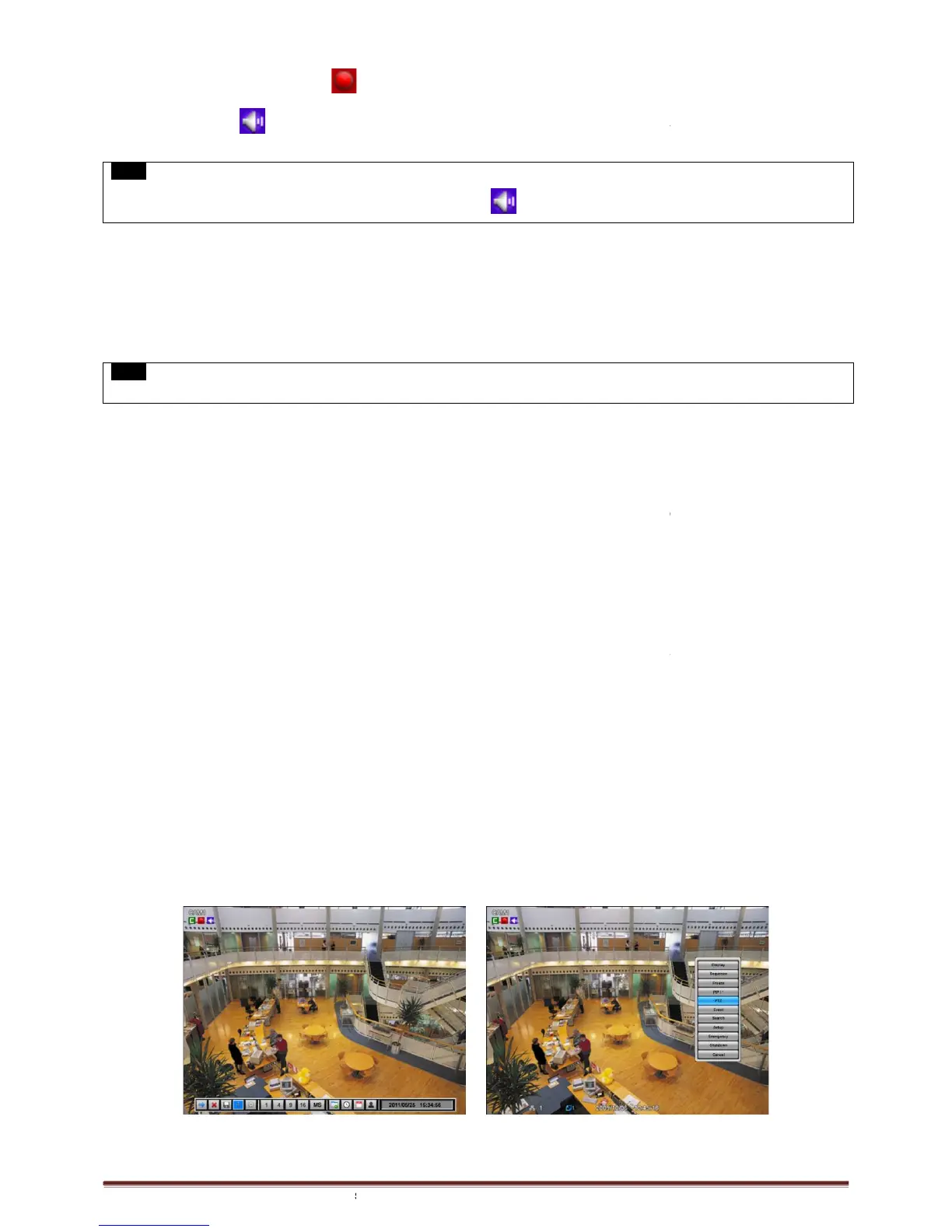
The available view formats when the Main Monitor is in viewing mode include Full Screen, Split Screen, Channel
Sequencing Screen and PIP screen.
- Full Screen:
Please press camera select key (
Using a mouse: Double click to view the corresponding camera image in full view format and click one more time to back to
- Split Screen: Please press
alternately (i.e., 2x2, 3x3 and 4x4).
- Channel Sequencing: Please press
automatic sequence function is not limited to the full screen format, but can be used in any view mode. In 8 channel DVR,
camera sequencing view mode is possible and in 16 channel DVR, 4 or 9
4.1.3 Digital Zoom
Select a Channel into Full Screen.
Drag a portion to zoom by mouse.
Double click mouse to exit zoomed screen.
function works only in the full screen.
sequencing or PIP mode.
4.1.4 Freeze Live Image
Press FREEZE
key while viewing live image to pause the image.
The Freeze function works only in the full screen or split screen formats. Please do not use this function in channel
sequencing mode or in PIP mode.
4.1.5 Pan / Tilt Control
Press PTZ
key to adjust PTZ cameras connected to DVR. Pan/Tilt mode is available only in the full screen format.
960H & SDI DVR
icon will show.
icon will show. And click channel button, then user can change only audio channel.
When front key does not work well, please check whether the audio icon
is activated on the screen.
The available view formats when the Main Monitor is in viewing mode include Full Screen, Split Screen, Channel
Please press camera select key (
) to view the corresponding camera image in full view format.
Using a mouse: Double click to view the corresponding camera image in full view format and click one more time to back to
key and the available split screens (or multi-
window view formats) will display
key to display images in sequencing view form
automatic sequence function is not limited to the full screen format, but can be used in any view mode. In 8 channel DVR,
camera sequencing view mode is possible and in 16 channel DVR, 4 or 9
camera sequencing view modes are possibl
Double click mouse to exit zoomed screen.
function works only in the full screen.
not use the digital zoom function in split screen
key while viewing live image to pause the image.
The Freeze function works only in the full screen or split screen formats. Please do not use this function in channel
key to adjust PTZ cameras connected to DVR. Pan/Tilt mode is available only in the full screen format.
icon will show. And click channel button, then user can change only audio channel.
The available view formats when the Main Monitor is in viewing mode include Full Screen, Split Screen, Channel
) to view the corresponding camera image in full view format.
Using a mouse: Double click to view the corresponding camera image in full view format and click one more time to back to
window view formats) will display
key to display images in sequencing view form
automatic sequence function is not limited to the full screen format, but can be used in any view mode. In 8 channel DVR,
camera sequencing view modes are possibl
not use the digital zoom function in split screen
The Freeze function works only in the full screen or split screen formats. Please do not use this function in channel
key to adjust PTZ cameras connected to DVR. Pan/Tilt mode is available only in the full screen format.


 To Next Page