Digital Video Recorder for Ness IQ-
Select alarm outputs to be worked when Motion Event 1 is on. Please check
. More than two alarm outputs can be set.
mail addresses for notification when Motion Event 1
mail addresses can be set.
above procedure for Motion Event 2~ Motion Event 16.
By Duration box to set up the recording duration and prevent recording caused by event.
The duration time can be controlled by previous setting mode:
Choose ‘OK’ to confirm the setting.
3.6.3 Video Loss
Please click (
)
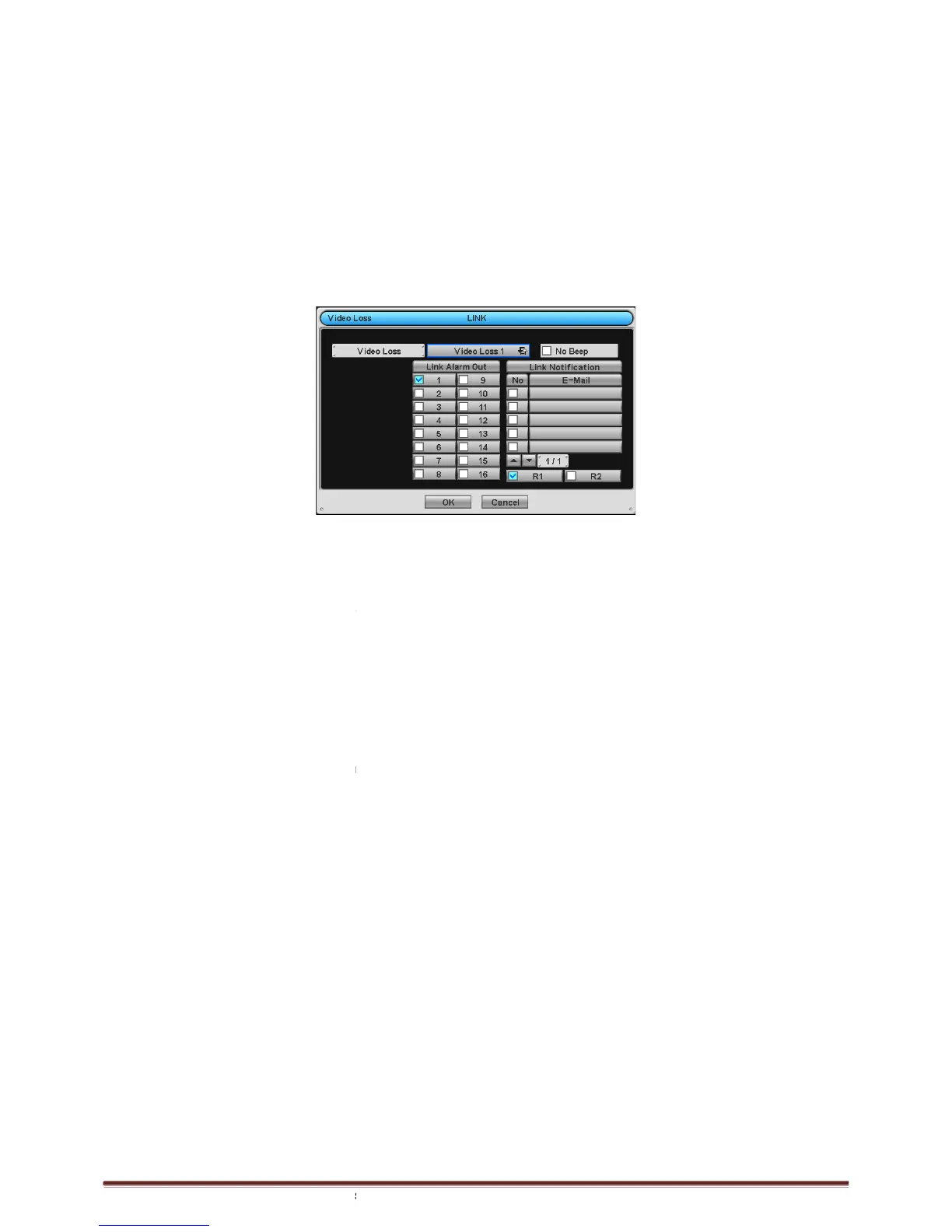
LINK>Video Loss and the following screen will appear.
Select alarm outputs and set up E-
mail addresses for notification
Link Notification displays E-
mail addresses registered in
Please follow the setup procedures below.
Video Loss frame and select Video Loss 1.
Select cameras for recording when Video Loss 1 is on. Please check
Select alarm outputs to be worked when Video Loss 1 is on. Please check
More than two alarm outputs can be set.
④ Select E-mail addresses for notifi
mail addresses can be set.
Repeat the above procedure for Video Loss 2~ Video Loss 16.
to deactivate alert sounds from video loss. Apply to
Choose ‘OK’ to confirm the setting.
Select alarm outputs to be worked when Motion Event 1 is on. Please check
a check box under Link Alarm Out
. More than two alarm outputs can be set.
mail addresses for notification when Motion Event 1
a check box under Link Notification.
mail addresses can be set.
above procedure for Motion Event 2~ Motion Event 16.
By Duration box to set up the recording duration and prevent recording caused by event.
The duration time can be controlled by previous setting mode:
LINK>Video Loss and the following screen will appear.
mail addresses for notification
mail addresses registered in
DEVICES>Network>Notification.
Please follow the setup procedures below.
Video Loss frame and select Video Loss 1.
Select cameras for recording when Video Loss 1 is on. Please check
a check box under Link Camera. More than two
Select alarm outputs to be worked when Video Loss 1 is on. Please check
a check box under Link Alarm Out
More than two alarm outputs can be set.
a check box under Link Notification.
mail addresses can be set.
Repeat the above procedure for Video Loss 2~ Video Loss 16.
to deactivate alert sounds from video loss. Apply to
a check box under Link Alarm Out
a check box under Link Notification.
By Duration box to set up the recording duration and prevent recording caused by event.
a check box under Link Camera. More than two
a check box under Link Alarm Out
a check box under Link Notification.


 To Next Page