Digital Video Recorder for Ness IQ-
This has a different function from Factory Reset Switch on the back panel of DVR in that System Log is not initialized.
Copy the Menu setup stored in USB memory stick into DVR. Please plug in the memory stick and then click (
Store the Menu setup of DVR in USB memory stick. Please plug in the memory stick and then click (
lt, Import or Export process, a message box will ask the progress and click the confirmation icon, then
a message box will show whether its success or failure.
Store the System Log contents in USB memory stick. Please plug in the memory
When user is on Default, Import or Export process, a message box will ask
message box will show whether its
When user complete Status data input, please click
Version Upgrade
User may upgrade DVR software.
Please follow the Upgrade procedure below.
having upgrade file into DVR.
) Load frame. Then, software version stored in the USB will appear on the left
) Start frame to start the upgrade.
When the upgrade is completed, a dialogue box pops up. Please choose ‘OK’ and DVR
Upgrade file must be placed without folder. Otherwise SYSTEM will not
DO NOT UPGRADE UNTIL A HARD DISK DRIVE
PLUGGING OUT USB DEVICE OR FORCED POWER
REMOTE UPGRADING WILL CAUSE SYSTEM TO CHANGE ALL THE SETTINGS TO DEFAULT EXCEPT NETWORK SETTING.
This has a different function from Factory Reset Switch on the back panel of DVR in that System Log is not initialized.
Copy the Menu setup stored in USB memory stick into DVR. Please plug in the memory stick and then click (
Store the Menu setup of DVR in USB memory stick. Please plug in the memory stick and then click (
lt, Import or Export process, a message box will ask the progress and click the confirmation icon, then
a message box will show whether its success or failure.
Store the System Log contents in USB memory stick. Please plug in the memory
When user is on Default, Import or Export process, a message box will ask
and click the confirmation icon,
When user complete Status data input, please click
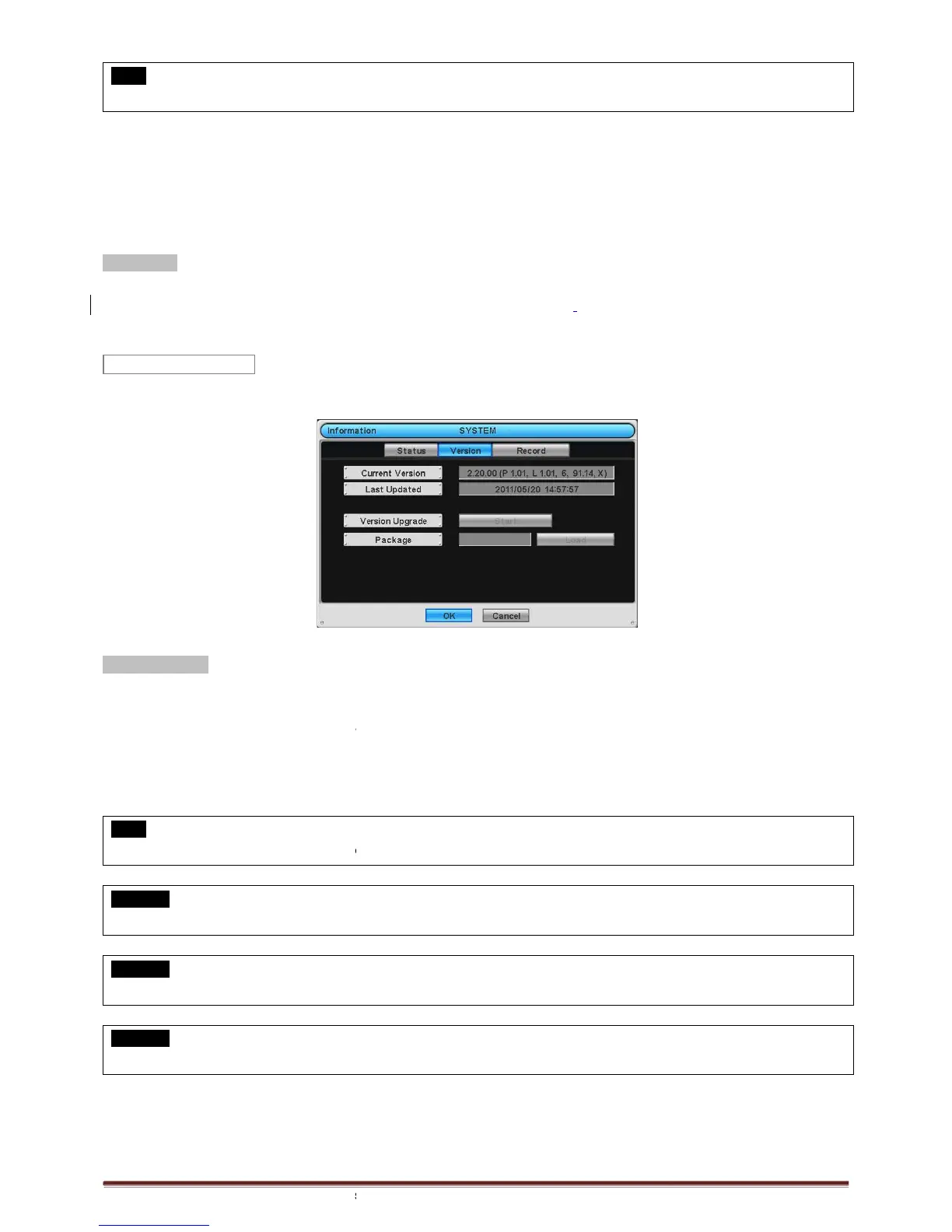
) Version and the following screen will appear.
Please follow the Upgrade procedure below.
having upgrade file into DVR.
) Load frame. Then, software version stored in the USB will appear on the left
) Start frame to start the upgrade.
When the upgrade is completed, a dialogue box pops up. Please choose ‘OK’ and DVR
Upgrade file must be placed without folder. Otherwise SYSTEM will not
be able to recognize the file.
DO NOT UPGRADE UNTIL A HARD DISK DRIVE
. MAKE SURE TO UPGRADE WHEN HDD IS IN PROPER OPERATION.
PLUGGING OUT USB DEVICE OR FORCED POWER
-OFF DURING VERSION UPGRADE
MAY CAUSE PERMANENT DAMAGE.
REMOTE UPGRADING WILL CAUSE SYSTEM TO CHANGE ALL THE SETTINGS TO DEFAULT EXCEPT NETWORK SETTING.
This has a different function from Factory Reset Switch on the back panel of DVR in that System Log is not initialized.
Copy the Menu setup stored in USB memory stick into DVR. Please plug in the memory stick and then click (
Store the Menu setup of DVR in USB memory stick. Please plug in the memory stick and then click (
lt, Import or Export process, a message box will ask the progress and click the confirmation icon, then
and click the confirmation icon,
) Version and the following screen will appear.
. MAKE SURE TO UPGRADE WHEN HDD IS IN PROPER OPERATION.
MAY CAUSE PERMANENT DAMAGE.
REMOTE UPGRADING WILL CAUSE SYSTEM TO CHANGE ALL THE SETTINGS TO DEFAULT EXCEPT NETWORK SETTING.


 To Next Page