Digital Video Recorder for Ness IQ-
of SMPT port is 25. Please note that some particular areas have restriction on the default port. If so, port
number 2525 and 587 can be
When an event occurs, users can send
an email to a designated mail address by clicking
may select one of JPEG, VIDEO CLIP
duration of time for recoded data in d
CAUTION
ACCORDING TO THE VARIOUS
LOCAL CONDITIONS; SSL EMAIL SERVERS MAY NOT WORK CORRECTLY WITH THIS
SO PLEASE INACTIVATE THE SSL FEATURE IN THE SERVER SETUP. NOTE THAT SOME SERVER MAY NOT HAVE THIS
INACTIVATE FEATURE
CAUTION
DEPENDING ON THE VARIOUS LOCAL CONDITIONS, SOME
FUNCTION.
3.4.2 Camera / PTZ
Please click (
)
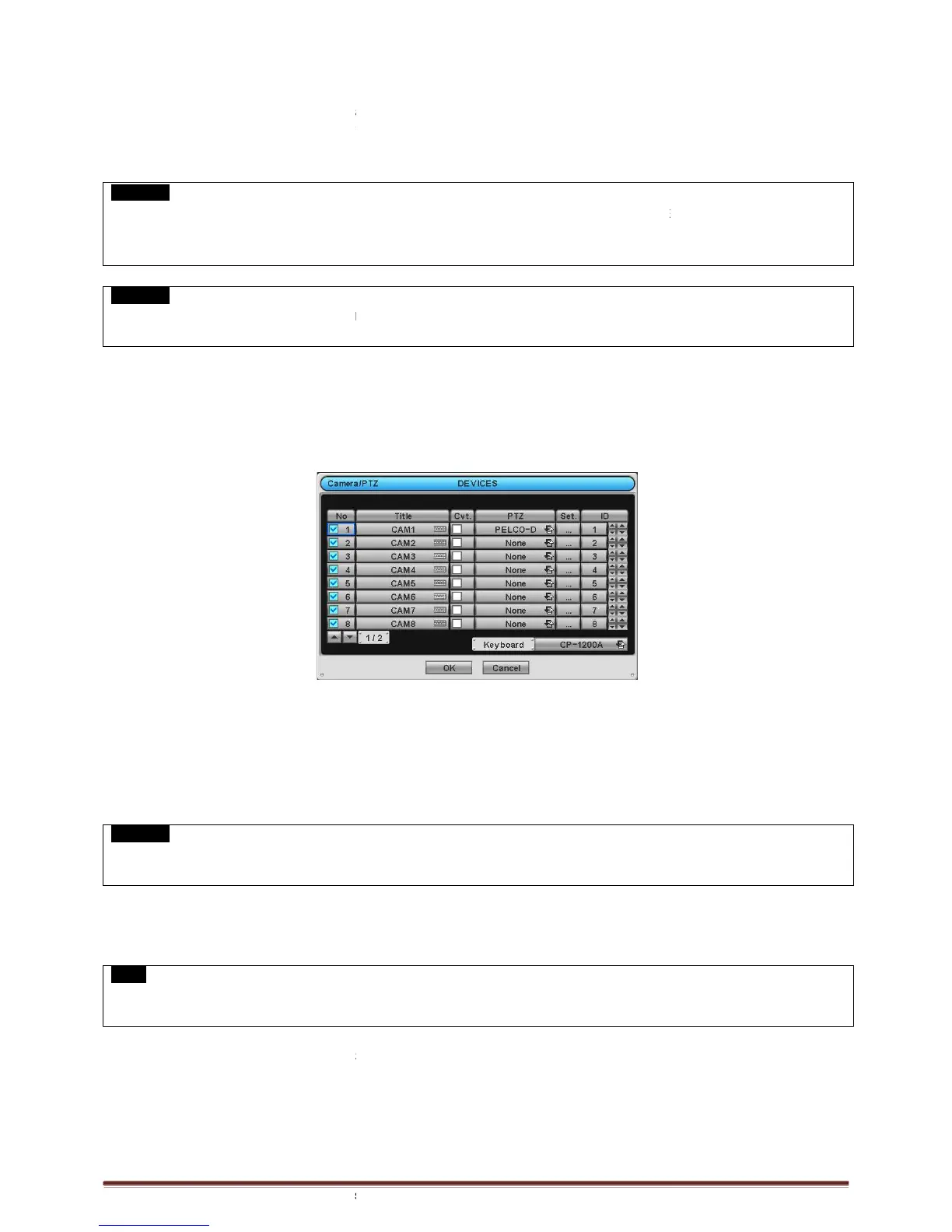
DEVICES>Camera/PTZ and the following screen will appear.
Click (
) the keyboard icon on the right
register titles of cameras.
If a check box is checked on
No column, a video of the corresponding camera is recorded and displayed on the monitor.
er does not check the checkbox, both recording and monitor display stop. Then, DVR picture, instead of a
recorded video, will be displayed on the monitor.
WHEN USER EXCLUDES A CORRESPONDING CAMERA VIDEO FROM RECORDING AND MONITOR DISPLAY (CHECK A CHECK BOX
), MAKE SURE CHANNELS OF LARGE NUMBERS ARE EXCLUDED FIRST.
If a check box is checked
on Covert column, a video is recorded but is not displayed on the monitor.
) each frame on PTZ column to select PTZ protocols connected to a corresponding camera.
NOTE
When using RS-485 over Coax
, user can select any protocol from the Protocol list other than
RS-485 over Coax will not work.
Click (
) each frame on Set to set PTZ Settings connected to a corresponding camera.
of SMPT port is 25. Please note that some particular areas have restriction on the default port. If so, port
an email to a designated mail address by clicking
ttach button and selecting
may select one of JPEG, VIDEO CLIP
None. In case of transmitting VIDEO CLIP
menu. (e.g., 1 sec, 3 sec, 5 sec).
LOCAL CONDITIONS; SSL EMAIL SERVERS MAY NOT WORK CORRECTLY WITH THIS
SO PLEASE INACTIVATE THE SSL FEATURE IN THE SERVER SETUP. NOTE THAT SOME SERVER MAY NOT HAVE THIS
DEPENDING ON THE VARIOUS LOCAL CONDITIONS, SOME
MAIL SERVERES MAY NOT WORK PROPERLY WITH THIS
DEVICES>Camera/PTZ and the following screen will appear.
hand side of each frame on Title column and the virtual keyboard will appear. Then,
No column, a video of the corresponding camera is recorded and displayed on the monitor.
er does not check the checkbox, both recording and monitor display stop. Then, DVR picture, instead of a
recorded video, will be displayed on the monitor.
WHEN USER EXCLUDES A CORRESPONDING CAMERA VIDEO FROM RECORDING AND MONITOR DISPLAY (CHECK A CHECK BOX
), MAKE SURE CHANNELS OF LARGE NUMBERS ARE EXCLUDED FIRST.
on Covert column, a video is recorded but is not displayed on the monitor.
) each frame on PTZ column to select PTZ protocols connected to a corresponding camera.
, user can select any protocol from the Protocol list other than
) each frame on Set to set PTZ Settings connected to a corresponding camera.
of SMPT port is 25. Please note that some particular areas have restriction on the default port. If so, port
ttach button and selecting
None. In case of transmitting VIDEO CLIP
LOCAL CONDITIONS; SSL EMAIL SERVERS MAY NOT WORK CORRECTLY WITH THIS
SO PLEASE INACTIVATE THE SSL FEATURE IN THE SERVER SETUP. NOTE THAT SOME SERVER MAY NOT HAVE THIS
MAIL SERVERES MAY NOT WORK PROPERLY WITH THIS
hand side of each frame on Title column and the virtual keyboard will appear. Then,
No column, a video of the corresponding camera is recorded and displayed on the monitor.
er does not check the checkbox, both recording and monitor display stop. Then, DVR picture, instead of a
WHEN USER EXCLUDES A CORRESPONDING CAMERA VIDEO FROM RECORDING AND MONITOR DISPLAY (CHECK A CHECK BOX
on Covert column, a video is recorded but is not displayed on the monitor.
) each frame on PTZ column to select PTZ protocols connected to a corresponding camera.


 To Next Page