Your computer connects to the local area network (LAN).
Types of logins
Separate types of logins serve different purposes. It is important that you understand
the differences so that you know which login to use when.
Several types of logins are associated with the router:
•
ISP login: The login that your Internet service provider (ISP) gave you logs you in to
your Internet service. Your ISP gave you this login information in a letter or some
other way. If you cannot find this login information, contact your ISP.
•
WiFi password: Your router is preset with a unique WiFi network name (SSID) and
password for WiFi access. This information is on the router label. The WiFi password
is also known as the network key or passphrase.
•
NETGEAR account login: The free NETGEAR account that you need to register your
router, manage your router remotely, and manage your subscriptions. If you do not
have a NETGEAR account, you can create one.
•
Router login: The router login password that you need to log in to the router with
the admin user name when you use a web browser to access and configure the
router.
Use a web browser to access the
router
When you connect to the network (either with WiFi or with an Ethernet cable), you can
use a web browser to access the router to view or change its settings. We call the router
user interface the router web interface.
When you access the router web interface, the software automatically checks to see if
your router can connect to your Internet service.
Automatic Internet setup
You can set up your router automatically (see the information below) or manually (see
Manually set up the Internet connection on page 29). In either case, you must use a web
browser to access the router.
User Manual22Connect to the Router Network
and Access the Router
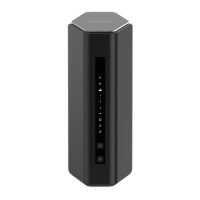
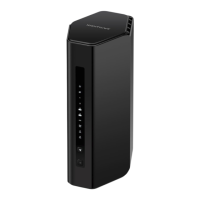
Nighthawk WiFi 7 Tri-Band Router Model RS600













 To Next Page