109
Nets SmartPOS N950 user manual
Enter Wi-Fi Password:
If the selected Wi-Fi network is secured, you will be prompted to enter the password. Use the on-screen keyboard to input
the Wi-Fi password.
4.3 Touchscreen
The terminal is powered with a high-quality touchscreen. Ensure that the touchscreen is clean and free from any dirt,
smudges, or fragments. Do not spray detergents directly at the surface of the screen and use a soft, lint-free cloth to
gently clean the screen.
In case of glitches, try restarting the device by powering the terminal o and then on again.
4.3.1 Accessibility support
If you want to enable accessibility support for added accessibility for visually impaired, please contact our support who
can activate the accessibility feature for you.
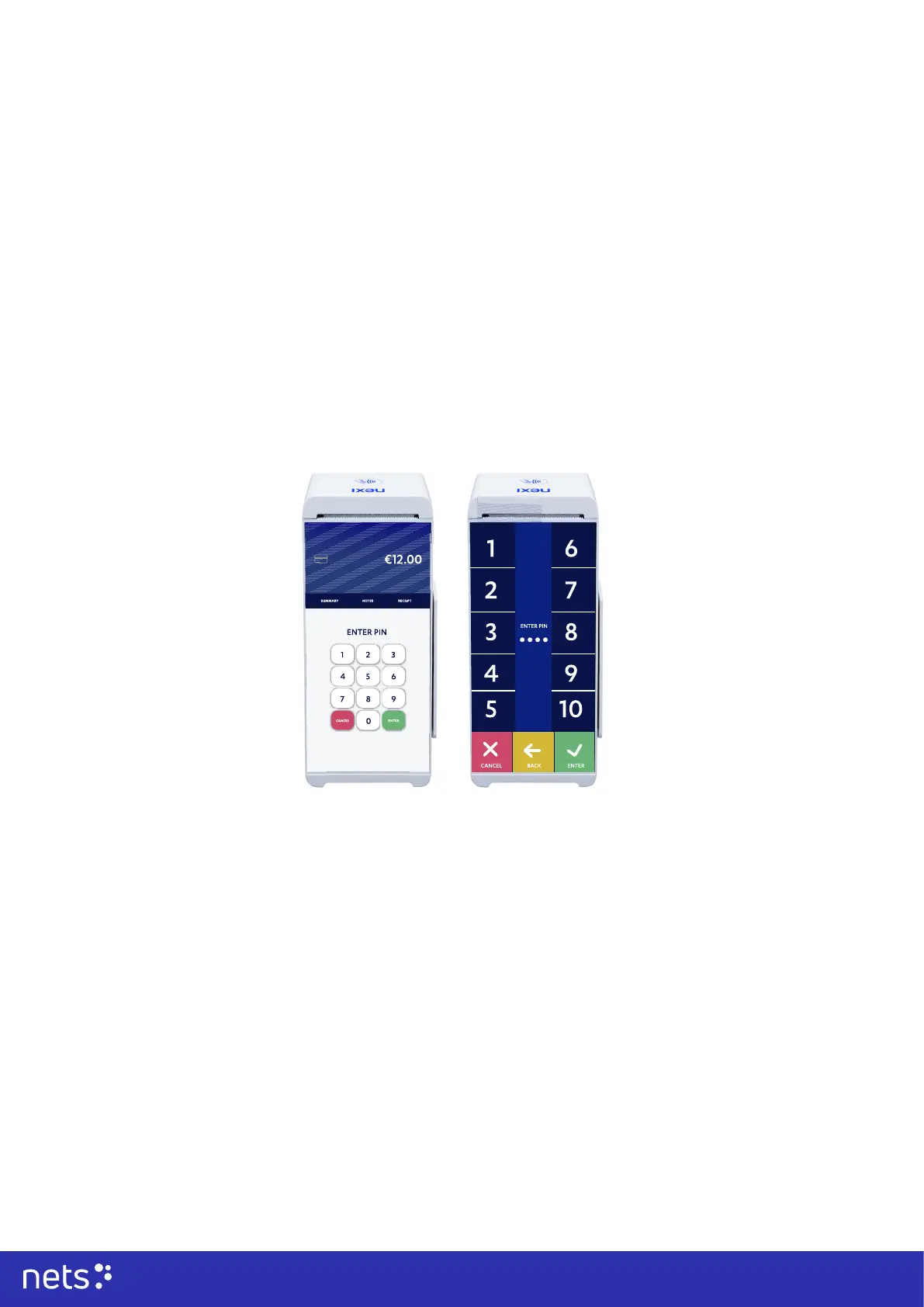
Once enabled, the displayed screen will allow the cardholder to enter their PIN on the terminal screen aided by the help of
bigger touch buttons, sound support, and a designated accessibility plate.
For supporting accessibility on your terminal, we recommend purchasing the accessibility plate with your terminal.
4.3.2 Using Accessibility Mode
1. With the accessibility plate in place over the screen, the raised lettering will correspond with the numbers displayed on
the screen.
2. The cardholder will read each number with their ngers along the edges of the screen. Once they locate the digit they
want to select, they should swipe inward toward the centre of the screen and tap.
3. The numbers 1, 2, 3, 4, and 5 will be found on the left edge of the screen. To select, the cardholder should swipe to their
right and tap.
4.The numbers 6, 7, 8, 9, and 0 will be found along the right edge of the screen and will require a swipe to the left and a tap
to select.
5. The ability to Cancel, Backspace, or Enter will be found across the bottom of the screen. To select, swipe up from the
bottom of the screen and tap.
4.4 Language
The terminal supports the following languages: English, Swedish, Finnish, Danish, and Norwegian.
In payment situations, the terminal reads the information from the cardholder’s payment card in the languages that are
supported.



 To Next Page