3
Nets SmartPOS N950 user manual
2.3 SIM Card
The SIM card for the N950 terminal is pre-installed. Please, do not open the back cover to remove or change
the SIM card! The terminal is only compatible with the installed SIM card. Using an external card prevents the
terminal’s connection and releasing it hinders our support from remotely diagnosing potential problems in the
terminal.
Note! The SIM card should not be used for other purposes than for operating the terminal and unauthorized
usage of the SIM might lead to deactivating your agreement with Nets.
2.4 Other recommendations
Keep the terminal away from very hot environments. Protect the terminal from humidity, liquids, vibrations, dust
or electromagnetic radiation.
Environment conditions
Operating temperature: -10 °C ~ 50 °C
Storage and transportation temperature: -20 °C ~ 60 °C
Battery charging conditions: 0 °C ~ 45 °C
Relative humidity: 5% ~ 93% (non-condensing at ~ 40°C)
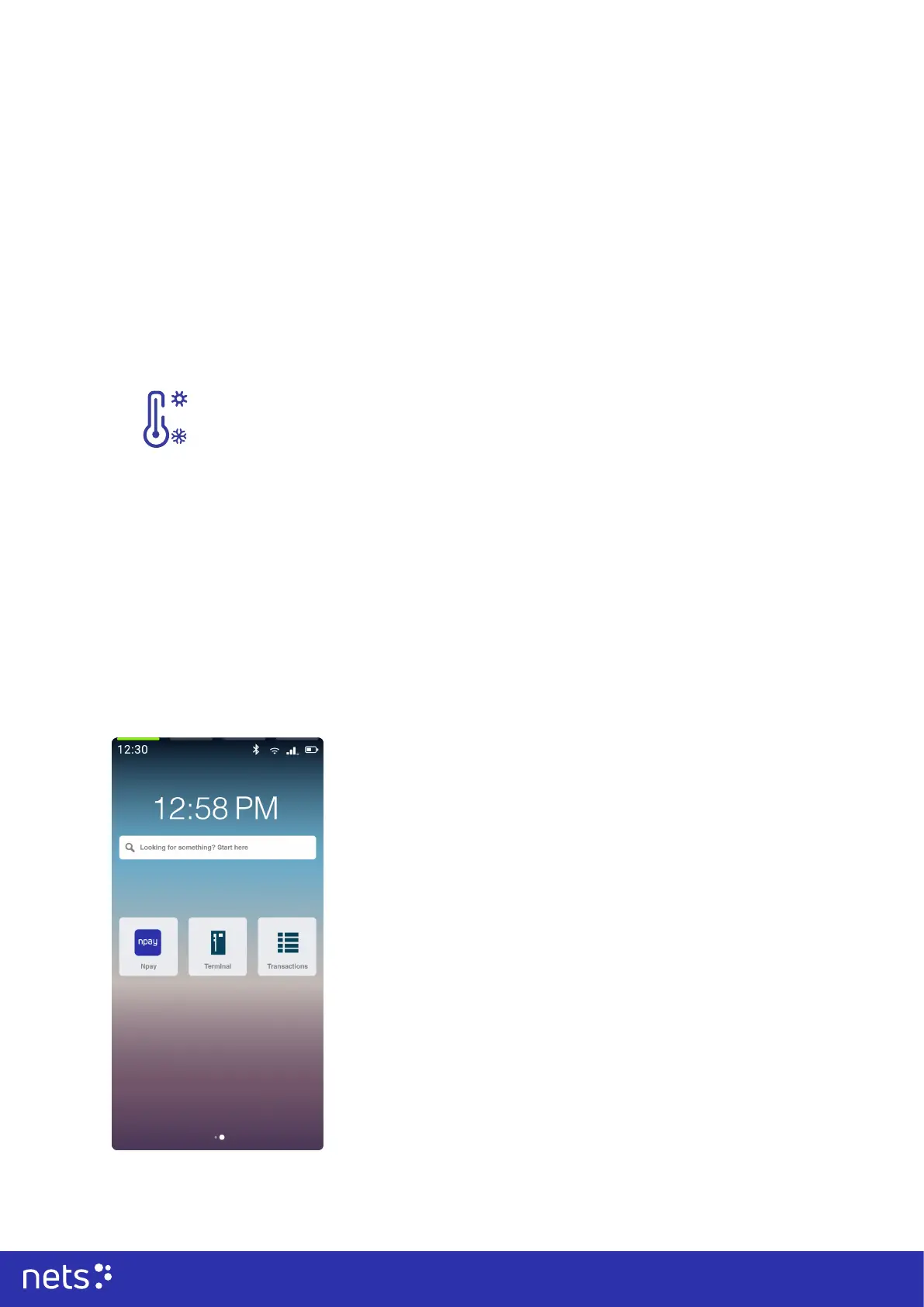
3.1 Main Applications & Home view
Your terminal comes with the following pre-congured applications. We have added the applications to
support you to provision new ways of collecting payments and transactional data.
3. Basic operations and getting started
Npay app
• Npay is a payment solution of Nets & Nexi Group. The Npay App is backed up by
our powerful payment gateway that processes your payments securely.
• The Npay app is started when you set up your terminal. The Npay application
handles your daily settlements and reports.
(Also see point 3.9, ‘Reports’)
Terminal app
• The Terminal app allows you to collect payments securely and swiftly. Purchase
receipts are also printed through the application.
• Simply add the amount to the screen using the on-screen touch-keys and ask the
cardholder to insert/ tap/ swipe their card on the terminal and print / send the
customer their receipt through the application.
• When adding the transaction amount, please note the decimals, e.g., for an
amount of 1€, insert 100, the comma is not needed)
Transactions app
• All transactions made on the terminal between a time window of 30 days are
gathered in the Transactions app. Here you can revisit your payments, re-print
receipts, make refunds, cancel payments, and more. For info on transactions that
have been performed outside the past 30 days, please contact support.



 To Next Page