5
Nets SmartPOS N950 user manual
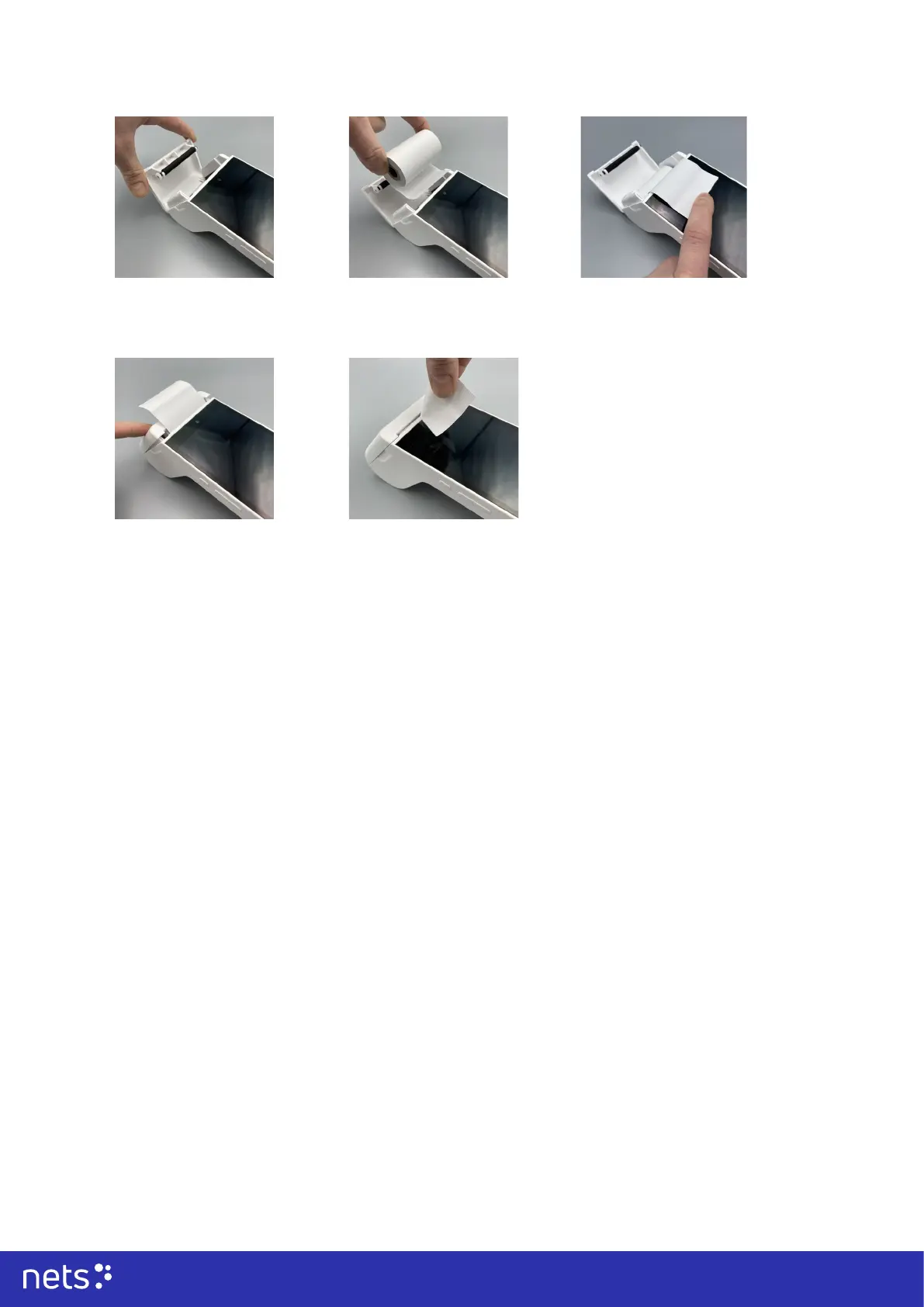
3.3 Installing the receipt paper
1. Open the paper roll cover.
3.4 Operating the terminal
3.4.1 Power on:
Press the power button on the left-hand side of the terminal for about 2 seconds until the LCD (screen) is lit and
the terminal switches on. The terminal will automatically check for any software updates.
3.4.2 Setting up the terminal
The terminal will now set up all your needed smart terminal congurations when it is started.
Once the terminal is set up and paired with your business, please choose your user and a passcode for logging in.
When operating the terminal for the rst time, please agree to the terms and conditions on the screen (provided
by our partner Poynt).
After that the terminal is set up, your home screen with pre-congured apps will appear. Payments are initiated
from the ‘Terminal’ application.
3.4.3 Power o/ reboot:
Press and hold the power button until a pop-up window appears on the terminal screen. In the window, touch the
screen to select ‘Power o’ / ‘Reboot’ depending on your choice.
Note:
In case of the terminal crashing, please press the power button for about 10 seconds to force-reboot the terminal.
You can also try to re-plug the battery and then boot the terminal.
2. Insert the paper roll
in the compartment
following the directions
shown in the picture.
3. Pull 5 cm of the paper
until it protrudes from
the compartment on the
top of the terminal.
4. Close the compartment lid (an
audible ‘click’ should be heard).
5. Remove the excessive paper by tearing
along the serrated edge.



 To Next Page