7
Nets SmartPOS N950 user manual
3.7 Cancel /Void
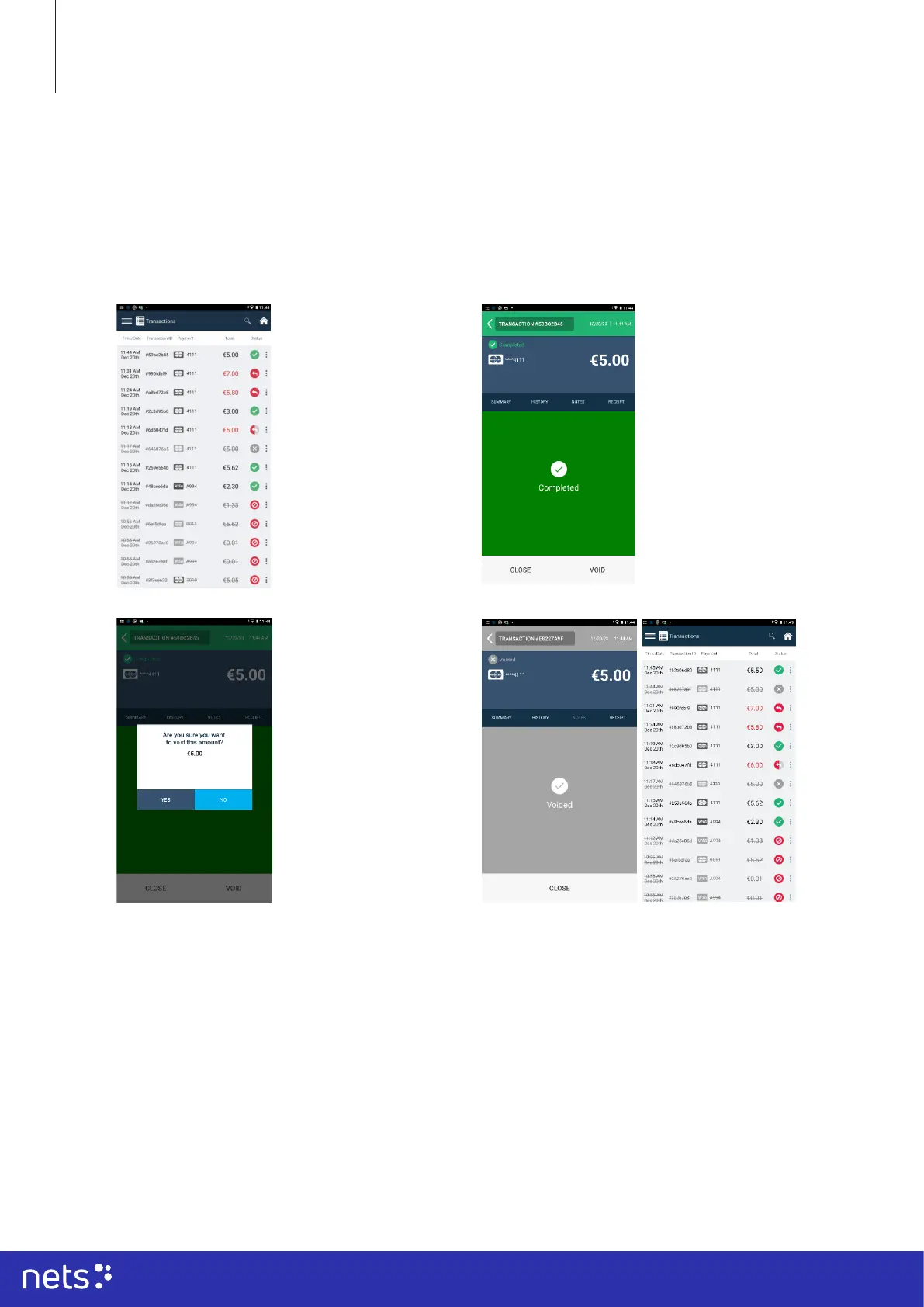
Click on the ‘home’ icon on your terminal screen.
Choose the ‘Transactions’ application.
• You will see your transactions in the list. Match the transaction you want to void by matching the reference nr.
from the receipt and/or the last four digits of the payment card on the terminal screen.
For cancelling the payment, the same payment card should be used as the original purchase was made with.
Please note, that payments that have been processed over 24 hours ago cannot be voided as the settlements are already
sent to the acquirer. In these cases, the payment can be refunded (see section 3.8 Refunds).
Click on the transaction,
which you need to cancel.
You will see a screen with
the purchase info appear on
the screen.
You will see a ‘void’ option
appear in the lower right
corner of your terminal
screen.
Choose to cancel the
payment by pressing the
option ‘Void’ on the screen.
Conrm the option of
voiding the payment by
tapping ‘Yes’ on the screen.
You will get the option to
print the receipt by tapping
on the screen.
The payment now shows as
voided (indicated by grey
colour, the X-symbol, and
striked-through text) in the
list of Transactions



 To Next Page