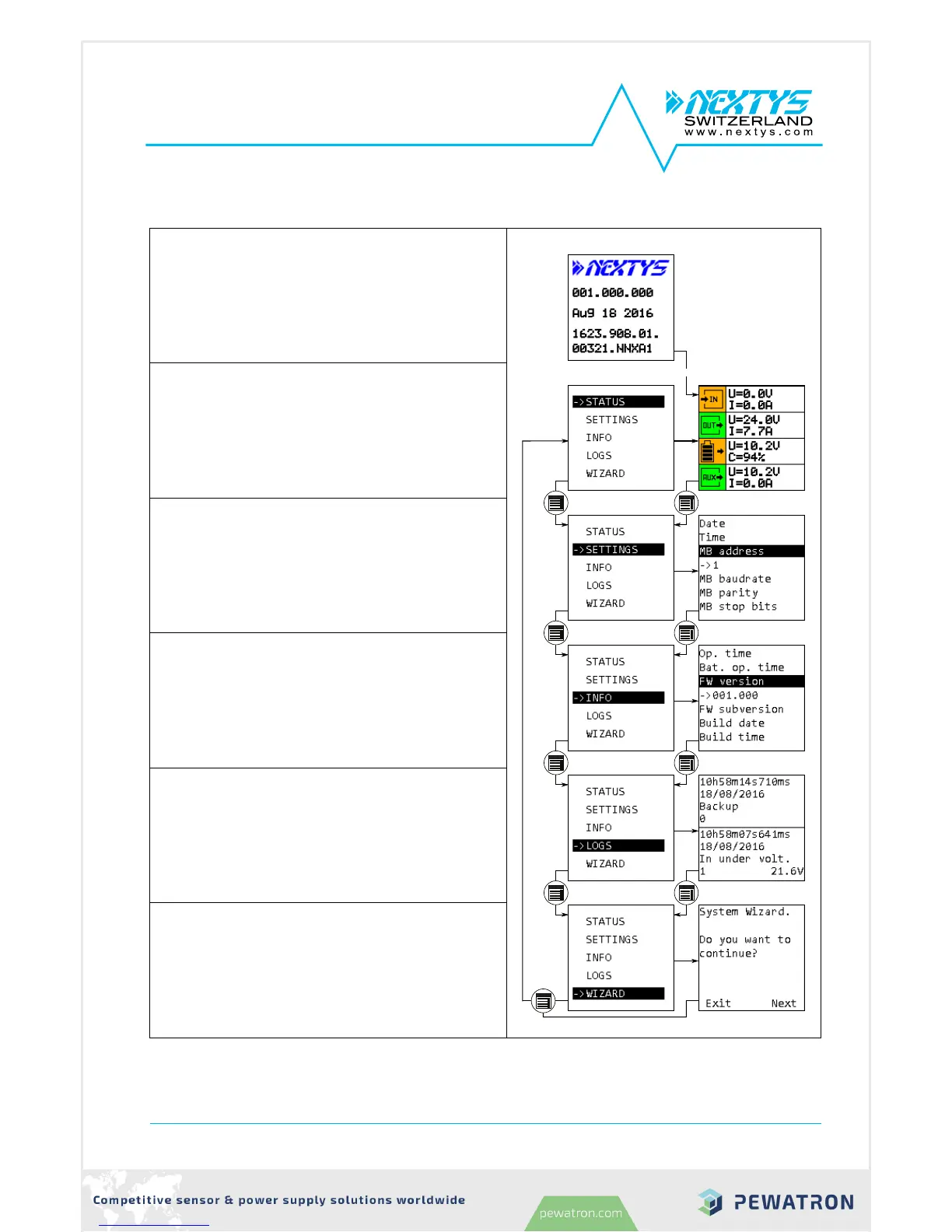
Power ON screen:
This screen is shown at power ON. It shows the
device name, serial number and firmware version.
Status:
This is the default view where the user can find the
most relevant information about the device status.
The system always falls back to this view after 60s of
inactivity (no key pressed).
Settings:
All the device settings are configurable from this
menu. Use the UP/DOWN KEY to navigate through
the parameters. Press the OK KEY to enter/exit the
editing mode. In editing mode use the UP/DOWN
KEY to change the highlighted value.
Info:
Device information such as firmware version, serial
number and device name is visible from this menu.
Logs:
All the alarms and event are logged in a circular
buffer and visible from this screen. Use the
UP/DOWN KEY to navigate through the logs.
Wizard:
The wizard helps the user to configure the system
through a series of screens.
Table 4: User interface layout
DCW20_040-02-700-005-EH-1117



 To Next Page