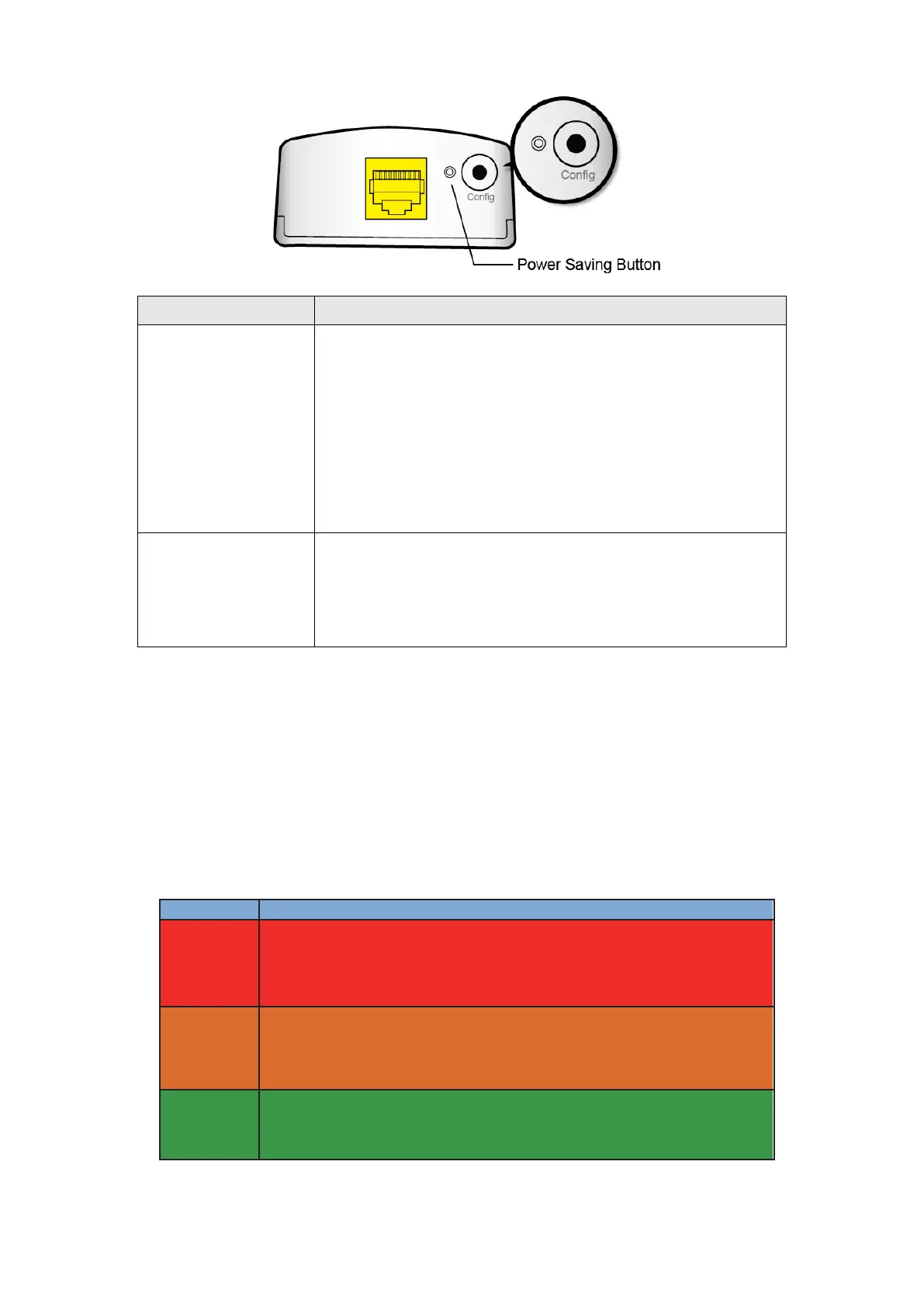
• Press more than 2 seconds (“Security” LED starts slow
blinking) and released: the “One Button Security
Setup” (OBUS) procedure is started and configuration
period is open.
• Press more than 5 seconds (“Security” LED starts quick
blinking) and released: security settings are set to
default values.
• Press more than 10 seconds (“Security” LED switches
off) and released: a factory reset is performed.
• Press around 2 seconds (using a paper clip) to force the
system into power saving mode.
• While the system in power saving mode, press the
button again, the system to restore to operational
mode.
1.3 How to understand the COVERAGE LED colors
The COVERAGE LED displays quality of the network and provides important information that will provide
solutions to common questions, such as why a High Definition (HD) movie is not showing or shows with
pixels. The COVERAGE LED indicator will vary its color depending on the estimated speed of the Powerline
connection. The speed is measured in Megabits Per Second (Mbps).
The current connection has standard quality, normal Internet
activities ex. 20Mbps are possible but the Powerline is unable to
transmit either a Standard Movie or High Definition (HD) Movie.
The current connection has good quality and Internet activities
ex. greater than 20Mbps and less than 40Mbps to transmit
Standard Movie and HD Movie.
The current connection has excellent quality and Internet
activities ex. greater than 40Mbps to transmit multiple Standard
Movies and HD Movies.


 To Next Page