X.COM3 - MOTORCYCLE BLUETOOTH COMMUNICATION SYSTEM WITH MESH INTERCOM
27
3. Save the channel.
1x
TAP
“ Channel is set,
channel #”
Note:
• Channel Setting always starts with channel 1.
• If you do not press any button for approximately 10 seconds in a
specic channel, the channel is automatically saved.
• The channel will be remembered even if you turn off the headset.
• You can use the Sena Motorcycles App to change the channel.
7.4 USING MESH IN GROUP MESH
7.4.1 Creating a Group Mesh
Creating a Group Mesh requires two or more Open Mesh users.
Open Mesh Group Mesh
B
C
You
B C
You
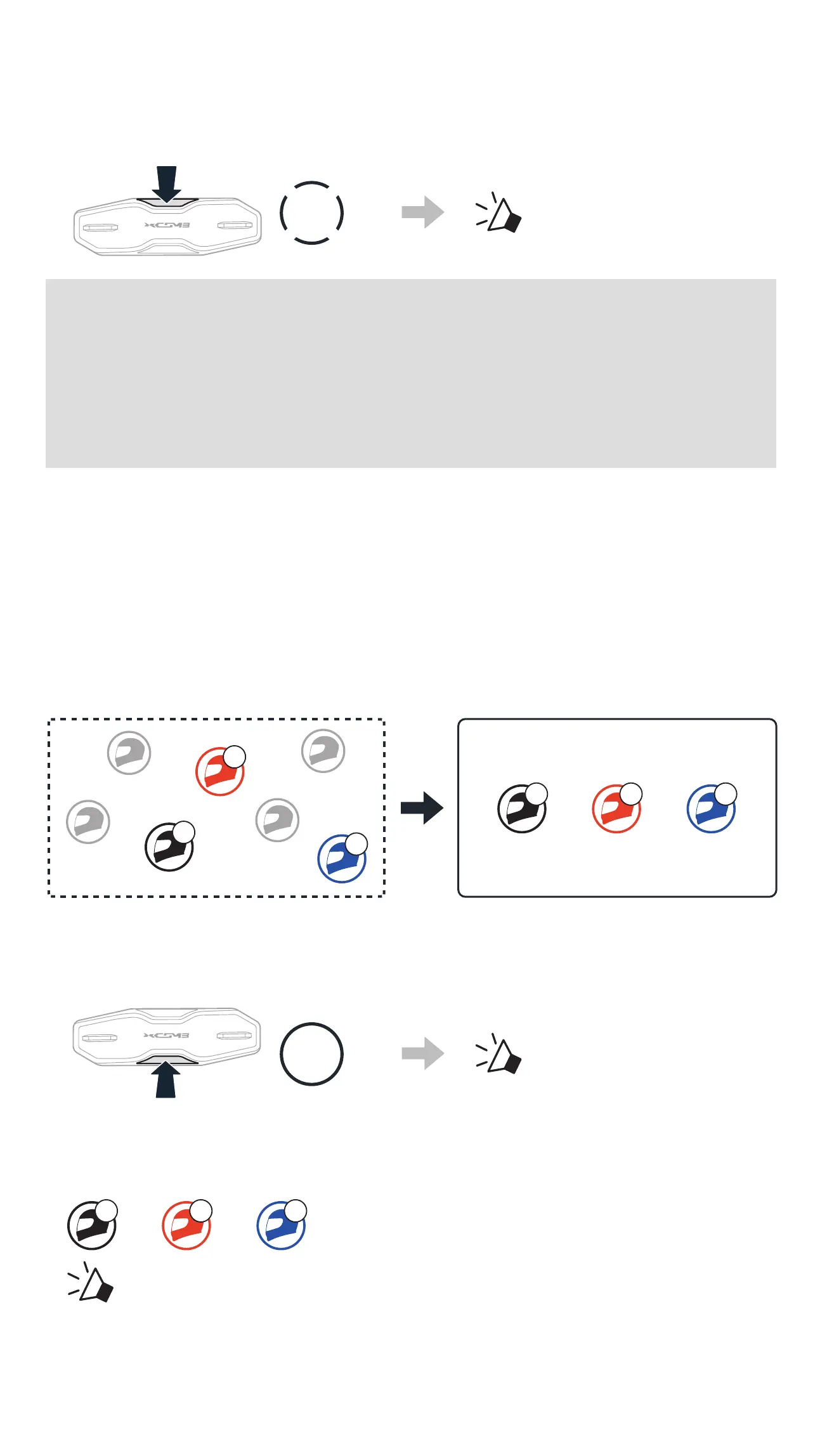
1. To enter Mesh Grouping to create a Group Mesh, press and hold the
Mesh Intercom Button for 5 seconds on the headset of the users (You,
B, and C).
5s
HOLD
“ Mesh grouping”
2. When Mesh Grouping is completed, the users (You, B and C) will hear a
voice prompt on their headsets as Open Mesh switches to Group Mesh.
B C
You
“ Group Mesh”



 To Next Page