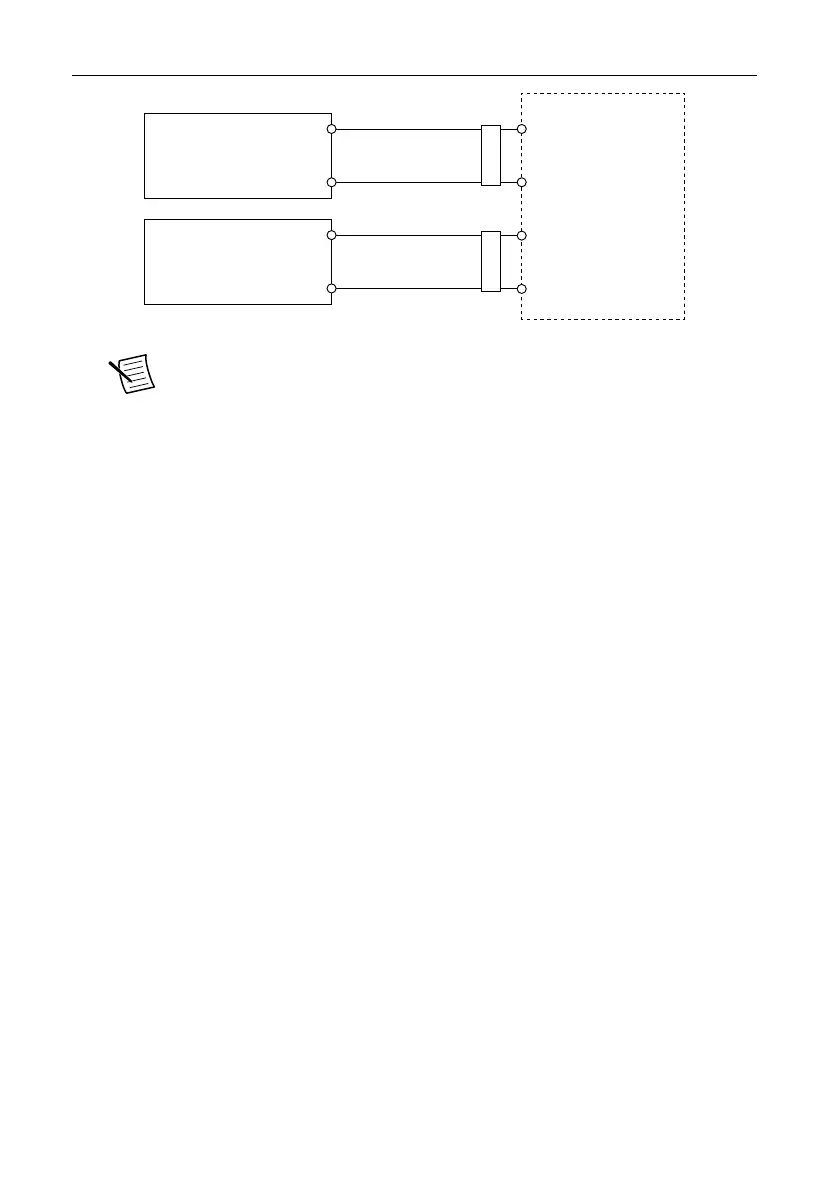
Figure 5. cRIO-904x Power Connections
Power Connector
V2
C
C
V1
Primary Power Supply
+
–
–
+
Secondary Power Supply
FerriteFerrite
Note The C terminals are internally connected to each other.
5. Tighten the terminal screws on the power connector to 0.20 N · m to 0.25 N · m
(1.8 lb · in to 2.2 lb · in) of torque.
6. Install the power connector on the front panel of the cRIO-904x.
7. Tighten the power connector screw flanges to 0.20 N · m to 0.25 N · m
(1.8 lb · in to 2.2 lb · in) of torque.
8. Power on the primary power supply and optional secondary power supply.
When you power on the cRIO-904x for the first time, the device boots into safe mode.
The POWER LED illuminates, the STATUS LED illuminates briefly, and then the
STATUS LED blinks twice every few seconds.
Connecting the Controller to the Host Computer
Complete the following steps to connect the cRIO-904x to the host computer using the Dual
Role USB C Port.
1. Power on the host computer.
2. Connect the cRIO-904x to the host computer using the USB-to-Type-A cable (included in
kit), inserting the USB Type-C connector into the Dual Role USB Type-C port. Connect
the other end of the USB cable (Type-A) to the host computer.
The device driver software automatically detects the cRIO-904x. Select Configure and
install software to this device.
cRIO-904x Getting Started Guide | © National Instruments | 9



 To Next Page