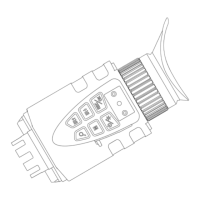
• The Swift 2 has a manual focus camera lens. The picture will be
blurred if not manually focused.
• To sharpen the image, use the focus wheel ⑥ on the underside of
the unit.
• Press ZOOM/OK ② to zoom in at multiple magnification levels. After
reaching 3x, press again to return to 1x zoom.
• For the Swift 2 Pro model only: short press REC/MENU ③ to
start/stop video recording.
• Long press REC/MENU ③ to switch between these modes:
o Swift 2: VIDEO mode, SETTINGS mode.
o Swift 2 Pro: VIDEO mode, PLAYBACK mode and SETTINGS
mode.
• Only the Swift 2 Pro can record video footage.
• When recording in VIDEO mode, the Swift 2 Pro can record audio via
the microphone ⑦ located on the unit’s underside.
• The 18650 lithium-ion battery is pre-installed and located in the
underside compartment ⑧.
3. Charging the battery
• The Swift 2 charges just like a phone or tablet, using a USB-C
interface.
• To charge the battery, plug the provided USB-C cable into a
USB port. This could be a USB port on your laptop or computer,
or phone charger.
• Open the USB cover:
• Plug the provided USB-C cable into
the charging port:
• When the Swift 2 is charging, progress is shown through a
green battery icon on the lower right-hand corner of the LCD
screen.
• The charge time from flat is 3 to 4 hours from a USB socket
with a 1A output.



 To Next Page