EasyManua.ls Logo

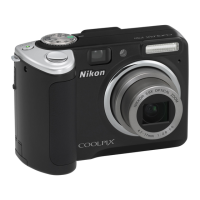
Nikon Coolpix P50 - User Manual

Nikon Coolpix P50
152 pages
Print Icon
To Next Page IconTo Next Page
Loading...
En
No reproduction in any form of this manual, in whole or in part
(except for brief quotation in critical articles or reviews), may be
made without written authorization from NIKON CORPORATION.
Printed in China
YP7H00700101(11)
6MMA1511-01
DIGITAL CAMERA
Users Manual
En

Table of Contents

Questions and Answers

  • A
    Angelica MarshallSep 23, 2025
    How to enable editing options on Nikon Coolpix P50?
    • C
      Cody ThomasSep 23, 2025
      If you cannot use D-Lighting, electronic VR, crop, small picture, or black border options on your Nikon Digital Camera, it is because these options cannot be used with movies. The D-Lighting, crop, and small picture options also cannot be used with pictures shot when [I 3264×2176] or [G 3200×1800] is applied in the image size setting, so select a different image size setting. Ensure you select a compatible picture. Also, pictures shot with other cameras cannot be edited, so only edit pictures shot with this camera. Other cameras may be unable to play back, or transfer to a computer, pictures edited with this camera, so use a compatible camera for playback.
  • K
    Katherine ArmstrongAug 25, 2025
    What to do if my Nikon Coolpix P50 Digital Camera does not shoot when pressing the shutter button?
    • N
      Nathaniel MontgomeryAug 25, 2025
      If your Nikon Digital Camera does not shoot when the shutter-release button is pressed, ensure that the camera is not in playback mode by pressing c or the shutter-release button. If menus are displayed, press d. Also, check if the batteries are exhausted and replace them if necessary. If the flash lamp is blinking, wait until the flash has charged before attempting to take a picture.
  • A
    Ashley BaileyAug 25, 2025
    Why did my Nikon Digital Camera settings reset?
    • Z
      zacharyortegaAug 26, 2025
      If your Nikon Digital Camera settings have been reset, it is likely that the backup battery is exhausted, causing all settings to revert to their default values. To resolve this, replace the backup battery.
  • F
    Frances LeeAug 27, 2025
    How to fix blurred pictures on Nikon Coolpix P50?
    • L
      Lance WhiteAug 27, 2025
      If the pictures taken with your Nikon Digital Camera appear blurred, try the following: Use the flash, activate the high-sensitivity shooting mode, enable electronic vibration reduction, switch to D mode, or use a tripod along with the self-timer.
  • K
    Kimberly Thomas MDAug 27, 2025
    Why doesn't the flash fire on my Nikon Coolpix P50 Digital Camera?
    • C
      Cynthia CunninghamAug 27, 2025
      If the flash on your Nikon Digital Camera is not firing, first ensure that the flash is turned on. If it is already on, check if you have selected a scene mode that does not allow the flash to be used. If so, select a different scene mode. Also, if B of focus mode is applied, change the focus mode. If a D mode other than [Time-lapse movieP] is selected, select a different D mode. Finally, if [Continuous], [BSS], or [Multi-shot 16] is selected for [Continuous], change the continuous option.
  • T
    Timothy ReedSep 15, 2025
    How to fix underexposed (too dark) pictures on Nikon Digital Camera?
    • M
      Melvin DavisSep 15, 2025
      If pictures from your Nikon Digital Camera are too dark (underexposed), ensure that the flash is turned on. If it is on, check that the flash window is not blocked and that the subject is within the flash range. You can also adjust the exposure compensation, apply a high-sensitivity shooting mode, raise the ISO sensitivity, or, if the subject is backlit, select o ([Backlight] scene mode) or use fill flash.
  • G
    Garrett MurphySep 12, 2025
    How to fix unnatural colors in Nikon Coolpix P50 photos?
    • J
      James RussellSep 12, 2025
      If the colors in your pictures from Nikon Digital Camera appear unnatural, the white balance setting may not be appropriate for the light source. Adjust the white balance setting to correct this.
  • Y
    yfosterSep 14, 2025
    How to reduce noise in Nikon Digital Camera images?
    • A
      alan80Sep 14, 2025
      If randomly spaced bright pixels (“noise”) appear in images from your Nikon Digital Camera, the shutter speed may be too slow. Try using the flash. You could also specify a lower ISO sensitivity setting, select [On] for [Noise reduction] in the shooting menu, or choose a scene mode with noise reduction.
  • S
    Samantha MorrisSep 5, 2025
    Why can't I use optical zoom on my Nikon Coolpix P50?
    • L
      Lisa HayesSep 5, 2025
      If you cannot use the optical zoom on your Nikon Digital Camera, it might be because you are currently recording movies. To use the optical zoom, stop recording movies first.
  • M
    Matthew MillsSep 2, 2025
    Why do bright specks appear in pictures shot with flash on my Nikon Digital Camera?
    • J
      James BentleySep 3, 2025
      If pictures taken with the flash on your Nikon Digital Camera show bright specks, it is likely due to the flash reflecting off particles in the air. To resolve this, turn the flash off.

Summary

First Steps

Inserting Batteries

Instructions for inserting batteries into the camera.

Inserting Memory Cards

Instructions for inserting SD memory cards into the camera.

Basic Photography and Playback: Auto Mode

Step 1: Turn the Camera On and Select Auto Mode

Procedure to power on the camera and select auto mode.

Step 2: Frame a Picture

Guidance on composing shots using the viewfinder or monitor.

Step 3: Focus and Shoot

Instructions on focusing and taking a picture.

Using the Flash

Explanation of flash modes and their usage.

Exposure Compensation

Adjusting exposure settings for brighter or darker images.

High-Sensitivity Shooting Mode

P and M Modes

P (Programmed Auto) Mode

Using programmed auto mode for automatic shutter and aperture settings.

M (Manual) Mode

Manually controlling exposure with shutter speed and aperture.

Movies

Voice Recordings

Connecting to Televisions, Computers and Printers

Connecting to a Computer

Instructions for transferring pictures via USB.

Connecting to a Printer

Steps for direct printing via PictBridge or ImageLink.

Shooting, Playback and Setup Menus

Shooting Options: The Shooting Menu

Detailed explanation of settings within the shooting menu.

Basic Camera Setup: The Setup Menu

Configuration options for camera settings and preferences.

Formatting Memory;Format Card

Procedures for formatting internal memory or memory cards.

Reset All

Restoring camera settings to their default values.

Technical Notes

Caring for the Camera

Guidelines for cleaning, storage, and maintenance of the camera.

Error Messages

Table of error messages and their solutions.

Troubleshooting

Solutions for common camera problems and issues.

Nikon Coolpix P50 Specifications

General IconGeneral
Megapixel8.1 MP
Sensor typeCCD
Image sensor size1/2.5 \
Maximum image resolution3264 x 2448 pixels
Digital zoom4 x
Optical zoom3.6 x
Focal length range4.7 - 17 mm
InterfaceUSB
Digital SLRNo
Built-in flashYes
Effective sensor resolution8290000 pixels
Focal length (35mm film equivalent)28 - 102 mm
Normal focusing range0.5 - ∞ m
Macro focusing range (tele)0.05- ∞ m
ISO sensitivity64, 100, 200, 400, 800, 1600, 2000, Auto
Flash range (tele)0.5 - 2.8 m
Flash range (wide)0.5 - 5.9 m
Internal memory51 MB
Compatible memory cardssd
Motion JPEG frame rate30 fps
Display diagonal2.4 \
Display resolution (numeric)115000 pixels
Product colorSilver
Battery typeAA
Battery technologyAlkaline
Number of batteries supported2
Weight and Dimensions IconWeight and Dimensions
Depth44 mm
Width94.5 mm
Height66 mm
Weight160 g

Related product manuals