Chapter 2 How to Use the Parts
16
2.5 Operation from NIS-Elements
By connecting a PC (using a commercially available USB cable) on which NIS-Elements is installed, you can
perform the following operations:
• Switch the illumination modes (SYNC/ASYNC modes)
• Turn all the LEDs on or off and controlling their brightness (SYNC mode)
• Turn each of the LEDs on or off and controlling its brightness (ASYNC mode)
•
Control the brightness of multiple-wavelength LEDs while maintaining luminance balance among the LEDs.
• Excitation light emission synchronized to the image capture timing on the CCD camera (time-lapse
observation).
• Trigger acquisition function supported operations
How to use NIS-Elements
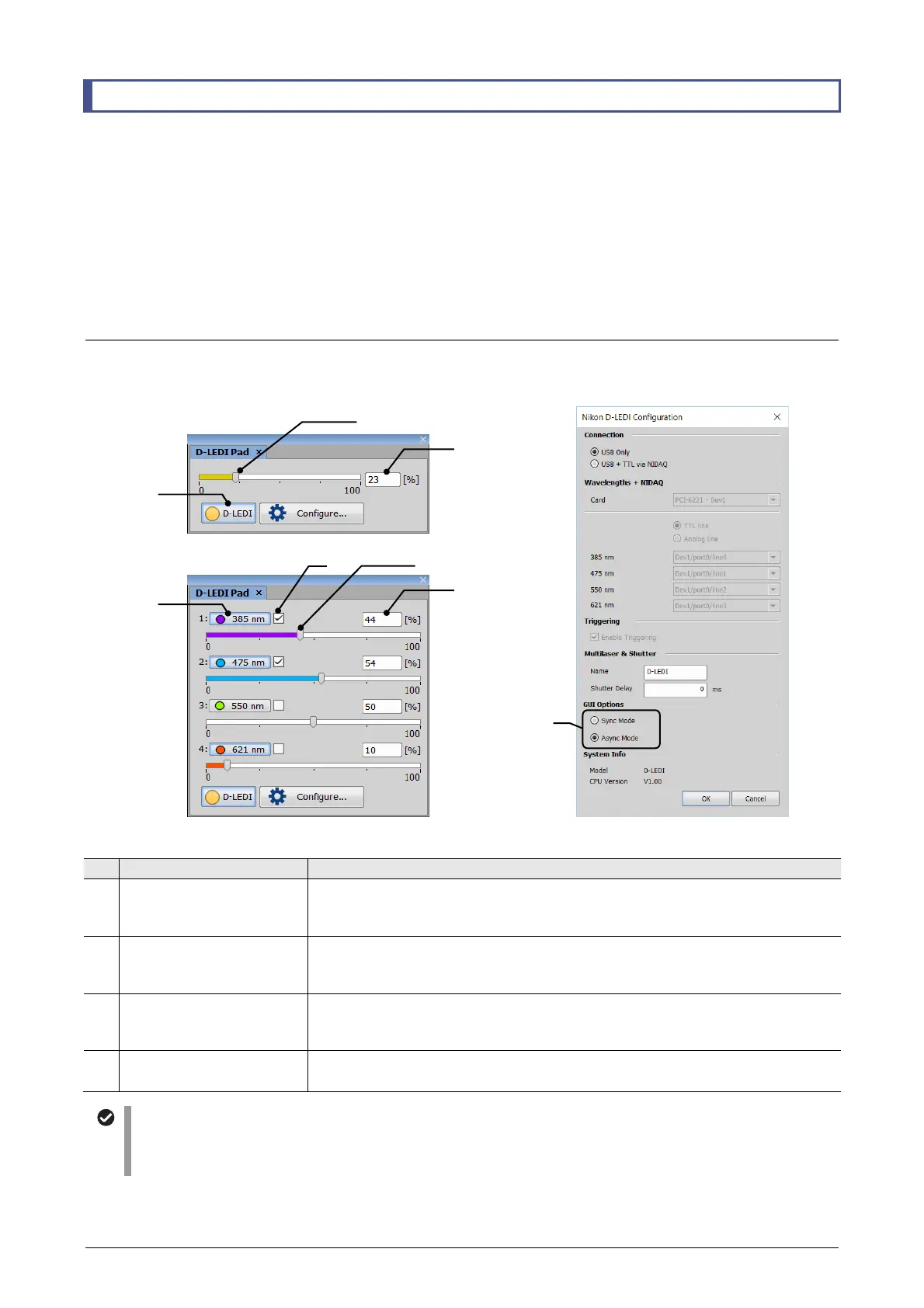
In NIS-Elements, the LED control dialog box is used to control the fluorescence LED illumination system. The
displays for the SYNC/ASYNC modes can be switched using the D-LEDI Configuration screen.
LED control dialog box
D-LEDI Configuration
No. Name/Description Function
1
Turn on/off button
Turns the LEDs on and off.
In the ASYNC mode, the wavelength of each LED is shown on this button. Clicking the
button turns the LED on and off. When the LED is off, the button is displayed as pressed.
2
Gang control check box
Select whether to maintain the relative luminance with other LEDs when controlling the
brightness of the LED.
Select this check box to control the brightness while maintaining the balance.
3
Brightness-controlling
scroll bar
Controls the brightness of the LED.
Move the scroll bar to the left or right to control the brightness in the range from 0 to 100%
(minimum step of 1%). The current brightness value is shown in the upper-right text box.
4
Brightness-setting text box
Displays the brightness of the LED.
You can also input a value here to directly specify a brightness value for the LED.
LED control dialog box
• For how to open the LED control dialog box, refer to the instruction manual for NIS-Elements.
• The display shown above indicates the status when the Light mode is selected. The default setting is the Dark
mode.
2
3
4
1
■ ASYNC mode
3
4
1
■ SYNC mode
Switching modes



 To Next Page