212 N The Retouch Menu: Creating Retouched Copies
3 Select the second image.
The selected image will appear as Image 1.
Highlight Image 2 and press J,
then select the second photo as described in Step 2.
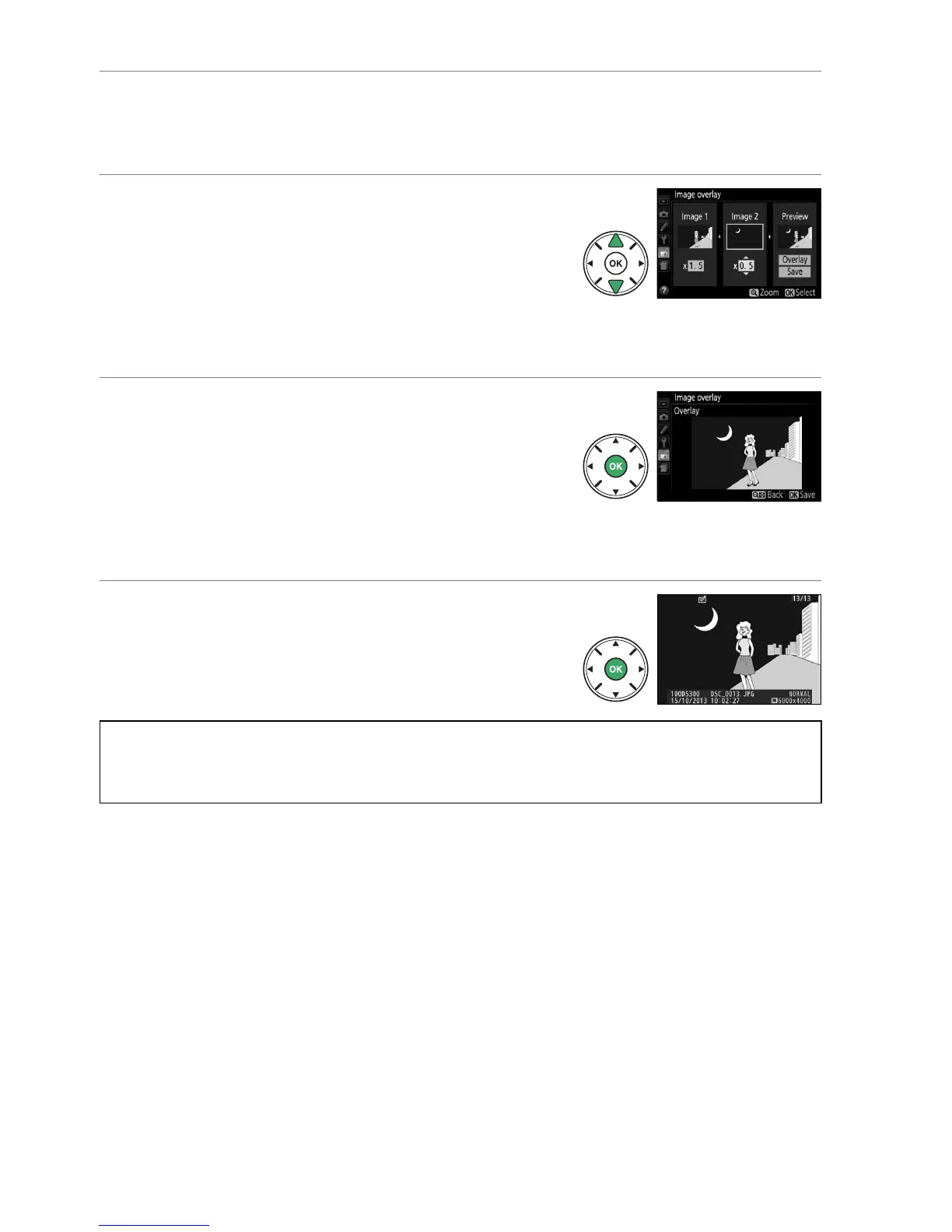
4 Adjust gain.
Highlight Image 1 or Image 2 and optimize
exposure for the overlay by pressing 1 or 3 to
select gain from values between 0.1 and 2.0.
Repeat for the second image.
The default value is
1.0; select 0.5 to halve gain or 2.0 to double it.
The
effects of gain are visible in the Preview column.
5 Preview the overlay.
Press 4 or 2 to place the cursor in the Preview
column and press 1 or 3 to highlight Overlay.
Press J to preview the overlay as shown at right
(to save the overlay without displaying a preview,
select Save).
To return to Step 4 and select new
photos or adjust gain, press W (Q).
6 Save the overlay.
Press J while the preview is displayed to save the
overlay.
After an overlay is created, the resulting
image will be displayed full-frame in the monitor.
D Image Overlay
Only NEF (RAW) photographs with the same bit depth can be combined (0 178).
The
overlay has the same photo info as the photograph selected for Image 1.



 To Next Page