21
Installing Nikon Scan on a Macintosh
Before installing Nikon Scan, turn your computer on and wait for it to start up. Check to make
sure that:
• The scanner is not connected to your computer
•Your computer satisfies the Nikon Scan 3 system requirements (see page 5 of the
Nikon Scan Reference Manual for details)
• No other applications (including anti-virus software) are running
Mac OS X
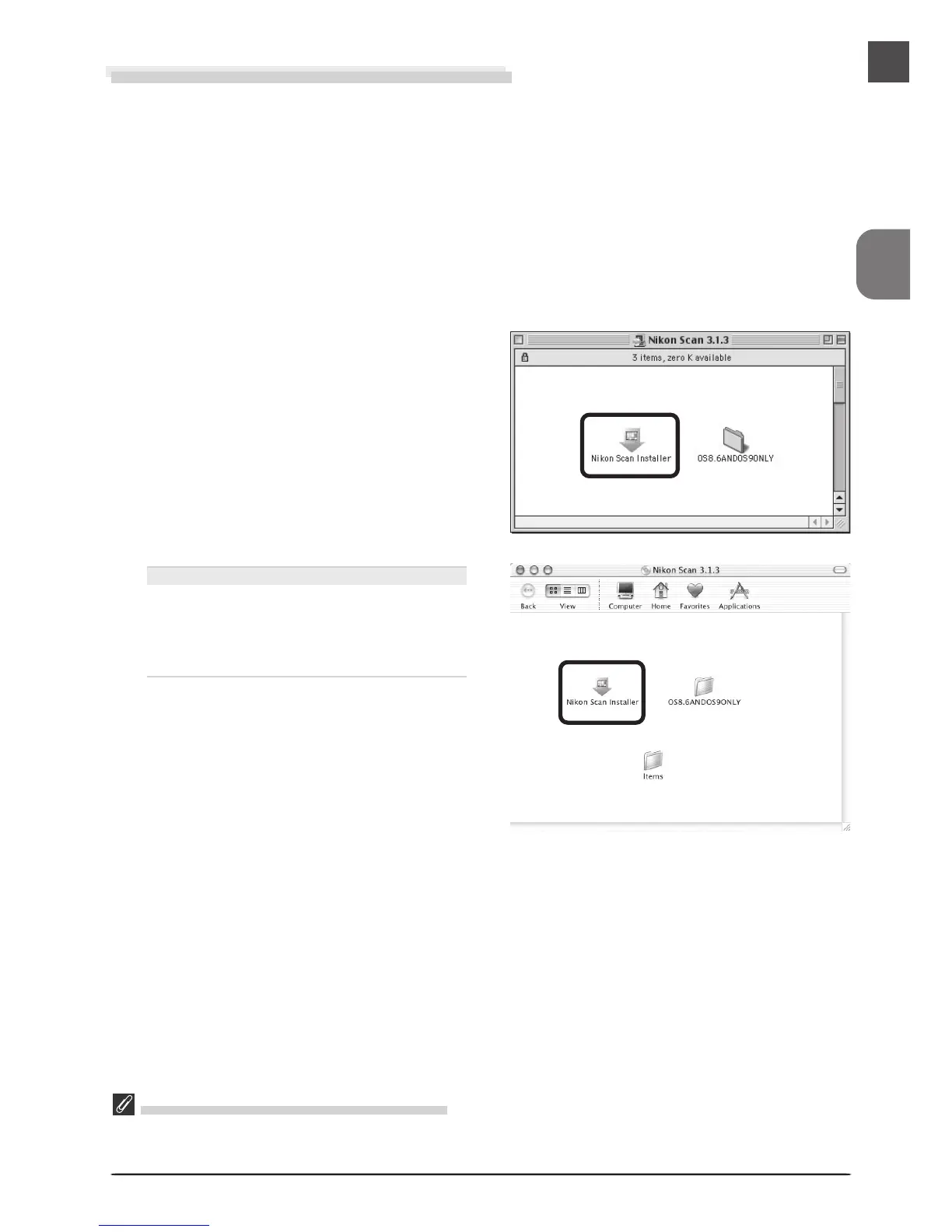
The Nikon Scan 3.1.3 window will open
on the desktop. Double-click the Nikon
Scan Installer icon for the language of
your choice.
Installation
1
Insert the Nikon Scan 3 CD into the
CD-ROM drive. When the Nikon Scan
3.1.2 window opens on the desktop,
double-click the Nikon Scan Installer
icon for the language of your choice.
Memory Requirements under Mac OS X
Running Nikon Scan 3.1.3 under Mac OS X requires a minimum of 256 MB of memory, of which 128 MB
are required by the operating system and the remainder by Nikon Scan 3.1.3.





 To Next Page