10.4.3 User Manual Contents April 17, 2020
Firmware: 5.2.1 Page 54 of 142
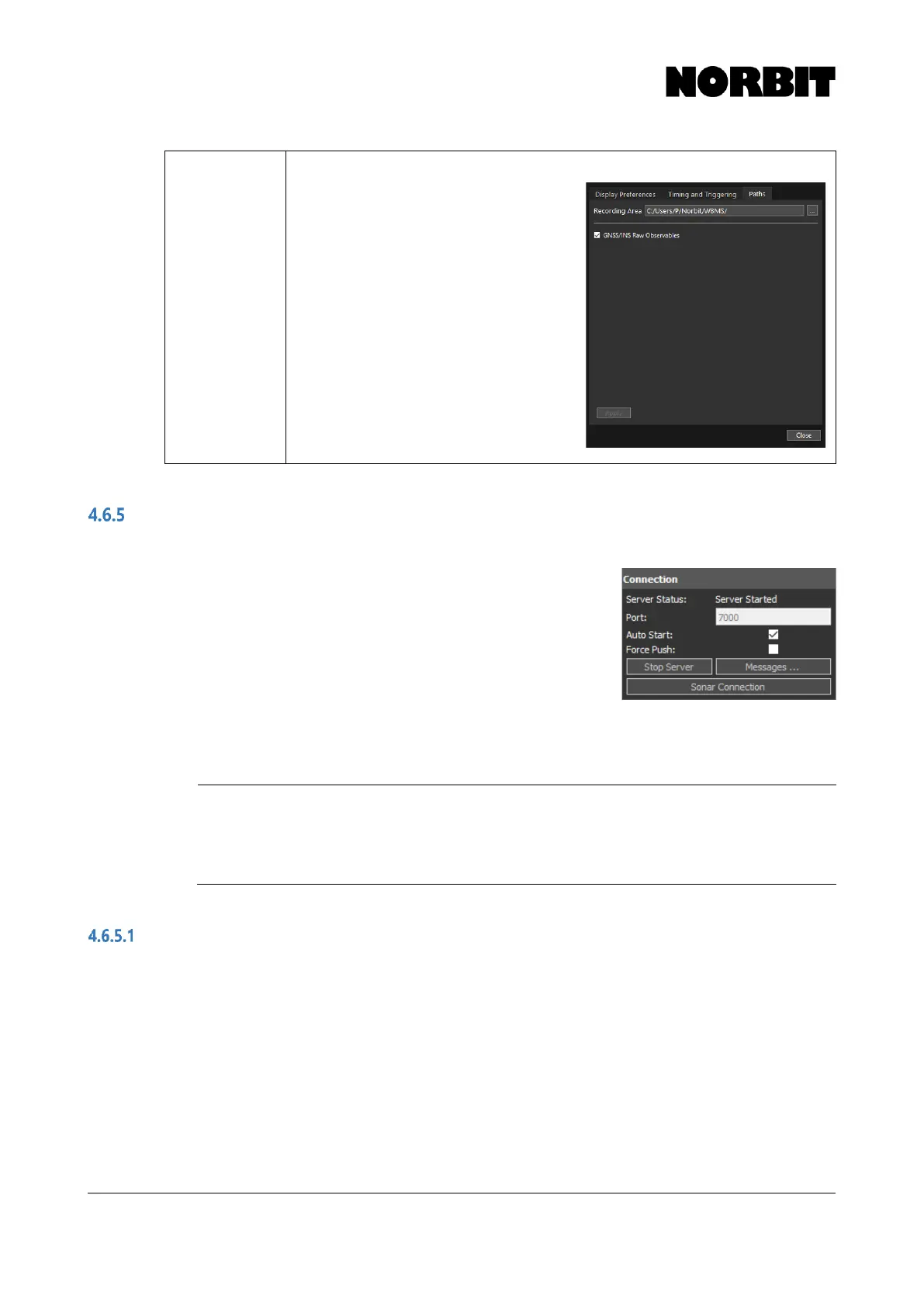
Paths
User can specify the folder path for
recording native NORBIT (*.wbm),
Applanix (*.000), and s7k (*.s7k) files. Each
respective format is stored in a different
folder, e.g. Applanix files are stored in the
Applanix Logs folder.
Users can choose to disable Applanix data
logging by deselecting GNSS/INS Raw
Observables. However, NORBIT
recommends that this option is always
enabled.
Note that the GUI must be closed/re-
opened when the recording path is
changed, otherwise data will continue to be
recorded to the previous location.
Connection
The WBMS operates in a native data format. To ensure compatibility with other data acquisition and
processing software, the system includes a proxy that translates
native WBMS data to the well-known s7k data format. The proxy
is therefore run from the GUI and is initiated automatically. The
connection can be reset should a conflict arise. If necessary, to
avoid conflict with other sensors, the Port number can also be
changed.
In a dual head configuration, the Port number set in the GUI
applies to the primary sonar only. The secondary sonar port is one
greater than the primary. For example, if the Port is set to 17000, the primary sonar will use port
17000, and the secondary sonar will use port 17001.
NOTE: Enable Force Push for PDS and EIVA Acquisition
To receive sonar and INS data into PDS or EIVA, the Force Push option
must be selected. HYPACK and QINSy users should ensure that this option
is deselected.
Connection Dialog & Connection State
Select Sonar Connection to open the Connection Dialog (described also in section 4.3). Selecting
Set Sonar Factory Defaults resets the sonar configuration but does not reset the integrated INS.
NORBIT recommends restoring factory defaults whenever a new version of the GUI or firmware is
installed. Note that, when this option is selected, raw GNSS/INS logging briefly terminates.
Connection State contains basic information about the current connection status. If any of the
indicators are red, action is required by the user. Such is the case in the example presented here,
which shows that the sonar is not loaded with the firmware expected by the GUI.
To shut down and disconnect the sonar, select Connection Dialog, select the sonar on the Known
Sonars List, and select Disconnect.



 To Next Page