For interrogating serial data, it is recommended to use 3rd party software. NORBIT recommends
using PuTTY, a free 3
rd
party telnet and SSH implementation for Windows. See section 9.1.1 for
instructions on using PuTTY
For Network Troubleshooting: The most common tool needed for the NORBIT is the “ping”
command executed using Windows command prompt. This command pings or checks the input IP
address and tests if a connection is present. This is useful for verifying whether NORBIT is
communicating with the PC and indicates whether the problem may be somewhere else down the
line. Should further investigation be needed, Wireshark is a good networking troubleshooting tool
and can be downloaded for free. For HYPACK, users Wireshark can be found in: C:\HYPACK
2014\Support\Utilities\
To Use the Ping Command: Open Command Prompt window by typing cmd into the Windows
search bar. In the command prompt type ping 192.168.53.XX. This example shows how to verify
the connection of the sonar to the computer. Keep in mind that the last 2 digits correspond to the
last 2 digits of the serial number of the unit in question. This also works for the internal Applanix INS
by typing ping 192.168.53.100.
To troubleshoot hardware issues, it is recommended that users have a digital multimeter on hand.
Multimeters are inexpensive and can be purchased at most electrical or hardware stores. Please
make sure that it includes a continuity test function. Some units have an audio indication for this test.
The two most useful functions for troubleshooting sonars are the continuity test and voltage indicator.
The continuity test helps identify broken cables or connections, while the voltage indicator helps
identify power related issues.
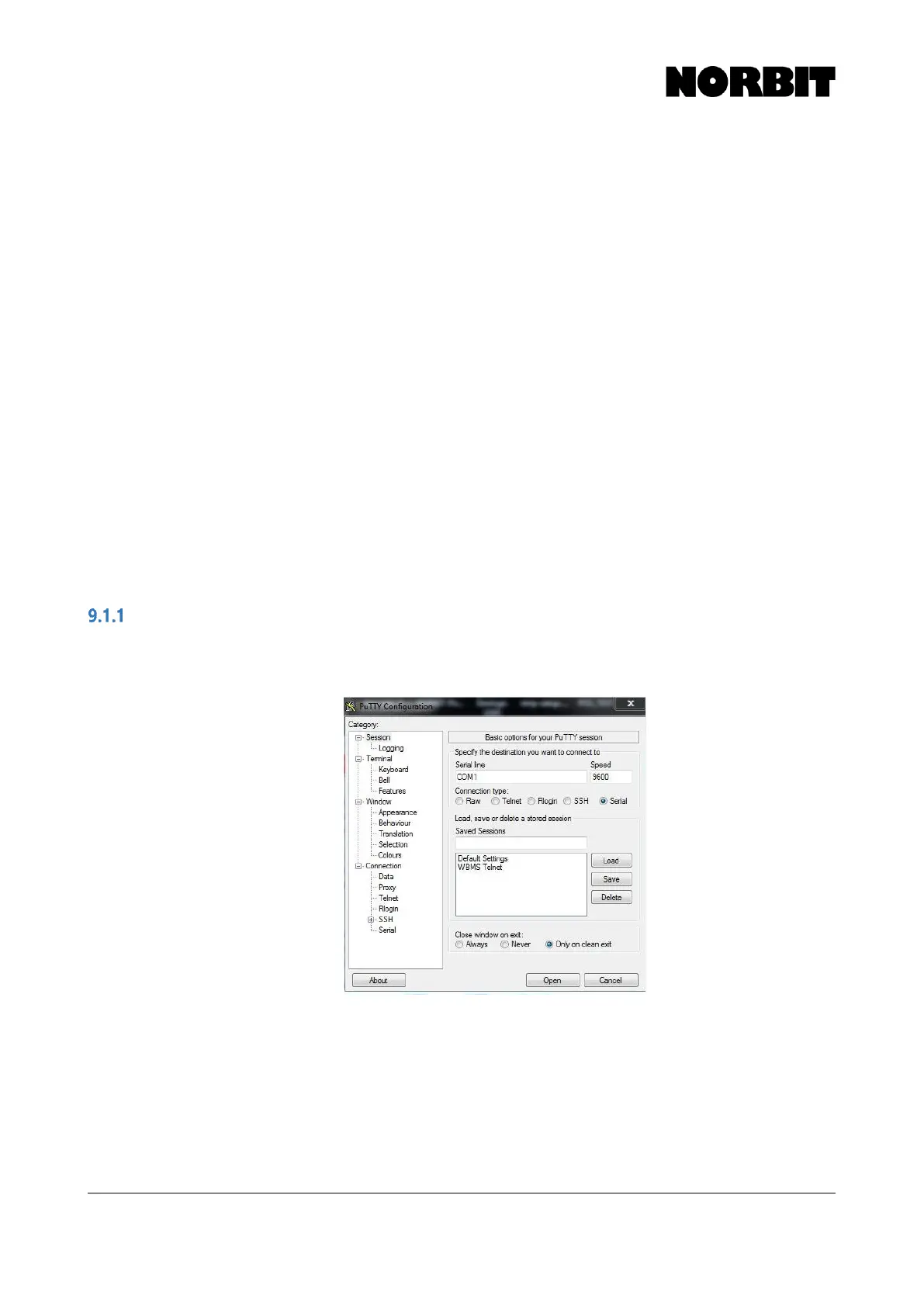
Configuring PuTTY for Serial Interrogation
Begin by changing the connection type to serial. Type in the relevant COM port number and
expected baud rate, referred to as Speed in PuTTY. Once the connection parameters have been
entered, click Open.
PuTTY then opens a command-style window and displays any data incoming on the specified port.
The example below shows several NMEA messages arriving on COM 4:



 To Next Page