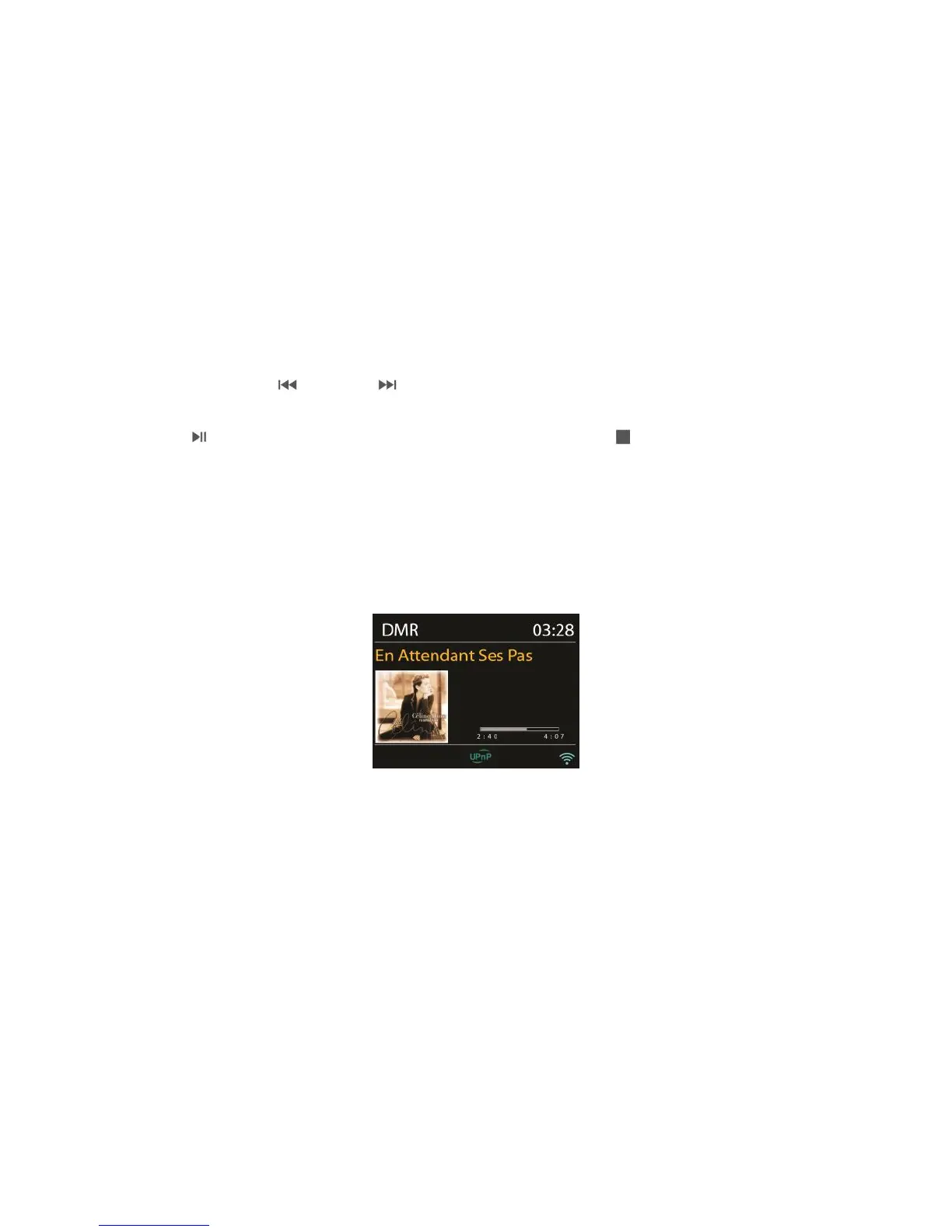
the information:
UPnP: track/artist/progress bar/track times, album, codec/sampling rate, playback
buffer and today’s date.
5.5.4 USB playback
From this point on, menus are generated from the folders on the USB device. Browse
folders with direction keys on the remote control. The display shows folder and file
names (not necessarily track names).
Once you have found a track you want to play, press OK on the remote control. A short
press plays the track immediately.
You can use or to play the previous or next track, press and hold to
rewind or fast forward. press and hold to rewind or fast forward (x1, x2, x4). Press
on the remote control to play or pause. Press on the remote control
to stop playback and return to the music list.
The USB port is just for music playback, no charging function.
5.6 DMR (DLNA Streaming)
Shared music in Section 5.5.1 is a way of music streaming which you look for the music list and
control playback from A120+. This topic will introduce another way to do the music streaming
which is not necessary to control playback on A120+.
You can share the music files from PC, Android mobile or tablet, and directly use your PC,
Android mobile, tablet or iPhone / iPad to control music playback on the A120+. It is simple
called DLNA streaming.
5.6.1 Control on PC
The PC system requirements for DLNA are Windows 7 and Windows Media Player
12. Setup as below:
Firstly, share the media on your PC to A120+.
Control Panel > Network and Internet > Network and Sharing Center > Media
streaming options


 To Next Page