EasyManua.ls Logo

Noxon A120 Plus - User Manual

Noxon A120 Plus
33 pages
Print Icon
To Next Page IconTo Next Page
Loading...
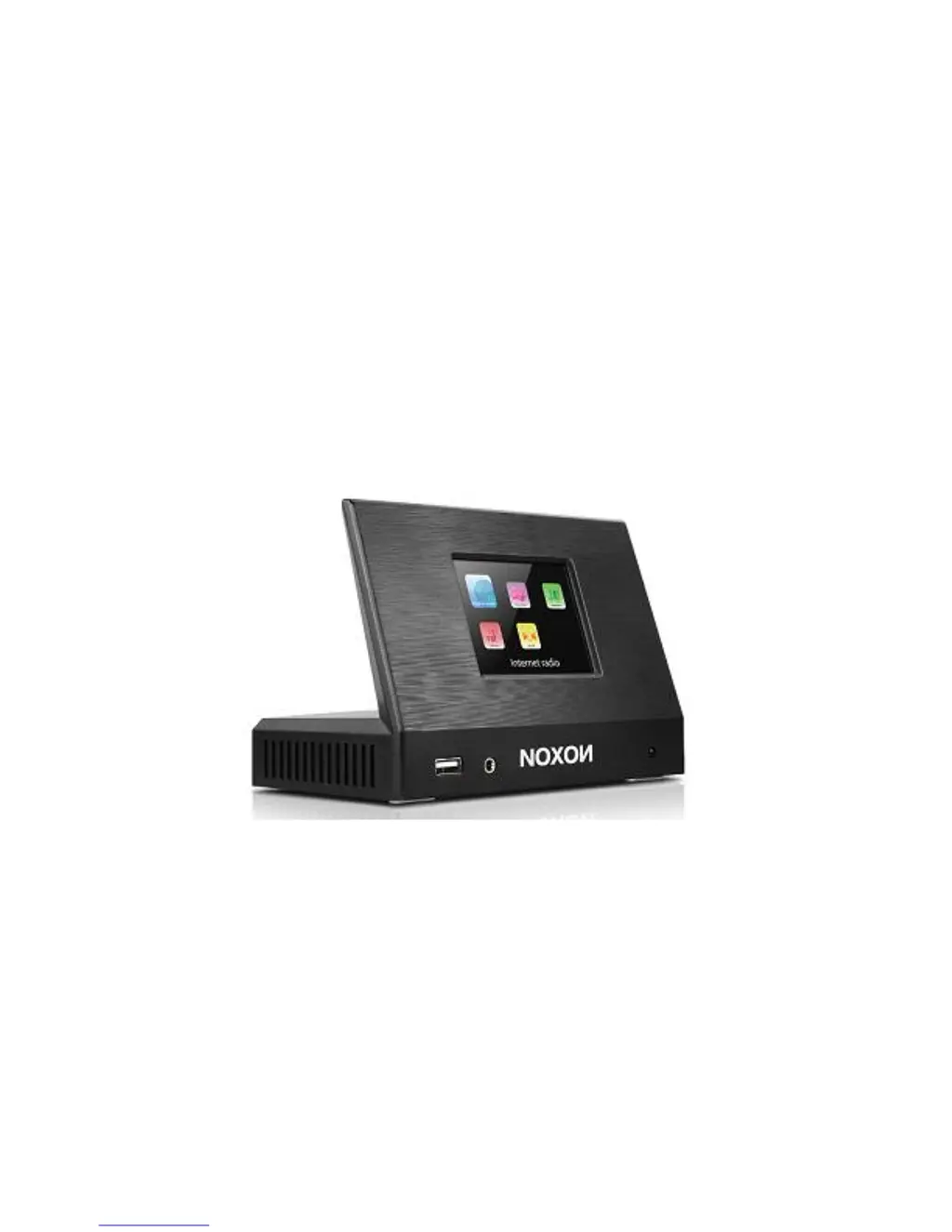
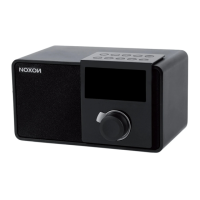
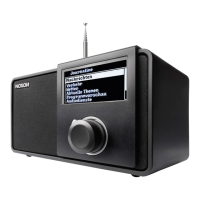
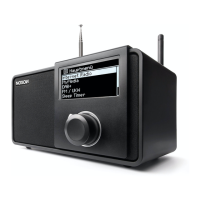
Internet Radio with FM/DAB/DAB+/FM
Adaptor
A120+
User Manual
Thank you very much for buying the A120+. In order to let you freely operate the product and
fully enjoy the overbalancing happiness it brings you, we have introduced each function of the
player in detail in this user manual. Please carefully read this user manual before use and keep
for future reference.

Questions and Answers

Summary

Network Connectivity Requirements

Device Safety Precautions

General Safety Guidelines

General safety instructions for the device, covering drops, moisture, dust, vibrations, disassembly, and ventilation.

Power Adapter Usage and Safety

Instructions for using the provided power adapter, socket accessibility, and voltage checks.

High Volume Listening Risks

Advises on reducing volume before using headphones and avoiding prolonged high-volume listening.

Maintenance and Cleaning Procedures

Proper Product Disposal

Device Appearance and Key Identification

Components and Port Descriptions

Identifies and describes the key physical components, ports, and their functions on the device.

Remote Controller Operation

Battery Installation and Safety Warnings

Details on how to insert the battery and warnings about chemical hazards and ingestion.

Initial Setup and Getting Started

Package Contents List

Lists all items included in the product packaging.

Connecting and Network Setup Guide

Guide on connecting antennas, audio cables, power, and preparing the network environment.

Initial Setup Wizard and Basic Operation

Setup Wizard Guidance Steps

Explains the initial setup wizard prompted upon first operation and network connection.

Basic Device Operation Controls

Describes how to enter standby mode, adjust volume, and mute sound using the remote.

A120+ Core Functions Overview

Main Menu Navigation Methods

Explains how to navigate and select different modes from the main menu using the device or remote.

System Settings Introduction

Introduces the system settings section for configuring the device.

Setup Wizard Detailed Steps

Details the steps and options available within the device's setup wizard.

System Settings - Time, Date, and Network Configuration

Time and Date Configuration Options

Configuration of time format, auto-update sources, time zone, and daylight saving options.

Manual Time Update Procedure

Process for manually setting the date and time values using the remote control.

Network Region Selection and Scanning

Information on network configuration, including WLAN region selection and scanning for available networks.

Network Connection Methods Explained

Standard Encrypted Network Connection

Steps for entering the network key using the on-screen keyboard and navigation controls.

WPS Encrypted Network Connection

Methods for connecting to WPS-enabled networks via push button or PIN entry.

Network Setup Completion and Equalizer Settings

Network Connection Status Feedback

Indicates the outcome of the network connection process and how to exit the wizard.

Equalizer Audio Settings

Explains the available preset EQ modes and the option for custom user-defined settings.

Advanced Network Configuration Options

Network Wizard and PBC Setup

Guides through searching SSIDs, connecting with keys/WPS, and PBC setup for APs.

View and Manage Network Settings

Checking connection details, selecting WLAN region, manual settings, and managing network profiles.

Keep Network Connected Option

Option to maintain WiFi connection in standby mode for readiness, e.g., DLNA streaming.

System Settings - Time, Language, Updates, and Display

Time;Date, Language, and Factory Reset

Setting time/date, language, and how to perform a factory reset.

Software Updates and Device Information

Procedure for checking/installing software upgrades and viewing firmware version/radio ID.

Backlight and Standby Clock Format Adjustment

Adjusting screen backlight and changing the standby clock display.

Internet Radio Operation and Management

Internet Radio Interface Navigation

Navigating the Internet Radio menu, including last listened stations, station lists, and system settings.

Last Listened Stations Access

Accessing and selecting recently played Internet radio stations.

Station List Browsing and Searching

Browsing and searching for stations by category, location, genre, or keyword.

Managing Favourite Internet Radio Stations

Registering the device with the portal to use favourite stations and add custom ones.

Internet Radio Portal Registration and Presets

Portal Registration and Access Code Retrieval

Obtaining an access code from the device to register it on the Wi-Fi radio portal.

Adding Custom Radio Stations

Adding custom radio stations not found in the portal's default lists.

Storing and Selecting Radio Presets

Saving and selecting favourite stations using preset buttons on the remote control.

Now Playing Radio Stream Information

Displaying and cycling through detailed information about the currently playing radio stream.

Spotify Connect and Media Player Functionality

Using Spotify Connect for Streaming

Steps to set up and use Spotify Connect for streaming music from a Spotify Premium account.

Media Player Overview and Interface

How to play audio files from a computer on the local network using various formats.

Media Player Menu Navigation

Navigating the Media Player menu, including shared media, USB playback, and playlist options.

Media Player Shared Media and Playback Controls

Shared Media Access and Playback

Browsing shared media folders, selecting media types (Music, Video, Playlists), and playing tracks.

Repeat and Shuffle Playback Modes

How to enable repeat or random playback modes for music tracks.

Now Playing Media Information Display

Displaying track details, artist, and progress information for the playing media.

USB Media Playback and DLNA Streaming

USB Media Playback Instructions

Playing audio files from a USB storage device, noting the port is for playback only.

DLNA Streaming Overview and Benefits

Introduction to DLNA streaming, enabling music playback control from various devices to the A120+.

PC Control for DLNA Streaming

Steps for setting up DLNA streaming and controlling playback from a Windows PC.

PC DLNA Setup and Music Streaming

Media Streaming Options Configuration

Configuring sharing settings in Windows to allow remote control of media playback.

Stream Music via Windows Media Player

How to select music in Windows Media Player and stream it to the A120+ device.

Smartphone;Tablet DLNA Control and DAB Radio

DLNA App Usage for Music Streaming

Steps for using DLNA apps like iMediaShare to select the A120+ as a player and stream music.

DAB Radio Reception and Display

How the device receives DAB/DAB+ digital radio and displays station and track information.

Scanning for Available DAB Stations

Performing a scan to find available DAB radio stations and updating the station list.

DAB Station Management and Presets

DAB Station Scanning and Selection Methods

Options for full scan, local scan, pruning invalid stations, and selecting stations from the list.

DAB Presets Storage and Recall

Storing and recalling favourite DAB+ stations using preset functions.

DAB Now Playing Information Display

Displaying real-time information like programme name, track title, and DLS text for DAB broadcasts.

DAB Settings and FM Radio Functionality

DAB Settings: DRC and Station Order

Adjusting audio compression and choosing station listing order for DAB.

FM Radio Reception and RDS Information

How the device tunes into FM stations and displays Radio Data System information.

FM Presets, Information, and Bluetooth Connectivity

FM Presets and Now Playing Information

Saving and selecting favourite FM stations and viewing broadcast information.

FM Settings: Scan and Audio Options

Adjusting FM scan behavior and options for weak reception mono playback.

Bluetooth Pairing and Music Playback

Steps for pairing the A120+ with smartphones/tablets and controlling music playback.

Sleep Timer and Alarm Settings

Sleep Timer Functionality

Setting a sleep timer to automatically turn off the device after a specified period.

Alarm Configuration and Settings

Setting alarm parameters like enable, frequency, time, mode, preset, and volume.

Extra Features and External Connectivity

Headphone Jack Usage and Volume Control

Using the headphone jack for private listening, with advice on volume adjustment.

External Audio Output Options

Connecting the device to external HiFi speaker systems using RCA, Coaxial, or Optical cables.

NetRemote App Control for Device Functions

Using the UNDOK app on smartphones/tablets to remotely control the A120+ functions.

NetRemote App Control - General Usage and Modes

App Connectivity and Automatic Reconnection

Initial connection and automatic reconnection of the app with the device for simultaneous control.

Selecting Device Modes via App

Selecting different device modes (Internet Radio, Spotify, Music Player, DAB, FM) through the NetRemote app.

Browsing Stations and Content via App

Using the app to browse station lists, choose stations, and view rolling text information.

NetRemote App Control - Specific Mode Operations

Spotify Connect Control via App

Controlling Spotify music streaming from the app, selecting the device for playback.

Media Player Control via App

Browsing shared media files and selecting music for playback using the app.

DAB Radio Control via App

Browsing scanned DAB+ stations and selecting them for playback through the app.

NetRemote App Control - FM Radio and Settings

FM Radio Control and Device Settings via App

Controlling FM radio, standby, equalizer, PIN change, and rename functions from the app.

RadioVIS Slideshows Information

Information about RadioVIS channels for broadcasters delivering internet slideshows.

Troubleshooting Common Problems

Power and Sound Output Issues

Checks to perform if the device fails to power on or if no audio output is heard.

Network Connection Troubleshooting Steps

Troubleshooting steps for problems establishing Wi-Fi or wired network connections.

Station Finding and FM Hiss Resolution

Solutions for when no stations are found or when experiencing hiss during FM reception.

DAB, Alarm, and USB;MP3 Issues

Troubleshooting for DAB mode problems, alarm function, or USB/MP3 player detection.

Troubleshooting Advanced Issues

NetRemote Connection Problems Resolution

Steps to troubleshoot when the NetRemote app fails to show or connect to the A120+.

System Malfunction and Interference Handling

Advice on rebooting for system freezes and handling electromagnetic or radio interference.

Detailed Technical Specifications

Model, Display, Network, and Frequency Specifications

Lists model, description, display, network types, frequency bands, and radio frequency power.

Streaming, Playback Formats, and Radio Bands

Information on streaming protocols, playback formats, encryption keys, and DAB/FM bands.

Power, Operating Conditions, and Connections Summary

Details on power adapter, standby consumption, operating temperature, connections, dimensions, and weight.

Power Adaptor Technical Details

Manufacturer, type, input voltage, and output specifications for the power adapter.

Usage, Compliance, and Warranty Information

Wi-Fi Usage and EU Designation Notes

Notes on Wi-Fi operation frequency and its designation for household environments within EU counties.

CE Conformity and WEEE Directives Information

Information sources for CE Conformity and Waste Electrical and Electronic Equipment directives.

Warranty Terms and Claims Process

Details on the warranty period, claim process, and necessary proof of purchase.

Manufacturer Contact and Location Details

Contact details and address for the device manufacturer, Palotec AG.

Noxon A120 Plus Specifications

General IconGeneral
BrandNoxon
ModelA120 Plus
CategoryRadio
LanguageEnglish

Related product manuals